
Why Does Your Private Cloud Work on Wi-Fi but Fail on Mobile Data?


A private cloud can work perfectly on home Wi-Fi and still fail on mobile data. That usually does not mean the private cloud app is broken. It means your phone is using a different network path.
At home, the phone can reach a local IP address, a local hostname, or a LAN-only discovery service. On mobile data, the phone must reach your private cloud through a public domain, public IP, VPN, tunnel, or another remote access path. If DNS, routing, certificates, trusted domains, firewall rules, or carrier behavior are wrong, Wi-Fi works while mobile data fails.
Wi-Fi and Mobile Data Reach Your Private Cloud in Different Ways
The symptom is familiar: your private cloud app works on home Wi-Fi, photo backup runs normally, file sync connects, and the web UI opens from your phone. Then you switch to 5G or LTE and see timeout, cannot connect, login failed, certificate error, or an app that keeps spinning.
On Wi-Fi, your phone and private cloud are inside the same LAN. The connection may use a local address such as 192.168.1.50, a local hostname, or automatic discovery. On mobile data, your phone is on the carrier network. It must reach your home server through a remote path, not the same local route.
Wi-Fi success only proves the local path works. Mobile data failure means the external path is missing, blocked, misconfigured, or incompatible with the mobile network. Troubleshooting should separate internal access from external access instead of treating them as one connection.
| On Home Wi-Fi | On Mobile Data |
| Uses LAN IP or local hostname | Needs public domain, VPN, or tunnel |
| Router sends traffic inside LAN | Traffic crosses carrier and public internet |
| mDNS or local discovery may work | Local discovery usually fails |
| Local certificate may be accepted | Public TLS name must match |
| App may find the server automatically | App needs a reachable external URL |
| Firewall may trust LAN traffic | External traffic may be blocked |
The App May Be Using a Local Address That Only Works at Home
The most common cause is also the simplest. The private cloud app may be saved with a URL such as http://192.168.1.50:8080, https://cloud.local, https://nas.local, or a router-assigned device name. Those addresses can work at home and fail everywhere else.
Private IPv4 ranges such as 10.x.x.x, 172.16–31.x.x, and 192.168.x.x are intended for private networks. A local-only private address is not a public internet destination, so your phone cannot reach it directly while on mobile data.
If the mobile app is using a LAN-only URL, do not start by changing random firewall settings. First decide whether mobile access should use a public domain, a VPN or mesh VPN, or a tunnel. Without one of those paths, the phone is trying to reach an address that only exists inside your house.
Internal URL and External URL Are Often Mixed Up
Many private cloud setups end up with two identities. The internal URL works at home, such as http://192.168.1.50:8080. The external URL is supposed to work from outside, such as https://cloud.example.com or a tunnel hostname.
Those two names may point to the same service, but they are not the same access design. The internal URL may use a private IP, local DNS, or a self-signed certificate. The external URL may require public DNS, HTTPS, a reverse proxy, port forwarding, VPN routing, or a tunnel.
Problems appear when bookmarks, mobile apps, sync clients, and browser shortcuts mix these identities. For mobile data, use the external URL if the service is meant to be reachable from outside. If you want to keep everything private, connect through VPN first and then use the LAN address.
DNS May Resolve Correctly on Wi-Fi but Fail on Cellular
A domain can work at home and fail on mobile data because the phone is asking a different DNS system. At home, your router, Pi-hole, AdGuard Home, or local DNS server may resolve cloud.example.com to an internal IP. On mobile data, the carrier DNS or public DNS may return a different answer or no answer at all.
This is common in split DNS setups. Inside the LAN, the domain points to the private address for speed and simplicity. Outside the LAN, it must point to a public IP, VPN-accessible name, or tunnel endpoint. If the external record is missing or stale, the phone cannot find the service.
Do not assume a domain is correct just because it works on Wi-Fi. Test the same domain on mobile data and confirm where it resolves. If internal and external DNS results are intentionally different, document that design so app settings do not accidentally use the wrong name.
Trusted Domains, Base URLs, and Reverse Proxies Can Reject Mobile Access
Sometimes the mobile request reaches the server, but the app still fails. You may see an untrusted domain warning, invalid host error, login failure, redirect loop, or a WebDAV sync problem. That usually means the path reached the private cloud, but the application does not trust the name or proxy headers it received.
Private cloud software often needs explicit hostname and URL settings. Nextcloud’s configuration reference includes trusted domain and base URL settings, and its reverse proxy documentation covers reverse proxy URL detection when automatic hostname, protocol, or webroot detection fails.
If mobile data loads the login page but login, redirects, sync, or sharing links fail, check the app configuration. The external hostname should be trusted, the public URL should match what users enter, proxy headers should be correct, and HTTP-to-HTTPS redirects should not send the app back to a private LAN address.
HTTPS Certificates Often Reveal the Wrong Access Design
Wi-Fi access may work with a self-signed certificate, an internal hostname, or a browser warning that you manually accepted months ago. Mobile apps can be stricter, especially when syncing files, photos, calendars, or WebDAV data in the background.
HTTPS certificates are tied to names. If the app connects to 192.168.1.50, cloud.local, or a different hostname from the certificate, mobile clients may reject the connection. If a reverse proxy changes the hostname or protocol incorrectly, the app may also fail after login.
A clean external setup uses one stable public domain with a valid certificate and a matching reverse proxy configuration. A clean private setup uses VPN or mesh VPN first, then internal access. Mixing IP addresses, local names, public names, and mismatched certificates is what makes mobile access unreliable.
Port Forwarding, VPN, or Tunnel Must Provide the Mobile Path
A private cloud does not automatically become reachable from mobile data just because it works on Wi-Fi. Outside traffic needs an intentional path into the home network or to the service endpoint.
There are three common patterns. Port forwarding sends specific public traffic through the router to the private cloud. A VPN or mesh VPN lets the phone join a private network first. A reverse tunnel lets the server create an outbound connection to a public endpoint, then mobile devices connect through that endpoint.
For personal private cloud access, VPN or mesh VPN is usually the safer first choice. For sharing a service directly with others, a public domain with HTTPS, reverse proxy, and careful access control may be appropriate. For CGNAT or locked-down routers, a tunnel can be more practical than port forwarding.
| Cause | What You See on Mobile Data |
| Local IP in app | Immediate timeout or unreachable |
.local hostname |
DNS error or server not found |
| Wrong external DNS | Connects to wrong IP or fails |
| No port forwarding, VPN, or tunnel | Timeout from outside |
| CGNAT at home ISP | Port forwarding seems correct but still fails |
| Bad HTTPS certificate | App refuses connection |
| Trusted domain missing | Login page loads but app rejects host |
| Reverse proxy misconfig | Redirect loop or WebDAV failure |
| IPv6/IPv4 mismatch | Works on Wi-Fi but fails on some carriers |
| App-specific mobile behavior | Browser works but app fails |
CGNAT Can Make Port Forwarding Look Correct but Still Fail
CGNAT is frustrating because the home setup can look correct. The private cloud works on Wi-Fi. The server firewall allows the port. The router has a forwarding rule. But mobile data still cannot reach the service.
The problem is that your router may not have a real public IPv4 address. RFC 6598 reserves 100.64.0.0/10 as shared address space used for CGNAT. When your ISP places your router behind carrier-grade NAT, outside traffic may never reach your home router, so your port forwarding rule has nothing to forward.
Compare the WAN IP shown on your router with the public IP shown by an external IP-checking site. If they do not match, or if the WAN address falls into shared or private ranges, classic port forwarding is probably the wrong solution. Use a public IP option from the ISP, a mesh VPN, or a reverse tunnel instead.
Mobile Networks Can Add IPv6 and Carrier-Specific Problems
Some problems appear only on mobile data. The same private cloud may work from another Wi-Fi network but fail on 5G or LTE. Or one carrier works while another does not. That points beyond the home router.
Mobile networks may use IPv6-only designs, NAT64, CGNAT, carrier DNS, APN policies, filtering, or proxy behavior. Apple’s guidance on IPv6-only mobile network compatibility is a reminder that mobile networks may not behave like a normal dual-stack home LAN, especially if an app or server assumes IPv4-only behavior.
If mobile data is the only failing path, test more than one angle. Try the same URL in a mobile browser, test another carrier or hotspot, check A and AAAA DNS records, confirm whether the server supports the address family being used, and try VPN over mobile data. If VPN works, the private cloud itself is likely fine; the public mobile path is the issue.
Mobile Apps May Behave Differently from Browsers
A phone browser and a mobile app do not always behave the same way. The browser may open the login page, while the app fails to sync. Or the app may work on Wi-Fi because it discovers the server locally, but fail on mobile data because discovery is no longer available.
Mobile apps may cache an old server URL, require HTTPS, reject certificate mismatches, use a WebDAV or API endpoint different from the browser page, restrict background data, or follow redirects differently. Some apps also store separate internal and external server addresses without making that obvious.
Always test both paths. Open the external URL in the phone browser while on mobile data, then test the app. If the browser fails too, the problem is probably DNS, routing, TLS, CGNAT, or tunnel setup. If the browser works but the app fails, focus on app URL settings, trusted domains, certificates, WebDAV/API paths, and app cache.
VPN or Mesh VPN Often Fixes the Problem by Restoring the LAN Path
If the private cloud works on Wi-Fi but not mobile data, a VPN can be a clean solution because it changes the phone’s position. Instead of reaching the private cloud as a random outside client, the phone first joins a private network.
Mesh VPN tools may use direct or relay paths depending on the networks involved. Tailscale documents private access through direct or relayed connections, which is useful context when a mobile device needs to reach a home server without exposing the private cloud directly to the internet.
For personal access, this is usually the least confusing model. The app can use the internal LAN address or a private DNS name after the VPN is connected. The private cloud stays off the open internet, and the mobile device authenticates before reaching internal services.
Reverse Tunnels Help When You Need an External URL Without Opening Ports
A reverse tunnel is useful when you cannot or do not want to open inbound ports on your router. This is common with CGNAT, locked-down ISP routers, apartment internet, or users who prefer not to expose the home router directly.
Cloudflare Tunnel uses an outbound tunnel for remote access, where the connector inside your network initiates the connection outward. Mobile devices then access a public hostname that routes back through the tunnel.
This can make mobile data access easier, but it should still be configured carefully. Use access policies, HTTPS, narrow service exposure, and separate admin interfaces from public user-facing services. A tunnel solves reachability; it does not automatically solve permissions or app configuration.
A Practical Troubleshooting Order
This problem becomes messy when DNS, router rules, certificates, app settings, and mobile networks are all changed at once. A better approach is to test one layer at a time.
Start by writing down the exact URL that works on Wi-Fi. Decide whether it is a private IP, local hostname, or public domain. Then turn off Wi-Fi and test the same URL on mobile data. Next, test the intended public domain, check public DNS, compare router WAN IP with public IP, confirm whether you are using port forwarding, VPN, or tunnel, then check TLS certificate and trusted domain settings.
The result usually points to the layer. If browser and app both fail, focus on DNS, public path, CGNAT, certificate, or tunnel. If browser works but app fails, focus on app configuration, trusted domains, WebDAV/API endpoints, redirects, and cached server URLs. If VPN over mobile data works, the private cloud is healthy; the external path is the problem.
| Step | Check | What It Tells You |
| 1 | Is the saved URL local? | LAN-only addresses fail on cellular |
| 2 | Does public DNS resolve? | Confirms the external name exists |
| 3 | Does the router have a public IP? | Detects CGNAT issues |
| 4 | Is there a remote path? | Port forward, VPN, or tunnel |
| 5 | Does HTTPS match the domain? | Finds certificate mismatch |
| 6 | Is the hostname trusted by the app? | Finds private cloud config errors |
| 7 | Browser vs mobile app test | Separates network from app issues |
| 8 | Test another carrier or network | Detects cellular-specific issues |
| 9 | Try VPN over mobile data | Confirms the private LAN path works |
| 10 | Check server logs | Shows whether requests arrive |
The Safer Default Is One Clear Remote Access Pattern
Private cloud access becomes unreliable when there are too many half-working entrances: a LAN IP, a local hostname, a DDNS name, a tunnel URL, an old app URL, a reverse proxy hostname, and a bookmark that nobody remembers creating.
Choose one main pattern. For personal access, local-only plus VPN is often the cleanest. For direct app access from outside, use one public domain, valid HTTPS, correct trusted domain settings, and a secure reverse proxy or tunnel. For CGNAT, use a tunnel or mesh VPN instead of fighting port forwarding.
The fewer entry points you maintain, the easier the phone setup becomes. A private cloud should not need a different mystery URL for every network. Stable naming, matching certificates, and a clear access method are what make Wi-Fi and mobile data behave consistently.
Final Takeaway
If your private cloud works on Wi-Fi but fails on mobile data, the private cloud itself may be fine. Wi-Fi uses a local path. Mobile data needs a remote path. The failure is usually caused by a local-only URL, DNS mismatch, missing port forwarding, VPN, or tunnel, CGNAT, TLS certificate mismatch, trusted domain configuration, IPv6/IPv4 behavior, or mobile app differences.
Start by checking what URL the app uses, whether that URL is local or public, whether public DNS resolves, whether the router has a real public IP, and whether HTTPS and trusted domains match the external name. For personal access, VPN or mesh VPN is usually the cleanest solution. For direct external access, use a consistent public domain, valid certificate, and carefully secured path.
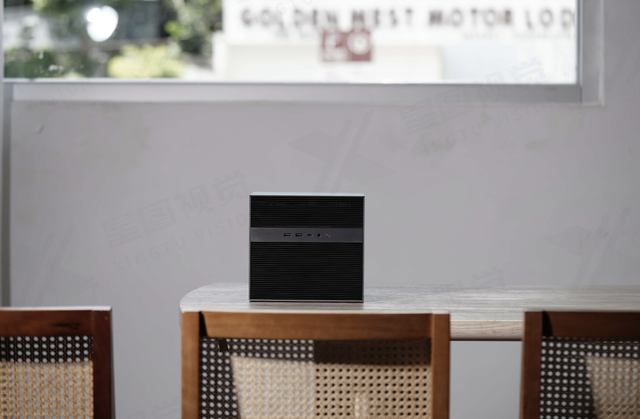
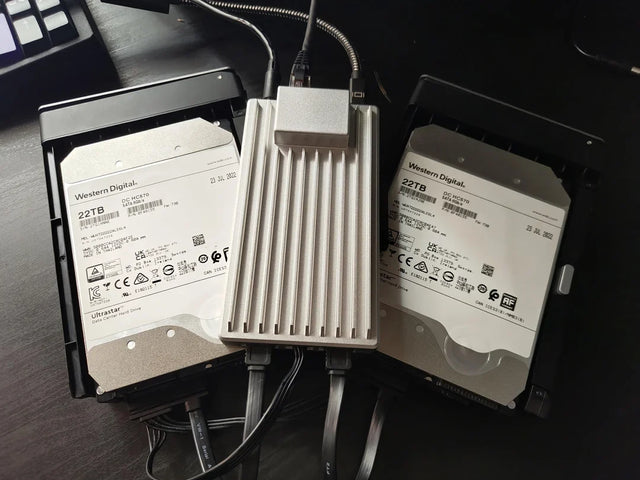
A reliable private cloud NAS can host files, photos, sync, backups, and remote access services, but mobile data access still depends on the network path, domain, certificate, and app configuration around it.
FAQ
Why does my private cloud work on Wi-Fi but not on mobile data?
Wi-Fi uses your local network, where private IP addresses and local hostnames can work. Mobile data uses the carrier network, so it needs a public domain, VPN, tunnel, or another external access path.
Can I use 192.168.x.x on mobile data?
No. A 192.168.x.x address is private and only works inside your local network. To use it from mobile data, connect to your home network through VPN or mesh VPN first.
Why does my domain work at home but not on cellular?
Your home Wi-Fi may use local DNS that points the domain to a private IP. On cellular, the phone uses public or carrier DNS, which may not have the same record or may point to the wrong endpoint.
Why does the browser work but the mobile app fails?
The app may use a different API or WebDAV path, cache an old URL, require a trusted domain, reject a certificate, or handle redirects differently from the browser.
Does CGNAT affect private cloud access from mobile data?
Yes. If your home ISP uses CGNAT, port forwarding may never reach your router. In that case, use a public IP option, VPN/mesh VPN, or a reverse tunnel.
Can IPv6 cause mobile data access problems?
It can. Some mobile networks use IPv6-only or IPv6-preferred paths. If your domain, app, or home server is IPv4-only or has incorrect DNS records, mobile data may behave differently from Wi-Fi.
Is VPN better than opening ports for a private cloud?
For personal access, usually yes. VPN or mesh VPN keeps the private cloud off the open internet and lets trusted devices access it as if they were on the home LAN.
What should I check first?
Check the URL saved in the app. If it is a local IP or .local hostname, it will not work on mobile data unless you use VPN. Then check public DNS, CGNAT, HTTPS, trusted domains, and app settings.

Recommended products

Support & Tips
More to Read
Signs That a Home Assistant Database Needs Maintenance or Replacement
A large Home Assistant database usually needs retention or purge work; repeated corruption or integrity errors are stronger replacement signals.
How Many Concurrent Users Can Home Assistant Handle Before It Slows Down?
Home Assistant has no fixed useful user limit: benchmark active clients with real dashboards and entity updates, then stop before repeatable latency appears.
Can Home Assistant Use an External Database Without Breaking Upgrades?
An external Recorder database can survive upgrades, but adds its own availability, schema-migration, backup, restore, and version responsibilities.


