
Personal Data Station Guide: Do You Really Need One?


Quick Answer
A personal data station is a private, always-available storage and access hub for your own files. It usually sits somewhere between a simple external hard drive, a public cloud account, and a traditional NAS. The goal is not just to store files, but to help you centralize, access, share, and sometimes run lightweight services around your personal data.
You may need one if your photos, videos, documents, backups, and project files are scattered across phones, laptops, cloud accounts, and external drives. You may not need one if you only store a small number of files, prefer zero hardware responsibility, or need advanced server control that a full NAS or homelab platform handles better.
A good way to decide is to ask six questions:
-
Where does your important data live today?
-
Do you need access only at home, across devices, or remotely?
-
Who else needs access, and what permissions do they need?
-
What happens if the device or drive fails?
-
Do you need apps, media tools, or simple services?
-
How much maintenance are you willing to handle?
If those questions point toward centralized storage, private access, shared folders, and beginner-friendly setup, a personal data station may fit. If they point toward complex virtualization, deep Docker control, or enterprise-grade uptime, a traditional NAS or home server may be a better match.
What Is a Personal Data Station?
A personal data station is a local device or system that stores your personal files and makes them available across your own devices. It can act like a private storage hub for photos, videos, documents, backups, media libraries, and shared folders.
It is closely related to the idea of a personal cloud. A personal cloud keeps files on storage you control while still allowing access across laptops, phones, tablets, and other networked devices. Lenovo’s personal cloud storage explanation describes this type of setup as a private storage solution that can support file access, synchronization, sharing, and backups across devices.
The important point is that a personal data station is not just a disk. A basic external drive stores files when plugged in. A personal data station is usually connected to a network, has a user interface or app layer, and can support ongoing file access without moving the drive between computers.
What Problem Is a Personal Data Station Really Solving?
A personal data station is mainly solving a data organization problem. Many users do not have one clear place where their important files live.
Instead, they may have:
-
photos on a phone;
-
videos on a laptop;
-
documents in several cloud accounts;
-
old files on external drives;
-
family files spread across different devices;
-
work assets stored on both desktop and mobile devices;
-
media libraries that are too large for a basic cloud plan.
A personal data station gives those files a more central home. It does not remove every maintenance responsibility, but it can make daily access, backup planning, and sharing easier to understand.
Personal Data Is Scattered Across Too Many Places
When data is scattered, users often lose track of which copy is current. A photo may be on a phone but not on a laptop. A project file may be on one external drive but not backed up anywhere else. A family video may exist in a cloud account that only one person can access.
A personal data station helps by creating a central location for files that need to be kept, shared, or backed up. This can be especially useful when the same files need to be accessed by multiple devices or people.
Cloud Storage Is Convenient but Not Always Enough
Public cloud storage is often the easiest option for casual users. It works well when your data size is modest, you want minimal setup, and you are comfortable storing files with a third-party provider.
A personal data station becomes more relevant when cloud storage starts to feel limiting. Common reasons include large media libraries, subscription fatigue, privacy concerns, upload speed limits, or the need to keep a local copy under your own control.
This does not mean a personal data station fully replaces cloud storage. In many setups, local storage and cloud storage can work together, especially when cloud storage is used as an off-site backup or sync target.
External Drives Store Files but Do Not Manage Them
External drives are simple and useful, but they are usually device-by-device storage. You plug them in, copy files, unplug them, and remember where the latest version lives.
A personal data station is different because it can stay available on the network. That makes it easier to access files from multiple devices, create shared folders, and organize permissions. It can also support workflows such as media streaming, file synchronization, or backup jobs, depending on the system.
Personal Data Station vs NAS vs Cloud Storage vs External Drive
The easiest way to understand a personal data station is to compare the job each option is designed to do.
| Option | Best For | Main Strength | Main Limitation |
| Personal data station | Centralized personal files, private access, simple sharing | Balances local control with easier setup | Still requires backup and basic maintenance |
| Traditional NAS | Multi-drive storage, advanced sharing, apps, permissions, power-user control | Flexible and scalable | Can require more networking and storage knowledge |
| Public cloud storage | Simple sync, low setup effort, remote access | Very convenient across devices | Ongoing fees and third-party storage dependency |
| External hard drive | One-device backup or file transfer | Cheap and simple | Not always-on, not ideal for multi-device access |
This is where The Personal Data Fit Matrix helps. Instead of asking “which device has more features,” ask which option fits your data workflow.
| Framework Module | Key Question | What It Helps You Decide | Better Fit Direction |
| Data Location | Where does your important data live today? | Whether you need to centralize scattered photos, videos, documents, backups, or project files | Personal data station / Cloud / External drive |
| Access Pattern | Do you need files only at home, across devices, or remotely? | Whether remote access, client apps, LAN access, or simple local storage matters most | Personal data station / Cloud |
| Sharing Boundary | Who needs access, and what should they be allowed to do? | Whether you need family sharing, small-team folders, user accounts, read/write permissions, or private spaces | Personal data station / NAS |
| Backup Responsibility | What happens if the device, drive, or account fails? | Whether you understand that local storage, redundancy, and backup are separate responsibilities | Personal data station + backup / Cloud / NAS |
| App and Workflow Needs | Do you only need storage, or do you also need media, apps, sync, or simple services? | Whether guided apps are enough or a full NAS / homelab system is more appropriate | Personal data station / Traditional NAS |
| Maintenance Tolerance | How much setup, updating, troubleshooting, and hardware responsibility can you accept? | Whether you should choose a simple managed experience, a flexible NAS, or stay cloud-first | Beginner-friendly / Power-user / Cloud-first |
Personal Data Station vs Traditional NAS
A traditional NAS is often more flexible. It can support multi-drive arrays, advanced permissions, SMB shares, media services, virtualization, Docker apps, snapshots, and more complex storage workflows.
A personal data station is usually more focused on making common personal storage tasks easier. It may prioritize a simple interface, mobile access, guided setup, photo backup, media access, and basic sharing over deep system control.
Choose a traditional NAS if you want full storage control, complex apps, virtualization, or a power-user homelab. Choose a personal data station if your main need is a more approachable private file hub.
Personal Data Station vs Public Cloud Storage
Public cloud storage gives you easy access from almost anywhere without managing hardware. For many users, that convenience is enough.
A personal data station gives you more local control. Your main copy can live on hardware you manage, and access can be designed around your home, office, or private network. The tradeoff is that you become responsible for the device, storage health, backup planning, updates, and access security.
The better choice depends on your tolerance for responsibility. If you want the least maintenance, public cloud is simpler. If you want more control over where data lives, a personal data station may make sense.
Personal Data Station vs External Hard Drive
An external hard drive is best for simple local copies and manual file transfer. It is usually not designed to provide always-on access across phones, laptops, desktops, and other users.
A personal data station is better when files need to stay available over a network. It can support shared folders, user permissions, remote access, and app-based workflows depending on the system. That makes it more suitable for users who want their data to behave like a private cloud rather than a removable disk.
What Can a Personal Data Station Actually Do?
A personal data station can perform several practical jobs, but the exact feature set depends on the hardware, operating system, app ecosystem, and network setup.
For most beginners, the core jobs are:
-
collect important files in one place;
-
make those files available across devices;
-
share selected folders with the right users;
-
create a backup plan;
-
add simple apps or media tools if needed.
It is better to think in terms of jobs, not buzzwords. A personal data station is useful when those jobs match your daily workflow.
Centralize Photos, Videos, Documents, and Backups
The first job is centralization. A personal data station can become the main place where files are stored, organized, and accessed.
This is useful for people with large photo libraries, video projects, family archives, scanned documents, or local media collections. It can also help reduce the confusion of having several external drives and cloud accounts with overlapping files.
Centralization should not be confused with protection. Putting files in one place can make them easier to manage, but it can also create a single point of failure if you do not create backups.
Provide Private Remote Access to Your Files
Remote access lets you reach files when you are away from the local network. This may be handled through a vendor app, secure client, VPN, private network tool, or other access method depending on the system.
The key question is not only “can I access it remotely?” The better question is “how is remote access controlled?” A good setup should consider account security, network reliability, device permissions, and whether the access method exposes anything unnecessarily.
For beginners, remote access should usually be configured after local access and backups are understood. Turning on remote access too early can create avoidable security and troubleshooting problems.
Manage Shared Storage and User Permissions
Shared folders and permissions are where a personal data station starts to act more like a real file system. Instead of everyone using the same folder with the same access, users can often be given different read and write permissions.
The SMB protocol is a common file sharing method across Windows, macOS, and Linux. TrueNAS describes SMB as a file sharing system that can serve one or many users and support a wide range of permission settings. Its SMB share and user permission workflow also shows why datasets, local user accounts, ACLs, and service activation matter when creating shared storage.
For a beginner, the practical lesson is simple: do not treat sharing as just “turning on a folder.” You need to know who can access it, what they can change, and whether the service is actually available on the network.
Run Simple Apps, Media Tools, or Personal Services
Some personal data stations can run apps for media streaming, photo organization, file synchronization, backups, or lightweight self-hosted services. This is where the line between personal data station and NAS can become blurry.
If you only need simple media access or basic apps, a guided app store may be enough. If you want to run custom containers, databases, home automation, reverse proxies, or virtual machines, a traditional NAS or home server may be a better fit.
App support should be treated as a workflow question. Ask what app you need, where its data will live, how it will be backed up, and whether you are prepared to maintain it.
Who Actually Needs a Personal Data Station?
A personal data station is most useful when the user has enough data, enough devices, or enough privacy concern to justify a central system.
It is not a universal requirement. Some users are better served by public cloud storage, a basic external drive, or a more advanced NAS.
People With Large Photo, Video, or Media Libraries
If your phone, camera, or laptop keeps running out of space, a personal data station can act as a central archive. This is especially useful for high-resolution photos, 4K video, scanned family archives, lossless music, or large media collections.
The main benefit is organization and access. You can keep a central library instead of spreading files across several devices and drives.
However, large media libraries also increase backup responsibility. If the files matter, one local copy is not enough.
Families or Small Teams That Need Shared File Access
Families and small teams often need shared folders but not a full enterprise file server. A personal data station can provide a central place for documents, photos, videos, and project assets.
The important requirement is permission control. Some folders may be shared with everyone, while others should be private or read-only. If permission needs become complex, a more traditional NAS may be more appropriate.
Privacy-Conscious Users Who Want More Local Control
A personal data station can appeal to users who want more control over where their files are stored. Keeping data on local hardware can reduce dependency on third-party cloud storage.
That said, local control does not automatically mean better security. You still need strong accounts, software updates, safe remote access, and a backup plan. Privacy and responsibility increase together.
Creators and Remote Workers Who Need Access Across Devices
Creators and remote workers may need to access large files from multiple devices. A personal data station can help centralize design files, video assets, documents, and media libraries in one place.
This works best when the workflow is clear. For example, a designer may want a central project archive, while a video editor may need fast local storage and separate backups. If the workflow requires high-performance editing directly from storage, hardware and network speed become more important.
Beginners Who Want NAS-Like Benefits Without Heavy IT Setup
Some users want the benefits of a NAS but do not want to manage a complex storage system. A personal data station can be a better starting point if it offers a simpler interface, easier sharing, and guided app setup.
This does not remove the need to understand basic concepts. Beginners should still learn what local storage, backup, permissions, and remote access mean before trusting the device with important files.
Who Probably Does Not Need One?
A personal data station is not the right answer for every user. In some cases, it adds hardware responsibility without solving a real problem.
A good rule is this: if you do not need central access, shared storage, private control, or large local capacity, you may not need a dedicated personal data station.
Users With Very Small Storage Needs
If you only store a few documents, a small photo library, or files that fit comfortably in a free or low-cost cloud account, a personal data station may be unnecessary.
A simple cloud folder or external drive can be enough for lightweight storage. The extra device only makes sense when it solves a real access, capacity, sharing, or privacy problem.
Users Who Prefer Zero Hardware Responsibility
A personal data station is still physical hardware. It can lose power, experience drive failure, require updates, or need troubleshooting.
If you do not want to think about drives, backups, network access, or device health, public cloud storage may be simpler. With cloud storage, you are trading control for convenience.
Power Users Who Need Full NAS, VM, or Homelab Control
Power users may find a personal data station too limited. If you want ZFS tuning, multi-drive storage pools, virtualization, custom Docker stacks, reverse proxies, Home Assistant, databases, or advanced networking, a traditional NAS or home server may be a better fit.
This does not mean a personal data station is weak. It means the design goal is different. It is usually focused on approachable data management rather than maximum infrastructure control.
Users Without a Backup or Security Plan
A personal data station should not be used as the only copy of important files. If you are not ready to think about backups, recovery, and access security, you should not treat it as a safe final destination.
Before moving critical files, decide where the second and third copies will live. Also decide who can access the device and what happens if remote access fails or the device is damaged.
What to Check Before Choosing a Personal Data Station
Before choosing any personal data station, check whether it matches your real workflow. Do not choose based only on feature lists.
Use this order:
-
Identify your main data problem.
-
Estimate your storage needs.
-
Decide who needs access.
-
Check remote access requirements.
-
Plan backups before moving important files.
-
Decide whether app support matters.
-
Confirm how much maintenance you can accept.
Storage Capacity and Drive Redundancy
Storage capacity answers the question “how much can I store?” Drive redundancy answers a different question: “can the system keep running if a drive fails?”
They are not the same. A large device without backup can still lose data. A redundant setup can protect against some drive failures, but it does not protect against accidental deletion, file corruption, theft, malware, or disasters.
For important files, storage capacity should always be considered together with backup planning.
Remote Access Method and Security Boundary
Remote access should be judged by method and boundary. Does the system use a client app, private network, VPN, browser login, or port forwarding? Who can log in? Can users be removed? Are permissions clear?
A personal data station is more useful when remote access is convenient and controlled. It becomes risky when remote access is enabled without understanding accounts, network exposure, or update responsibility.
Backup and Restore Plan
A backup plan is not complete until you know how to restore files. Many users focus on copying data but never test whether those copies can be recovered.
The common 3-2-1 idea is useful here: keep multiple copies, use more than one storage type, and keep at least one copy off-site. The NAS backup and 3-2-1 strategy overview explains the key distinction that RAID or redundancy can help with hardware failure, but it does not replace a dedicated backup strategy.
For a personal data station, this means the device can be your main storage location, but it should not be your only protection plan.
App Support and Future Expansion
App support matters if you want more than file storage. You may want media streaming, photo management, sync tools, backup tools, or lightweight personal services.
Before choosing a system, check whether the app model fits your skill level. A curated app store may be easier for beginners. Full Docker or VM support gives more control but also adds path, port, permission, and update responsibilities.
User Permissions and Sharing Needs
If more than one person will use the system, permissions matter from the beginning. Decide whether each person needs a private folder, a shared folder, read-only access, or full read/write access.
Avoid using one shared admin account for daily access. Separate users and permissions make it easier to protect files and troubleshoot mistakes later.
Common Mistakes When Thinking About Personal Data Stations
A personal data station becomes more useful when users understand its limits. Most mistakes come from treating it as something it is not.
Common mistakes include:
-
treating it as a complete cloud replacement;
-
assuming local storage is automatically safe;
-
enabling remote access before local access works;
-
giving every user full permissions;
-
choosing based on app count instead of daily workflow;
-
forgetting to test restores;
-
expecting beginner-friendly setup to mean zero maintenance.
Treating It as a Complete Cloud Replacement
A personal data station can replace some cloud storage tasks, but it does not automatically replace every cloud function. Public cloud services often include global infrastructure, account recovery systems, device sync features, and provider-managed uptime.
A personal data station gives you more control, but it also gives you more responsibility. In many cases, the best setup combines local storage with cloud or off-site backup.
Assuming Local Storage Means Automatic Backup
Local storage is where files live. Backup is a separate copy that can help you recover when something goes wrong.
This distinction matters because a personal data station can still be affected by hardware failure, accidental deletion, power problems, theft, or user error. If the files matter, create a backup plan before moving everything into one place.
Ignoring Remote Access Security
Remote access is convenient, but it changes the risk profile. A system that is safe on a home network may need stronger account controls and update practices when accessed remotely.
For most beginners, the safer path is to set up local access first, confirm users and permissions, create backups, and only then enable remote access. If you do not understand how the remote access method works, do not expose important files until you do.
Choosing for Features Instead of Daily Workflow
A long feature list does not guarantee a better fit. The right choice depends on the task.
If you need a private family file hub, choose for sharing, permissions, and backups. If you need media access, check media app support and storage capacity. If you need a homelab, check Docker, VM, networking, and recovery options.
The best personal data station is the one that matches your real workflow with the least unnecessary complexity.
How to Apply This in a Real Data Management Setup
After you understand the concept, the next step is to map it to a real setup path. A practical data station workflow usually moves through storage, access, sharing, apps, and backup.
A simple setup path looks like this:
-
Create or confirm the main storage location.
-
Decide which files belong there first.
-
Create user accounts before sharing important folders.
-
Test local access from one computer.
-
Set read/write permissions for shared folders.
-
Add remote access only after local access works.
-
Add apps only when the storage path and backup plan are clear.
-
Confirm how files will be backed up and restored.
For ZimaSpace users, the ZimaOS data station features for remote access and shared storage page shows how a real system can connect these ideas through remote access, shared storage, SMB multi-user permissions, app installation, and storage categories. In a storage-heavy personal cloud scenario, a device such as ZimaCube 2 personal cloud NAS fits the kind of setup where large private libraries, file sharing, remote access, and backup planning become part of one data management workflow.
The key is not to copy every feature into your setup on day one. Start with the workflow you actually need: centralize files, confirm access, control permissions, protect data, then expand into apps or remote access when the basics are stable.
FAQ
Can a personal data station replace Google Drive or iCloud?
It can replace some cloud storage tasks, such as central file storage, private access, media libraries, and shared folders. It may not fully replace cloud convenience, provider-managed uptime, account recovery, or automatic cross-device sync depending on the system. Many users still combine a personal data station with cloud or off-site backup.
Do I really need one if I already have an external hard drive?
Not always. If your external drive is only used for occasional manual backups or file transfers, it may be enough. A personal data station becomes more useful when you need always-on access, multiple devices, shared folders, permissions, remote access, or app-based workflows.
Is a personal data station the same as a NAS?
They overlap, but they are not always the same. A traditional NAS often offers deeper storage, networking, app, and permission control. A personal data station usually emphasizes simpler setup and personal data workflows, making it more approachable for users who want NAS-like benefits without managing a full server environment.
What happens if the device or drive fails?
If the device or drive fails and you have no separate backup, important files may be at risk. Redundancy can help with some drive failures, but it does not protect against every problem. You should keep independent backups and know how to restore files before relying on the device as your main storage location.
Should I choose a personal data station or a traditional NAS?
Choose a personal data station if your main goals are centralized personal files, easy access, basic sharing, and a simpler setup experience. Choose a traditional NAS if you need advanced storage control, multi-drive management, virtualization, custom apps, or deeper homelab features. If you want zero hardware responsibility, cloud storage may still be the better fit.

Recommended products

Support & Tips
More to Read
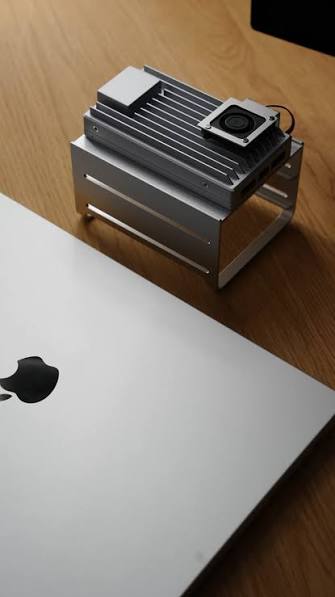
Live TV Recording Storage Guide for Capacity, Retention, and Cleanup
Measure real recordings, reserve headroom, combine age and capacity limits, and prove the oldest eligible program is removed before storage fills.
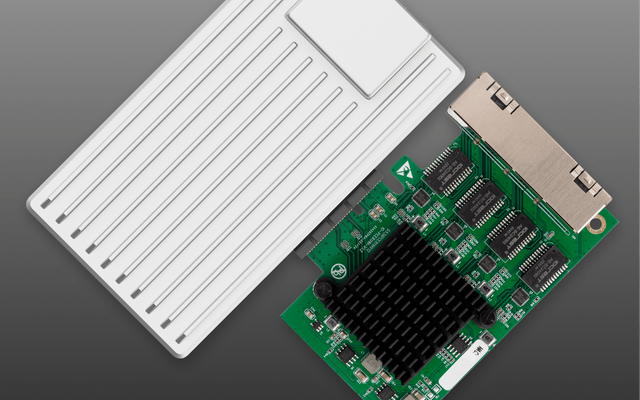
Home Media Metadata Recovery Workflow After a Database Restore
Protect the restored state, verify media identity and paths, then repair missing artwork or matches in a pilot library before broad metadata changes.
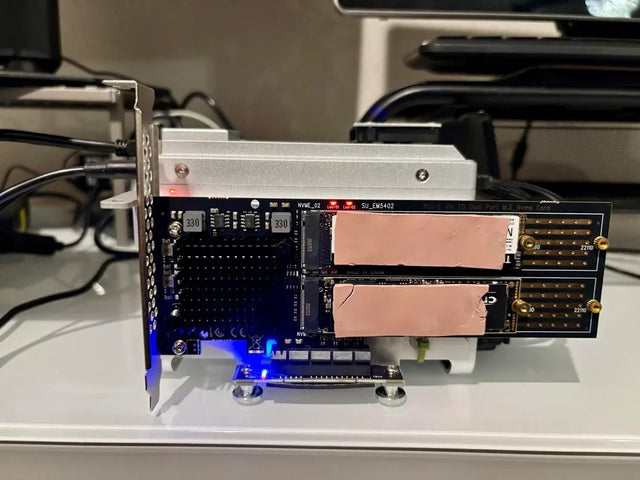
Jellyfin Client Compatibility Checklist for Audio, Video, and Subtitles
Test representative files one variable at a time and record Direct Play, remux, audio conversion, video transcode, or failure for every client.


