
Jellyfin Shows Stale Data After a Storage Path Change


Jellyfin usually shows stale data after a storage move because the service sees the old path, cannot read the new mount, or has not completed a valid scan against the new location.
Does the dashboard show old items, missing items, or a mixture of both? Do not delete the library or empty its trash first. Capture the exact old and new paths, mount state, service ownership, and the scan result so each branch can be tested without destroying metadata.
Check what path Jellyfin can actually see
Inspect the path from inside the Jellyfin process or container, not only from the host shell. Confirm the mount exists after boot, the service account can list and read a sample file, and the container mapping matches the path stored in the library configuration.
If the path is empty or inaccessible, fix the mount, UID/GID, or container volume first. A storage mount that appears after manual login can leave Jellyfin scanning an empty directory at startup.
Compare the old path and new path in the library configuration and in one database record. If both remain, Jellyfin can legitimately display one valid item and one stale reference.
Distinguish stale metadata from a failed scan
After the path is readable, run a controlled scan and watch the logs for the library name, item count, permission errors, and skipped files. Compare one known old item and one newly added file. If the scan completes but old paths remain, the database still contains the previous location or the new path was added without removing the old reference.
Do not interpret a cached poster as proof that the media file is available. The storage path rules make the mounted filesystem and application path separate checks.
Use a single controlled scan after the mapping is corrected, then compare the item count and one known file. Repeated rescans before the path is fixed can create more confusing state.
Repair only after the branch is proven
Fix the path mapping or permissions, restart once, and rescan. If the database path is wrong, update the library location in the smallest possible change and verify the expected item count before cleaning old entries. Preserve application data and a backup before any bulk metadata operation.
Recovery is proven when the service still sees the new path after reboot, a representative client plays an item, and a second scan does not recreate the stale state. Escalate when the filesystem reports corruption, the database contains conflicting paths, or the problem returns after a clean mount and restart.
After the repair, restart with the mount available at boot and repeat the scan. Stale data is not resolved until the same path remains visible after restart.

Escalate When the Path Keeps Reappearing
Keep the repaired mapping when a clean restart, one scan, and representative playback all use the new path without recreating the old entry.
Stop cleanup when the old path returns, the database contains conflicting identities, or the storage mount changes between scans. Preserve the database and current path map first.
Escalate to a backup restore or database-specific repair when the filesystem is healthy but stale references survive a clean mapping and restart.

Recommended products

Support & Tips
More to Read
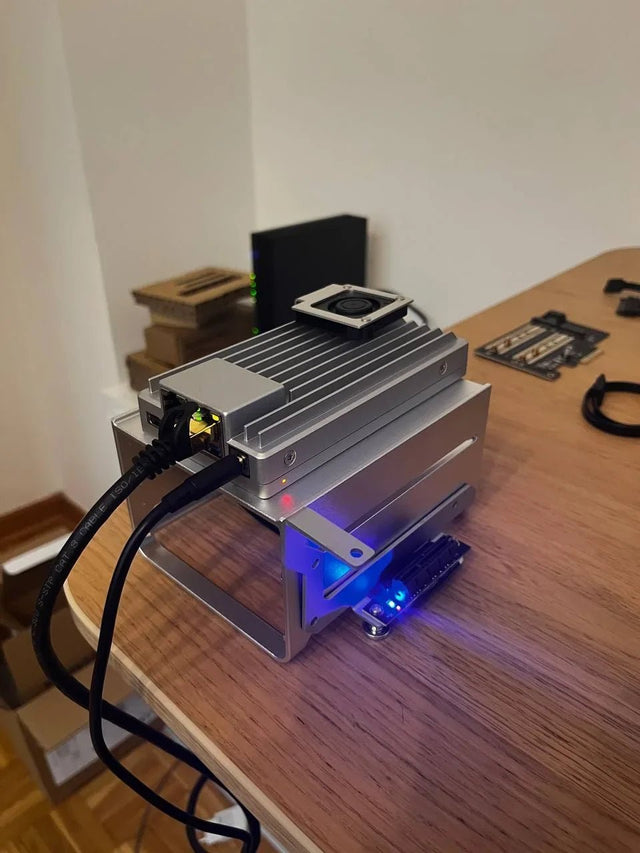
How to Optimize Jellyfin Database Connections for Concurrent Containers
Start with one database owner and measured SQLite lock behavior; add a different backend only when concurrency and recovery justify the complexity.
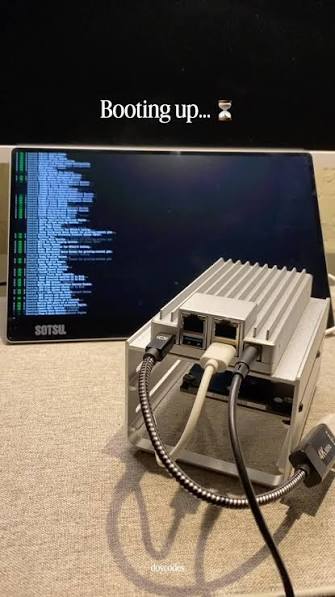
How to Prevent Duplicate Jobs or Imports in Jellyfin
Duplicate work usually comes from overlapping schedulers or more than one writer; assign one owner, one path, and one completion check.
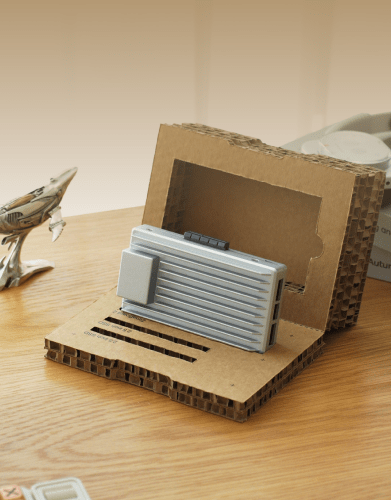
How to Repair Jellyfin After Its Database Volume Fills Up
Stop writes, preserve the database and WAL files, free space without deleting state blindly, then verify integrity and the original workload.


