
Why Does a Home Assistant Server Run Hot or Noisy During Idle Hours?


A Home Assistant server that runs hot or noisy during “idle” hours is usually doing background work that is invisible from the dashboard. Recorder purge or repack, database queries, backups, updates, noisy integrations, camera processing, virtual machines, and other containers can all create CPU or storage load while no one is actively using the UI.
Do not diagnose the fan. Diagnose the workload that raises package power or temperature. Record the exact time the noise begins, correlate it with CPU, disk, database, and scheduled jobs, then remove or reschedule one workload at a time.
Use the Timestamp to Find Scheduled Work
A spike that appears at nearly the same time every night strongly suggests a scheduled maintenance or automation path. Check Recorder, backups, update jobs, database maintenance, statistics processing, and any host-level cron or container tasks that run in the same window.
Home Assistant users have traced regular 4 a.m. CPU spikes to Recorder purge activity occurring at the same time each day. That example is useful because the temperature symptom follows a schedule even though the household considers the system idle.
Move or tune the job only after correlation. An unrelated automation that also runs overnight can create the same visual pattern, so timestamp alignment needs to be repeatable.
Recorder Can Turn Noisy Entities Into Continuous Background Load
An integration that updates too frequently can keep the database busy long after the device itself appears stable. The extra writes increase CPU, storage activity, and database maintenance work.
One Home Assistant installation linked a persistent CPU and temperature increase to Recorder after discovering several Z-Wave entities generating large numbers of database rows. Excluding unneeded high-frequency data returned CPU behavior toward normal.
Use Recorder statistics or database inspection to find the entities generating the most state churn. Do not globally disable history if only a few noisy entities are responsible.
Background Load Can Belong to Another Container or VM
On a shared home server, Home Assistant may be blamed for heat created by a database, NVR, media server, local AI process, or backup engine. Measure process- or container-level CPU rather than assigning every host spike to the Home Assistant container.
Large Recorder workloads can also create substantial I/O even when the Home Assistant UI looks idle. Recorder currently purges nightly at 04:12 by default and can automatically repack the database every second Sunday; repack is heavier than routine recording and can extend the background load. The same host-level heat symptom can therefore originate in scheduled database work rather than one automation loop.
Pause one neighboring service during the normal hot period. If host temperature and fan speed fall while Home Assistant remains responsive, the shared workload—not Home Assistant configuration alone—is the better target.

Cooling Problems Are Real Only After the Workload Is Understood
A clogged heatsink, blocked intake, failing fan, warm cabinet, or dried thermal interface can raise temperature at a normal load. But hardware cooling should be investigated after you know the server is not simply doing more work than before.
Compare temperature at the same CPU package power or utilization over time. If the same workload now runs materially hotter, inspect airflow and hardware. If the workload itself grew, fix the software or schedule first.
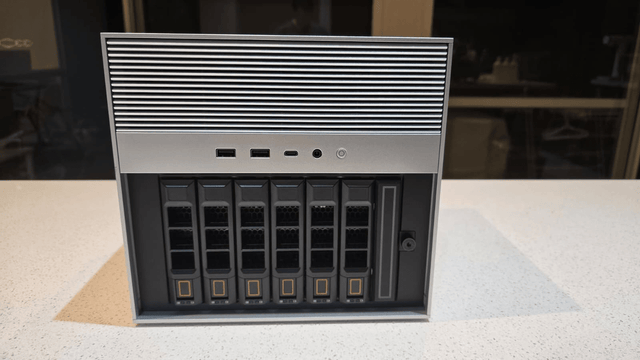
The ZimaSpace smart-home server sizing guide treats storage, co-hosted services, and physical platform limits as one operating envelope rather than assuming an idle Home Assistant box has no background load.
Use a Controlled Idle Baseline
| Test | What it tells you |
|---|---|
| Record CPU, temperature, disk I/O for 24 hours | Whether spikes are scheduled |
| Pause backup/maintenance for one cycle | Whether a background job owns the spike |
| Inspect high-frequency Recorder entities | Whether state churn drives database work |
| Pause one companion container | Whether shared-host load is responsible |
| Repeat same workload after cleaning airflow | Whether cooling changed independently of software |
A healthy idle period should return to a stable thermal and acoustic baseline after background work finishes. If CPU, storage activity, or temperature never settles, capture the continuing process and treat that as a persistent workload or regression rather than scheduling normality.

Recommended products

Support & Tips
More to Read
Should You Back Up Home Assistant Live or Stop the Service First?
Built-in Home Assistant backups can run live; plain filesystem copies should stop or quiesce Home Assistant unless the database is backed up consistently.
When Should You Rebuild Rather Than Repair Home Assistant?
Repair the smallest failed Home Assistant layer first, restore known-good state next, and rebuild only when persistent configuration cannot be trusted.

How Much Free Storage Should Home Assistant Keep for Background Jobs?
Size Home Assistant free space from the Recorder database, backup growth, maintenance peaks, and recovery operations—not a universal percentage.


