
Command Line Administration: Beginner Setup Guide for Home Server Users


Quick Answer
Command line administration means managing a home server through text commands instead of only using a web dashboard or desktop interface. For beginners, the goal is not to memorize hundreds of Linux commands. The goal is to learn a safe path: connect to the server, check where you are, inspect files and status, practice in a safe folder, and stop before risky admin commands.
For most home server users, the command line becomes useful when you need to:
-
connect to a server without a screen;
-
check storage, logs, services, or running apps;
-
fix a web dashboard or app that is not loading;
-
manage Docker or self-hosted apps;
-
understand what is happening behind the UI.
The safest beginner rule is: look first, change later. Start with read-only commands such as
pwd, ls, cat, tail, df, and status checks before using commands that delete, overwrite, restart services, or change permissions.What Is Command Line Administration for a Home Server?
Command line administration is the practice of controlling a server through a terminal. Instead of clicking buttons, you type commands that ask the operating system to show files, move folders, check logs, restart services, or run apps.
For a home server, the CLI is often the fallback layer. Even if you normally use a web dashboard, the command line can help when the dashboard is unreachable, an app fails to start, storage fills up, or a network setting needs to be checked.
CLI vs Web Dashboard vs Desktop Interface
A web dashboard is usually easier for daily tasks. It gives you buttons, menus, app cards, and visual settings. A desktop interface is similar, but it runs directly on a monitor connected to the machine.
The CLI is different. It is text-based and more direct. It can be faster for checking logs, moving through folders, running scripts, or managing services, but it also gives you fewer visual warnings before you make a mistake.
| Interface | Best For | Beginner Risk |
| Web dashboard | Daily file access, app management, visual settings | Lower risk, but limited when the UI fails |
| Desktop interface | Local graphical control with monitor and keyboard | Easier to understand, but not always available on headless servers |
| CLI / terminal | SSH access, logs, file paths, services, Docker, troubleshooting | Higher risk if commands are copied without understanding |
When Beginners Actually Need the Command Line
You do not need to live in the command line to run a home server. Many users can handle basic storage and app tasks from a dashboard.
The CLI becomes useful when you need to check something below the interface layer. Common beginner cases include checking disk space, reading an app log, finding a config file, confirming your current user, or restarting a service after a known safe change.
You may also need CLI access when your server is headless. A headless server runs without a dedicated monitor, keyboard, or desktop interface, so remote terminal access becomes a practical way to manage it.
What You Should Not Do From the CLI Yet
Beginners should avoid starting with destructive or system-wide commands. A command line does exactly what you ask, even when the target folder is wrong.
Treat these actions as high risk until you understand the path, target, and rollback plan:
-
deleting files or folders recursively;
-
changing ownership or permissions across many folders;
-
editing SSH server settings;
-
formatting disks or changing partitions;
-
restarting critical services without knowing what depends on them;
-
copying commands from forums without reading each option.
The command line is not dangerous by itself. The risk comes from running powerful commands without understanding the current user, current directory, target path, and expected result.
What You Need Before You Start
Before using CLI administration, prepare the access method, account details, and a safe practice area. This reduces the chance of losing access or modifying system files by mistake.
A good beginner path follows The Safe CLI First-Run Loop.
| Step | Key Question | Beginner-Safe Action |
| Access Gate | Can you reach the server safely? | Use local console, LAN SSH, or a trusted browser terminal; avoid public exposure |
| Identity Check | Who are you logged in as, and where are you? | Check the current user and current directory before changing anything |
| Read-Only Orientation | Can you inspect without modifying? | Start with commands that list, read, and check status |
| Safe Practice Zone | Where can you practice safely? | Create a test folder in a user or data path, not in system folders |
| Privilege Boundary | Does this need admin power? | Pause before root, sudo, service, package, deletion, or permission changes |
| Validation Loop | Did everything work without damage? | Log in, navigate, practice, check status, then exit cleanly |
This loop keeps the first CLI session small and reversible. You are not trying to configure the whole server on day one. You are trying to prove that you can enter, observe, practice safely, and leave without breaking access.
Your Server IP Address and Login Account
To connect to a home server, you usually need its local IP address and a valid login account. The local IP might look like
192.168.x.x or 10.x.x.x, depending on your router.You also need to know which account you are using. A normal user, admin user, and root user may have very different permissions. Before changing anything, check whether you are logged in as a limited user or a privileged account.
For beginners, it is usually safer to use a normal account where possible and only elevate privileges when a specific task requires it.
A Local Terminal or SSH Client
Your daily computer needs a terminal or SSH client. macOS and Linux include terminal tools. Windows users can often use Windows Terminal or PowerShell.
OpenSSH lists
ssh(1) as the client program used to log in to another system and sshd(8) as the daemon that permits users to log in. It also separates client configuration from server-side daemon configuration, which is important because connecting to a server and changing how the server accepts connections are different responsibilities in the OpenSSH manual pages.For a beginner, that means the first goal is simply to connect from a client. Changing SSH server configuration should come later, after you have a backup access method.
A Safe Place to Practice Commands
Do not practice inside system folders. Create a small test folder in a safe user path or data path where accidental changes will not affect services, apps, or operating system files.
A safe practice folder helps you learn basic file commands such as creating, listing, copying, moving, and deleting test files. It also makes mistakes easier to understand because you know exactly what should be inside that folder.
A simple practice pattern is:
-
Log in.
-
Check your current path.
-
Move to a safe user or data folder.
-
Create a test directory.
-
Create, copy, rename, and remove only test files.
-
Exit the session.
A Backup or Rollback Plan Before System Changes
You do not need a full enterprise rollback system to learn CLI basics, but you should have a plan before editing configs, changing permissions, or touching app data.
At minimum, copy a config file before editing it, write down the original setting, and avoid changing multiple things at once. For important files, confirm you have a backup outside the folder you are about to modify.
A rollback plan matters because CLI mistakes can be immediate. Some commands do not have a trash bin, undo button, or confirmation prompt.
Safe Ways to Access Your Home Server Command Line
There are several ways to access a home server command line. The safest choice depends on where you are, whether the web dashboard works, and how much access you need.
Use a Keyboard and Screen for Local Access
Local access means connecting a keyboard and monitor directly to the server. This can be useful for first setup, network problems, or situations where SSH is not working.
Local access is usually the best fallback because it does not depend on remote login services. If you break SSH settings or change a firewall rule, a keyboard and screen may still let you repair the system.
For beginners, local access is also useful because it shows that the server itself is running even if remote access fails.
Use SSH for Remote Terminal Access on Your LAN
SSH is the common method for remote terminal access. On a local network, the basic pattern is usually:
ssh username@server-ipThe exact username and IP depend on your system. On first connection, your SSH client may ask whether you trust the server fingerprint. That prompt is normal, but you should confirm you are connecting to the correct server before accepting.
LAN SSH is usually a reasonable beginner path when your server, laptop, and router are on the same private network. It is not the same as exposing SSH to the public internet.
Use a Browser-Based Terminal When Your System Provides One
Some home server operating systems provide a browser-based terminal or terminal app inside the web dashboard. This can be convenient when the system already handles authentication through the dashboard.
A browser terminal is still a command line. The same safety rules apply: check your user, check your path, avoid system folders, and do not paste commands you do not understand.
Browser terminals are often useful for quick checks, but SSH may still be better for longer sessions or when the web dashboard itself is not working.
Avoid Exposing SSH Directly Without a Secure Access Plan
Do not treat public SSH exposure as the default remote access method. Opening an SSH port to the internet changes the risk level because anyone who can reach that port can attempt to connect.
For remote access outside your LAN, use a more controlled plan, such as a VPN or private network tunnel, depending on your setup. Also consider strong passwords or keys, limited users, firewall rules, and a backup way to regain access if a setting goes wrong.
A safe beginner distinction is:
-
local console: safest fallback;
-
LAN SSH: common for home use;
-
VPN or private remote access: better for away-from-home access;
-
public SSH exposure: avoid unless you understand the security model.
Basic Commands Every Beginner Should Know
Beginner CLI learning should start with orientation and inspection. These commands help you understand where you are, what files exist, and what the server is doing.
GNU Coreutils is a standard command line toolbox for Unix-like systems. It includes many common tools for working with files, shells, and text, and its help patterns include
info, man, --help, and --version. The GNU Coreutils command line toolbox also covers beginner-relevant tools such as ls, cp, mv, rm, mkdir, df, pwd, id, uname, and uptime.Check Where You Are With pwd
pwd prints your current working directory. This is one of the safest and most important commands for beginners.Run
pwd before creating, moving, editing, or deleting anything. If you are in the wrong folder, even a simple command may affect the wrong files.A safe habit is to ask: “Where am I?” before asking the server to change anything.
List Files and Folders With ls
ls shows the contents of a directory. Many users start with ls or ls -la to see normal and hidden files.Use
ls to inspect before acting. If you are not sure what a folder contains, list it first instead of guessing.For beginners,
ls is a read-only orientation command. It helps you understand file names, folders, permissions, owners, and timestamps depending on the options you use.Move Between Folders With cd
cd changes your current directory. It is how you move through the file system from the terminal.Common patterns include:
-
cd folder-nameto enter a folder; -
cd ..to move up one level; -
cd ~to return to your home directory.
Use
pwd after cd until you build confidence. That helps prevent working from the wrong location.Create Folders With mkdir
mkdir creates a new directory. This is a useful beginner command when used inside a safe practice area.For example, you might create a folder for testing commands, notes, or temporary files. Avoid creating folders in system locations unless you understand why that location is needed.
A good beginner rule is: create test folders only where you are allowed to experiment.
Copy, Move, and Rename Files Safely
cp copies files. mv moves or renames files. These are useful but can overwrite data if used carelessly.Before using
cp or mv, check:-
the current directory with
pwd; -
the source file with
ls; -
the destination path;
-
whether an existing file could be overwritten.
For important config files, create a backup copy before editing. A simple copy is often enough for beginner practice, but make sure the backup is stored in a safe location.
Read Logs and Config Files Without Editing Them
Reading is safer than editing. Commands such as
cat, head, tail, and log viewers can help you inspect files without modifying them.Use read-only commands when you want to understand what happened. For example, reading a log file is usually safer than immediately restarting a service or deleting a config.
This is the core beginner pattern: observe first, then decide.
Admin Permissions, Root Access, and Safety Rules
Admin privileges let you change things normal users cannot. That power is useful, but it also removes many safety barriers.
Beginners should learn what root and sudo mean before using them as routine shortcuts.
What Root and Admin Privileges Mean
The root account is the most privileged user on many Unix-like systems. It can change system files, modify users, restart services, install packages, and delete critical data.
An admin account may be allowed to perform privileged actions through a tool such as
sudo, depending on the system. This is safer than always working as root because it makes privilege escalation more intentional.The main safety idea is simple: a command that fails as a normal user may fail for a good reason. Do not automatically rerun it as root until you understand what it is trying to change.
When to Use sudo or an Admin Account
Use admin privileges only when the task genuinely needs them. Examples may include installing packages, changing service settings, editing protected config files, or reading system-wide logs.
Before using elevated privileges, pause and check:
-
Do I know what this command changes?
-
Do I know the target path?
-
Do I have a backup or rollback option?
-
Can I test this in a safer place first?
-
Do I have another way back in if access changes?
This habit prevents many beginner mistakes.
Why Some System Folders Should Stay Read-Only
Some home server systems intentionally protect system folders. Even when you can log in as a privileged user, the system may keep parts of the OS read-only or discourage changes outside approved data paths.
This is usually done to protect updates, reduce accidental damage, and separate user data from system files. Beginners should respect that boundary.
If you need to store files, app data, or practice commands, use a user folder or documented data path instead of system directories.
Commands Beginners Should Treat as High Risk
Some commands are not “bad,” but they are risky when used without context. These include commands that delete, overwrite, recursively change folders, modify permissions, restart services, or change remote access settings.
Treat these as stop-and-check commands:
-
rm, especially with recursive or force options; -
chmodorchownacross large folders; -
commands using
sudowithout a clear reason; -
service restart commands on critical services;
-
firewall or SSH server configuration changes;
-
disk formatting, partitioning, or mount changes.
A safe beginner mindset is not “never use these.” It is “do not use these until you know the target, effect, and recovery path.”
Managing Files, Apps, and Server Health From the CLI
Once you can log in safely and navigate, CLI becomes useful for server health checks. You can inspect storage, memory, services, logs, and app behavior.
The goal is still controlled observation before modification.
Where User Data and App Data Usually Belong
Home server systems often separate system files from user data and app data. This matters because system folders may be protected, while user or data folders are intended for files, media, app configs, or experiments.
Before creating or editing anything, identify the intended data location for your system. Do not assume
/, /etc, /usr, or other system paths are safe practice areas.For beginners, a documented data folder or home directory is usually a better place to learn basic file commands.
How to Check Disk Space and Memory Usage
Disk and memory checks are safe and useful. Commands such as
df can show file system space, while other system tools may show memory usage depending on the OS.These checks help explain common home server problems. For example, a Docker app may fail because the disk is full, not because the app itself is broken.
A beginner health check can include:
-
available disk space;
-
system uptime;
-
current user and groups;
-
basic OS information;
-
whether the server is under load.
How to Check Running Processes and Services
Processes and services show what is running on the server. This is useful when an app is not responding or a dashboard is unavailable.
On systemd-based systems, logs and services are often inspected with related tools. The Ubuntu manpage explains that
journalctl queries the systemd journal and can filter logs by unit, boot, priority, recent lines, or live follow mode through the Ubuntu journalctl system log reference.The same manpage notes that log visibility can depend on permissions. A normal user may see private user journals, while system-wide journals may require root or membership in specific groups depending on the distribution.
How CLI Helps With Docker and Self-Hosted Apps
Many home server apps run as services or containers. CLI access can help when a container does not start, a port is already in use, or logs show a permission problem.
Beginners do not need to master Docker on the first day. It is enough to understand that CLI can help answer practical questions:
-
Is the app running?
-
Did it crash after startup?
-
Is the config file readable?
-
Is the storage path mounted?
-
Are logs showing a permission or network error?
CLI is often the fastest way to find the first useful clue.
Common Beginner Mistakes and How to Avoid Them
Most CLI mistakes are predictable. They happen when users skip the first-run loop and jump directly into copied commands.
Copying Commands Without Understanding Them
Copying commands is common, but it becomes risky when you do not understand the options. Small flags can change a command from safe to destructive.
Before pasting a command, identify:
-
the main command;
-
the target path;
-
whether it changes or deletes data;
-
whether it needs admin privileges;
-
whether you can reverse the result.
When in doubt, search the command’s help page or run a safer read-only command first.
Deleting Files From the Wrong Folder
Deletion mistakes usually happen because the user did not check the current directory.
pwd and ls are the simplest protection against this.Never run deletion commands when you are unsure where you are. Also be careful with wildcards, recursive flags, and force flags.
A good beginner rule is to delete only test files in a test folder until you are comfortable.
Editing Config Files Without a Backup
Config files can affect apps, services, network access, or startup behavior. A small typo can prevent a service from starting.
Before editing a config file, make a copy and record what you changed. Change one thing at a time, then test.
Do not edit SSH or firewall settings without a backup access path, such as local console access.
Losing Access After Changing Passwords or SSH Settings
Losing SSH access is a common beginner fear. It can happen after changing a password, disabling an authentication method, changing SSH configuration, or modifying firewall rules.
Avoid locking yourself out by keeping your current session open while testing a second connection. Do not close the working session until the new login method works.
If possible, make sure local console access is available before changing remote access settings.
Confusing LAN Access With Public Remote Access
LAN access means you connect inside your private home network. Public remote access means the service can be reached from outside your network, often through port forwarding or public IP exposure.
These are not the same risk level. A CLI method that is acceptable on a trusted LAN may need stronger controls before it is reachable from the internet.
For beginners, the safer path is to use CLI locally first, then plan secure remote access separately.
How to Check Whether Your CLI Setup Is Working
A beginner CLI setup is working when you can log in, inspect the system, practice safely, and exit without changing important files.
You Can Log In and Exit Safely
The first validation is simple: connect to the server and exit cleanly.
You should know:
-
which access method you used;
-
which username logged in;
-
whether you used local console, LAN SSH, or browser terminal;
-
how to exit the session.
If you cannot exit confidently, slow down before learning more commands.
You Can Navigate Without Changing System Files
Use
pwd, ls, and cd to move around and inspect folders. This proves you can orient yourself without modifying anything.You should be able to answer:
-
Where am I?
-
What files are here?
-
How do I move up one folder?
-
How do I return to a safe location?
This is the foundation for every later CLI task.
You Can Create a Test Folder in a Safe Data Path
Create a test folder only in a location meant for user data or practice. Then create a small test file, rename it, copy it, and remove it.
This confirms you can use basic file commands while staying away from system folders. It also builds muscle memory for checking paths before changing files.
Do not use important media, backups, or app configs for this exercise.
You Can Check Basic Server Status
A working CLI session should let you inspect basic status. You should be able to check storage space, uptime, user identity, OS information, and recent logs where your permissions allow it.
These checks help diagnose common home server problems without changing configuration. They are also useful before and after updates, app installs, or service changes.
The goal is to learn what normal looks like before you troubleshoot abnormal behavior.
You Know How to Stop Before a Risky Command
The most important validation is judgment. A beginner is ready to continue when they know when to stop.
Pause before any command that:
-
uses admin privileges;
-
deletes or overwrites files;
-
changes permissions or ownership;
-
edits service, network, or SSH settings;
-
formats disks or changes mounts;
-
affects app data or backups.
Stopping is part of good administration. It is better to verify the command than to recover from a preventable mistake.
How This Works in a Real Home Server Environment
In a real home server environment, CLI access is usually one layer among several. You may have a web dashboard for daily tasks, SSH for remote terminal access, local console access for recovery, and a browser-based terminal for quick checks.
A device-specific system may also define where user data and app data belong. For example, the ZimaOS CLI access guide describes several ways to enter CLI, including keyboard and screen access, SSH client access, and a browser-based terminal app. It also notes that many system folders are read-only for safety and that user data and app data are placed under
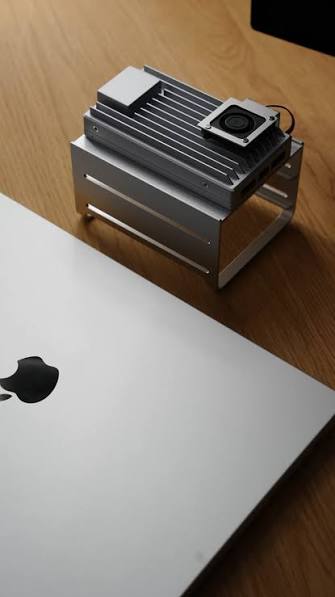
/DATA, making that kind of documented data path more suitable for beginner practice than protected system folders.For users building a lightweight home server for CLI learning, self-hosted apps, and always-on network services, ZimaBoard 2 home server fits the kind of small server environment where a web dashboard and CLI can work together. The broader lesson applies to any home server: use the dashboard for routine tasks, use CLI for inspection and controlled administration, and always respect the system’s documented access and data boundaries.
FAQ
Do I need to learn the command line to run a home server?
You can run many home server tasks from a web dashboard, especially file sharing and app management. CLI becomes useful when you need to check logs, diagnose failed apps, manage services, or recover when the dashboard is not working. Beginners should learn a small safe command set first, not a full Linux administration course.
Is SSH safe for beginners?
SSH can be safe for beginners when used on a trusted LAN or through a controlled private access method. The risk increases if SSH is exposed directly to the public internet without proper account, key, firewall, and monitoring practices. Start with local or LAN access before planning remote access from outside the home.
What is the difference between root and a normal user?
A normal user has limited permissions and is less likely to damage the system by accident. Root or admin-level access can change system files, services, permissions, and security settings. Beginners should avoid using root as the default working mode and only elevate privileges when the task clearly requires it.
What commands should beginners avoid?
Beginners should be careful with commands that delete files, recursively change folders, modify ownership or permissions, restart critical services, or edit SSH and firewall settings. Commands using
rm, chmod, chown, sudo, or service management tools are not automatically wrong, but they require context. Always check your current directory and target path first.Where should I practice CLI commands on a home server?
Practice in a dedicated test folder inside a safe user or data path. Do not practice inside system folders, app config folders, backup folders, or important media libraries. A test folder lets you learn
pwd, ls, cd, mkdir, cp, mv, and basic deletion without risking real data.What should I do if I lose SSH access?
First, do not keep changing remote settings blindly. Try local console access with a keyboard and screen if available, or use the server’s web dashboard or browser terminal if it still works. After you regain access, check recent SSH, firewall, password, and network changes before closing any working session.

Recommended products

Support & Tips
More to Read
Live TV Recording Storage Guide for Capacity, Retention, and Cleanup
Measure real recordings, reserve headroom, combine age and capacity limits, and prove the oldest eligible program is removed before storage fills.
Home Media Metadata Recovery Workflow After a Database Restore
Protect the restored state, verify media identity and paths, then repair missing artwork or matches in a pilot library before broad metadata changes.
Jellyfin Client Compatibility Checklist for Audio, Video, and Subtitles
Test representative files one variable at a time and record Direct Play, remux, audio conversion, video transcode, or failure for every client.


