
Installing the Tailscale app and completing a device-authentication link does not guarantee that the ZimaOS container will remain connected. In this October 2025 solved thread, the device could be added to Tailscale but never showed the expected connected state in the Tailscale admin device list.
The fix came from other community users rather than an IceWhale staff account. One user identified the ZimaOS App Store Tailscale entry that worked in their environment, changed its Web UI configuration, and supplied a fresh Tailscale auth key. A later reply added an important recovery step for persistent broken state: remove the old Tailscale AppData folder before reinstalling the app.
The Thread Used a Specific Tailscale App Store Entry
The ZimaOS App Store showed two Tailscale-related entries. The community helper reported that only the entry highlighted on the left had worked for their own ZimaOS 1.5 migration at that time.
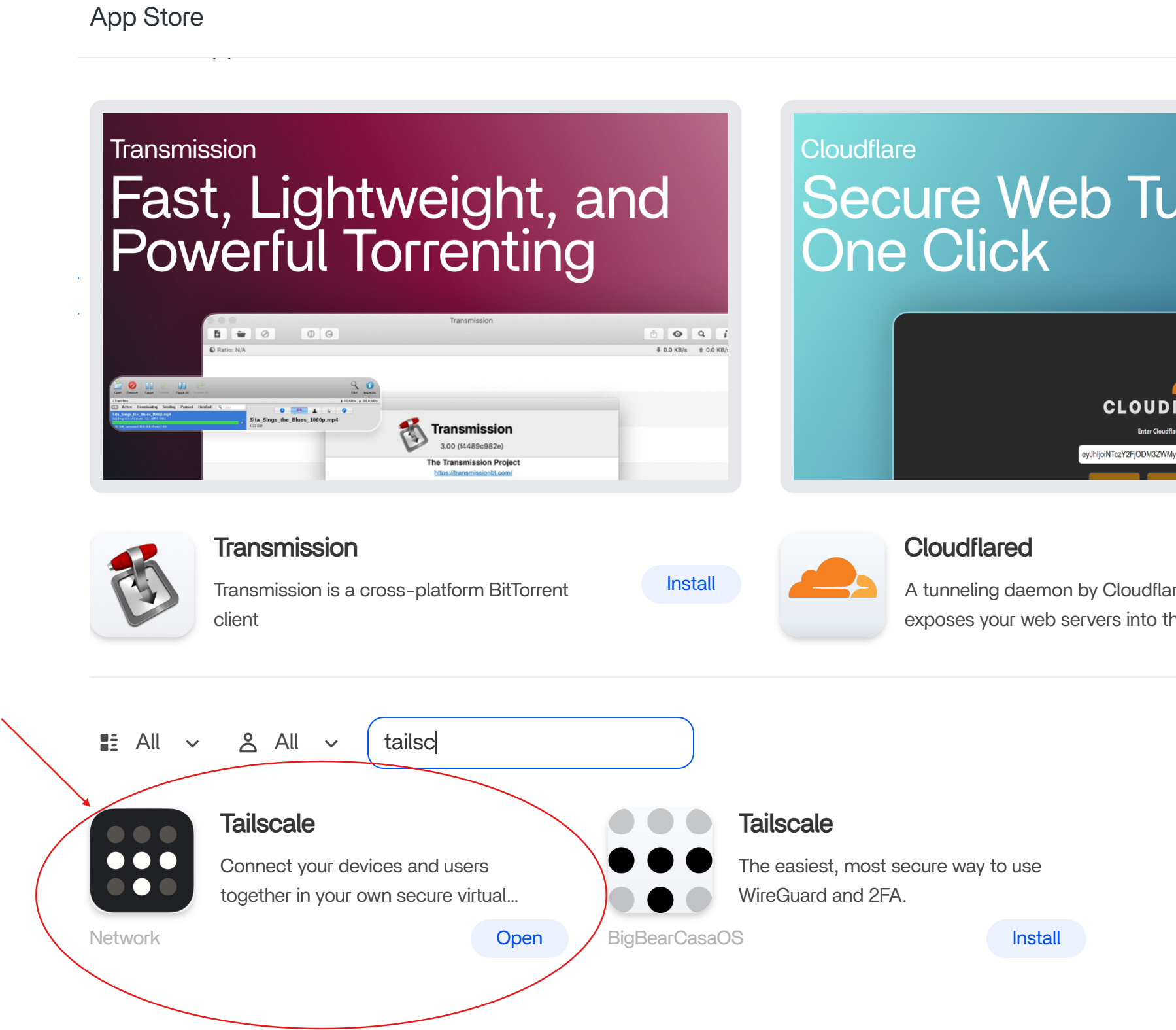
This was a 2025 observation, not a permanent ranking of current App Store packages. App definitions can change, so compare the present package details before assuming the same entry is still required.
Set the Web UI Path Used by the Community Configuration
The helper changed the Tailscale app's Web UI target so that it pointed to the Tailscale login administration path:

login.tailscale.com with the /admin path for its Web UI shortcut.This setting controls the shortcut opened from ZimaOS. It should not be confused with the networking state of the Tailscale daemon itself.
Use Your Own Current Tailscale Auth Key
The community walkthrough then obtained an authorization key from Tailscale and placed it in the app's TS_AUTHKEY environment variable. Do not copy an auth key from a screenshot, forum post, backup, or another machine. Auth keys are credentials and should be generated and managed for your own tailnet.
Current Tailscale documentation supports containerized deployments and authentication parameters for Docker:
Tailscale Docker documentation
If Reinstalling Does Not Help, Old AppData May Still Be Reused
A second community user had a Tailscale installation that previously worked and then stopped. Updating, rebooting, deleting the app, and reinstalling did not initially recover it.
The step that finally worked for that user was:
- delete the Tailscale app from ZimaOS;
- go to the ZimaOS AppData location;
- remove the old
tailscaleapplication-data folder; - reinstall Tailscale from the App Store;
- repeat the working configuration and authentication steps.
Warning: deleting an AppData folder removes persistent application state. Back up anything you may need before deleting it, and verify that you are deleting the Tailscale folder rather than another application's data.
Why Deleting the App Alone May Not Reset Tailscale
Container applications commonly keep state outside the disposable container filesystem. That lets settings survive updates or container recreation, but it also means a bad or stale state can survive an ordinary uninstall/reinstall cycle if the persistent AppData directory is left behind.
The follow-up result in this thread is therefore useful for distinguishing two recovery levels: reinstall the container first, and only consider clearing persistent state when a normal reinstall continues to reuse the same broken configuration.
This Solved Thread Was About Connecting the Node, Not Subnet Routing
The problem here was that the Tailscale node never became connected. It is different from a later ZimaOS discussion where Tailscale connected successfully but did not advertise subnet routes. If your device is already online in Tailscale and only remote LAN services are inaccessible, troubleshoot subnet routing rather than repeating this authentication-focused procedure.
ZimaOS Tailscale Connection FAQ
Why does my Tailscale device appear registered but never connected?
In the solved 2025 case, the working community setup involved the appropriate App Store entry, its Web UI configuration, and a valid Tailscale auth key.
Should I delete Tailscale AppData immediately?
No. The AppData deletion was a later recovery step used after ordinary update, reboot, uninstall, and reinstall attempts had failed. It removes persistent state, so back up first.
Is the auth key shown in an old screenshot safe to reuse?
No. Generate and manage your own key for your tailnet. Treat auth keys as credentials.
Was this an official IceWhale fix?
No. The thread was marked solved through community troubleshooting. It is useful practical evidence, but the steps were not posted as an official IceWhale support procedure.


