
The original 2024 tutorial used shell and batch scripts to make ZimaOS SMB shares easier to open from macOS and Windows. The basic credential idea was sound, but later Windows 11 replies exposed a flaw in the long batch script: PowerShell code embedded inside the batch file was interpreted as ordinary Command Prompt syntax and produced multiple errors.
Current ZimaOS offers simpler direct SMB and ZimaClient workflows, so the old script should be treated as historical convenience code rather than the default way to connect today.
Why the Old Windows Batch Script Printed Errors
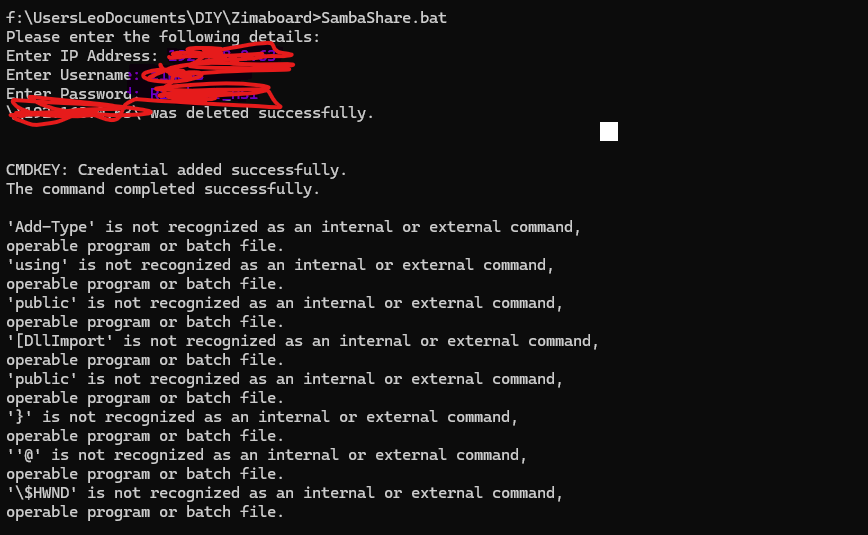
Zima-Giorgio asked users to test the script under different shells, but the thread never published a rewritten official batch file that eliminated the mixed CMD/PowerShell problem.
On Windows, Open the Share and Map the Folder You Want
A later user ran the simpler credential portion, opened the ZimaOS share, right-clicked the desired folder, and chose Map network drive. That made the connection persistent enough for their normal use.
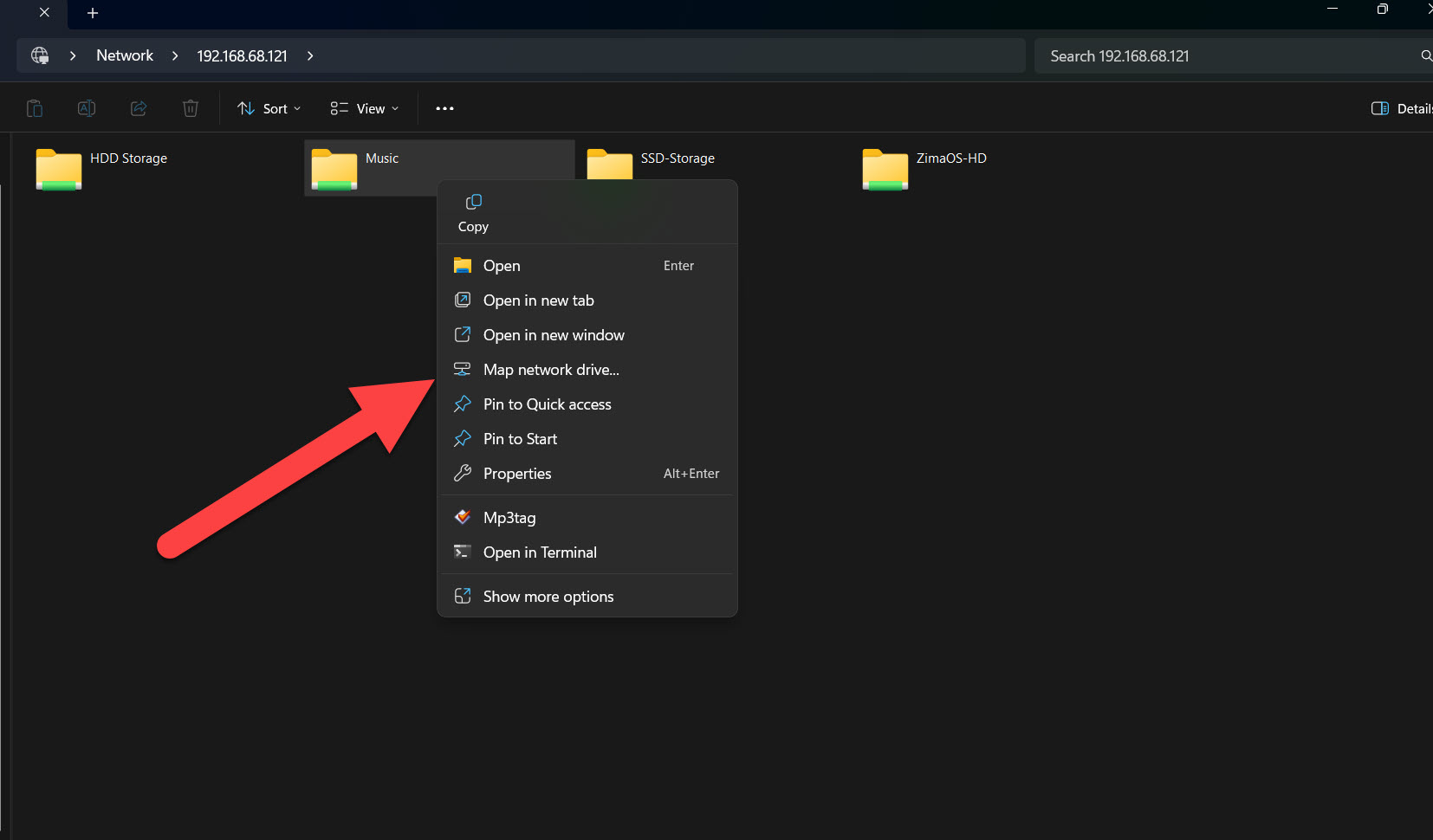
Current ZimaOS also lets Windows users enter the Samba address directly in File Explorer and authenticate with a ZimaOS or member account. Use the current SMB account and permission flow when setting up new shares.
On macOS, Finder Can Connect Directly
The original Mac script ultimately opens an smb:// URL. You can do the same without maintaining a shell script: in Finder, use Go > Connect to Server or press Command+K, enter the SMB address, and authenticate with the account that has permission to the share.
Clear Stale Credentials When Authentication Keeps Failing
Windows and macOS can cache failed SMB credentials. Current ZimaOS troubleshooting instructions include clearing old Windows connection records and retrying with the correct account.
If a working password still fails after a previous bad login, work through the current SMB authentication checks before rebuilding the server-side share.
A Later USB Write Problem Was Separate
The 2026 replies later shifted to a USB drive that could be read over SMB but not written. Internal SATA and NVMe shares still worked. That is a storage/filesystem permission issue, not evidence that the SMB mapping procedure itself failed.
ZimaOS SMB Connection FAQ
Do I need the old Windows .bat file to use SMB?
No. Current Windows can connect directly through File Explorer, and ZimaOS also supports ZimaClient-assisted mounting.
Why did the original batch file show Add-Type errors?
The script mixed PowerShell code into a batch context, and multiple Windows 11 users reproduced parsing errors.
How do I make a share persistent in Windows?
After opening the share, map the folder as a network drive so it appears under This PC.
How do I connect from macOS?
Use Finder's Connect to Server command with the SMB address and the account that has permission to the share.


