
Early ZimaCube users in June 2024 could see the device in macOS Finder or Windows File Explorer but found no usable network shares, received SMB authentication errors, or were sent back to the web dashboard when selecting “Open in Finder.”
The immediate workaround was to share at least one folder from ZimaOS Files and connect as a Guest. That workaround solved access for users in the thread, but it reflected an early ZimaOS permission limitation. Current ZimaOS supports account-protected SMB shares and multi-user permissions, so Guest-only access should not be treated as the current default.
Symptoms Reported by the 2024 ZimaCube Users
- ZimaCube appeared in Finder with an unexpected device icon.
- Finder displayed a login dialog but rejected the expected username and password.
- Direct SMB connections sometimes returned a server connection error.
- “Open in Finder” or “Open in Explorer” opened the ZimaOS dashboard in a browser instead.
- Shares from an earlier RAID configuration remained visible after the storage layout changed.

The 2024 Workaround: Share a Folder and Connect as Guest
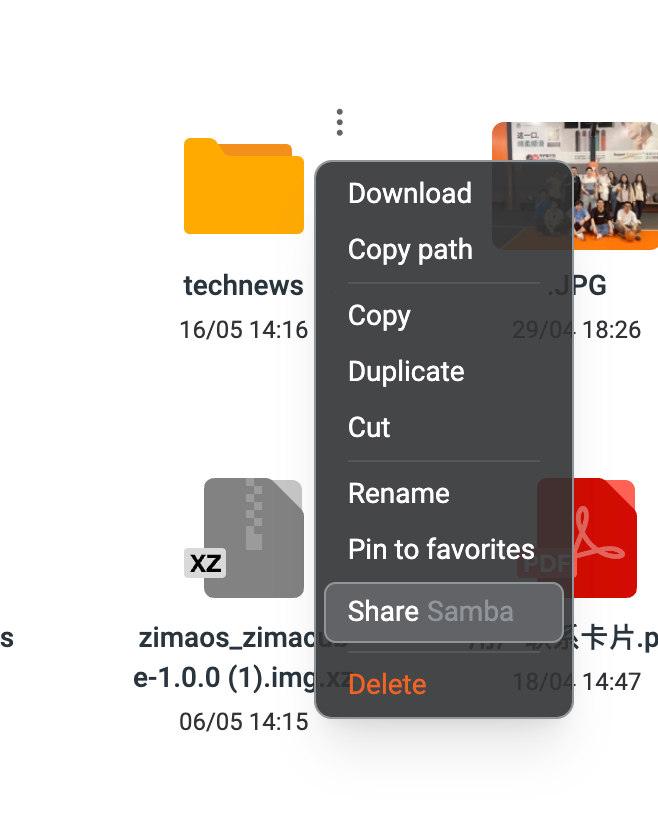
An IceWhale team member explained that SMB authentication was limited to Guest access in that early build and that the permission issue would be patched. Another official reply provided two steps:
- Share at least one folder through Samba in ZimaOS Files so that “Open in Finder” has a share to open.
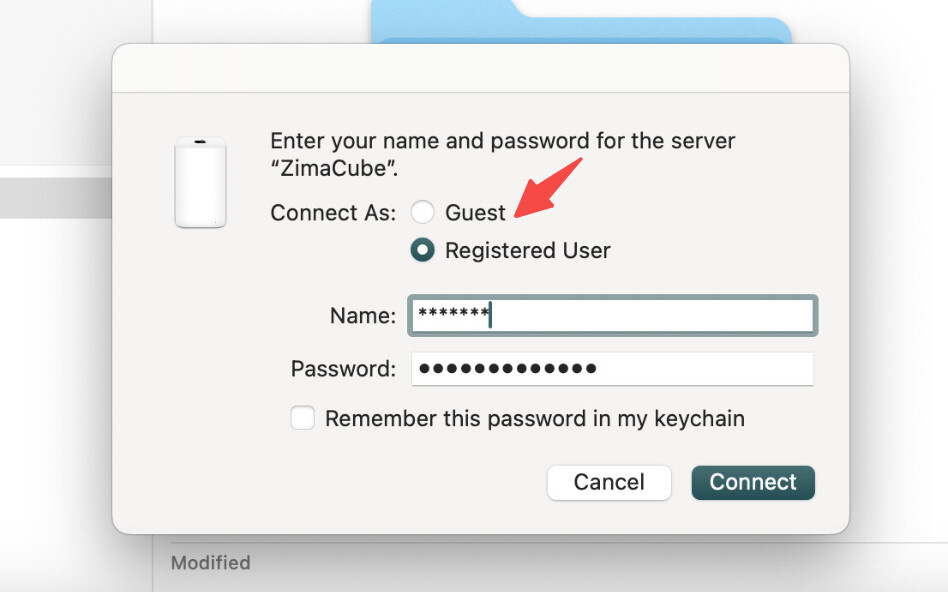
- Choose Guest when connecting from macOS or Windows.
Why Newly Created Folders Did Not Appear Automatically
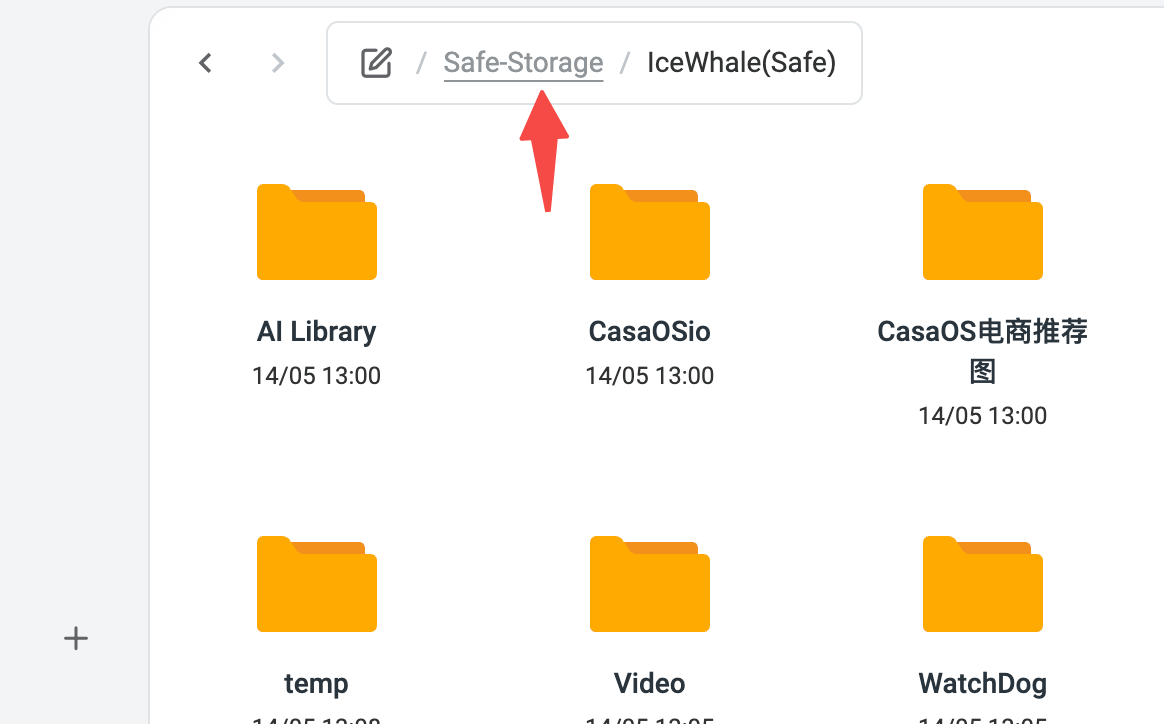
The user confirmed that new folders became visible only after sharing each folder. An official follow-up explained that sharing an upper-level folder could expose a batch of child folders instead of creating a separate share for every directory.
This also explains why Finder presented individual shared folders like separate mounted drives: SMB was publishing the selected shares, not automatically exposing the entire storage hierarchy.
Use Current ZimaOS Account and Permission Controls
Current ZimaOS documentation supports Manager, Member, and Guest roles with separate read or read-and-write permissions. A manager can create a Samba share, assign users, manage the share later, and copy the correct address for Windows or macOS.
Use the current ZimaOS Samba multi-user guide for new systems. The 2024 Guest workaround is useful for understanding the source case, but it should not replace account-protected access on a current installation.
Connect from macOS or Windows
macOS Finder
- Open Finder and choose Go → Connect to Server.
- Enter the SMB address shown by ZimaOS.
- Choose the appropriate registered user or Guest role configured for that share.
- Enter the matching credentials and confirm that the account has permission for the folder.
Windows File Explorer
- Open File Explorer.
- Enter the network address supplied by the ZimaOS share dialog.
- Sign in with the ZimaOS member credentials assigned to the share.
- If Windows keeps using old credentials, remove the saved connection before authenticating again.
The current ZimaOS SMB troubleshooting guide covers authentication failures and cached client credentials.
Why Deleted Shares Could Still Appear
Later replies reported that folders from an old RAID remained in the share list even on a Mac that had never connected before. Clearing the original Mac’s cache did not help. That test made a server-side stale list more plausible, but the thread ended without an official cleanup procedure or confirmed fix.
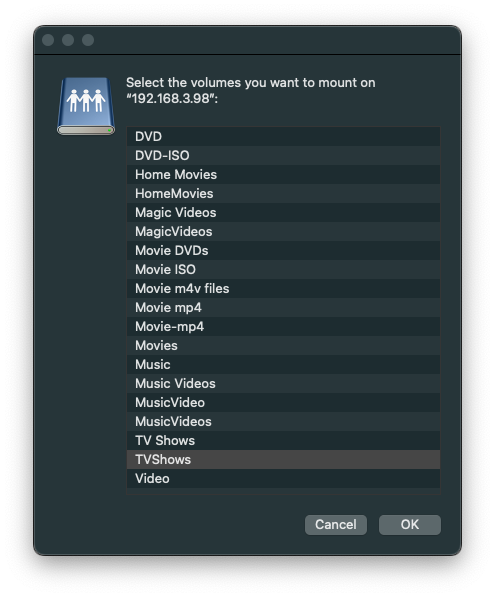
On a current system, first review the “Shared via Samba” page and remove or edit shares that no longer exist. Then clear saved credentials or stale mounts on the client. If a deleted server-side share continues to be advertised to a new client, capture the ZimaOS version, storage changes, and share list before contacting support.
ZimaOS Network Share FAQ
Why does “Open in Finder” show no folders?
In the 2024 case, no folder had been published through Samba. Sharing at least one folder made the Finder action effective.
Should current ZimaOS users connect only as Guest?
No. Guest access was the workaround for an early permission limitation. Current ZimaOS supports member accounts and per-share permissions.
Can one Samba share include several folders?
Yes. The community team suggested sharing an upper-level folder when its child folders should be available together.
Why does Finder still list folders from an old RAID?
The 2024 thread suggested stale server-side share information because the list appeared on a previously unused Mac, but it did not confirm a cleanup fix.
Where should current SMB problems be diagnosed?
Check the ZimaOS share and permission settings first, then verify the SMB address, account, saved client credentials, and whether the server is still advertising an obsolete share.


