
If Jellyfin opens from the ZimaOS dashboard but your phone or TV cannot find it on the local network, the Jellyfin container may be healthy while the LAN-facing port or discovery protocol is different from what the Jellyfin client expects. That is the distinction that resolved the confusion in this April 2026 IceWhale Community discussion.
The most important detail from the thread is that the ZimaOS App Store installation described there did not expose Jellyfin on host port 8096. It mapped 8097 on the ZimaOS host to 8096 inside the Jellyfin container. A second issue affected automatic discovery: Jellyfin expects port 7359/UDP, while the community reported that the ZimaOS app definition at that time showed port 7359 as TCP. These are separate problems, so test direct access first and discovery second.
Why Jellyfin Works From the ZimaOS Dashboard but Not From the LAN
The original poster could open Jellyfin through the ZimaOS dashboard, yet an nmap scan did not find TCP port 8096 and Jellyfin clients on a phone and TV could not see the server. That combination can look like an ISP or router problem, but local access does not normally require public port forwarding. The first place to inspect is the Docker port mapping used by the installed ZimaOS app.
A community reply initially suggested checking for a direct mapping such as:
8096:8096Another participant then supplied the ZimaOS-specific detail that mattered for the App Store package used in the thread:
Host:      8097/TCP
Container: 8096/TCP
With that mapping, scanning or browsing to host port 8096 will not test the Jellyfin web interface. The correct LAN test for that installation is:
http://ZIMAOS_LAN_IP:8097This also explains why opening Jellyfin from the ZimaOS dashboard could succeed: the dashboard already knows the Web UI host port configured for the app.
Test Jellyfin Manually Before Troubleshooting Discovery
From a phone, laptop, or other device connected to the same home network, enter the ZimaOS server's LAN address and the actual host port shown in the Jellyfin app settings. For the App Store configuration reported in the thread, that means:
http://192.168.x.x:8097Replace 192.168.x.x with the LAN IP of the ZimaOS system. If this page loads, the Jellyfin web service is reachable and the remaining problem is likely automatic discovery or client configuration rather than the core container.
If the page does not load, open the Jellyfin app settings in ZimaOS and confirm the current Web UI port mapping. Do not assume that a current App Store definition still uses exactly the same host port seen in April 2026. ZimaOS app templates and networking settings can change between releases.
Why ZimaOS Can Use Port 8097 When Jellyfin Documentation Says 8096
Upstream Jellyfin uses 8096/TCP as its default HTTP port. The official Jellyfin networking documentation lists 8096/TCP for HTTP and 7359/UDP for client discovery.
Docker lets a host expose a different external port while keeping Jellyfin's internal port unchanged. A mapping such as:
8097:8096means that devices on your LAN connect to ZIMAOS_IP:8097, while traffic is forwarded to port 8096 inside the Jellyfin container. This is valid Docker behavior; the two port numbers do not need to match.
The official Jellyfin container example normally publishes 8096:8096/tcp and 7359:7359/udp. ZimaOS can choose a different host-side Web UI port to avoid collisions with another service. The value that matters to your phone or TV is therefore the current host port shown by ZimaOS, not simply the upstream default.
Jellyfin Automatic Discovery Uses Port 7359 UDP
The last reply in the community thread identified a second configuration detail: the ZimaOS Docker settings visible at the time showed port 7359 as TCP, while Jellyfin defines that port as UDP for local client discovery.
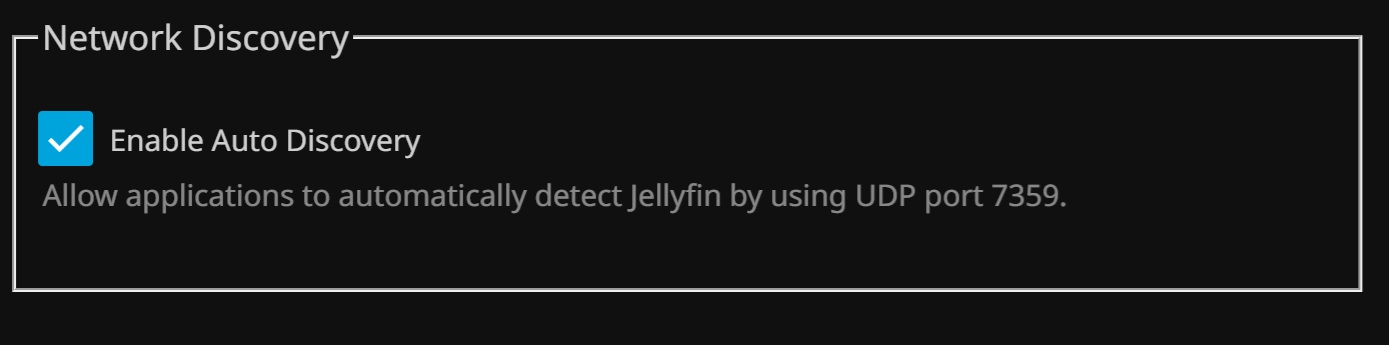
Jellyfin's current documentation confirms:
-
8096/TCP— default Jellyfin HTTP service inside a standard installation. -
8920/TCP— optional HTTPS service when enabled. -
7359/UDP— Jellyfin client discovery on the local network.
If the current ZimaOS Jellyfin app definition still maps 7359 as TCP, change that discovery mapping to UDP or recreate the mapping as 7359/UDP. Do not change the web-interface mapping from TCP to UDP; HTTP on port 8096 remains TCP.
Add the Jellyfin Server Manually on Phone or TV
Automatic discovery is convenient but it is not required to use Jellyfin. If direct LAN access works, add the server manually in the Jellyfin client using the host port configured by ZimaOS:
http://ZIMAOS_LAN_IP:8097For a different ZimaOS installation, replace 8097 with the actual host-side Web UI port shown in the app settings.
If the manually entered address works but automatic discovery does not, focus on port 7359/UDP and local-network segmentation rather than reinstalling Jellyfin. Discovery broadcasts generally need the client and server to be on the same reachable local subnet; guest Wi-Fi isolation, VLAN rules, or firewall filtering can prevent discovery even when direct HTTP access is allowed.
How to Check the Jellyfin Port Mapping in ZimaOS
- Open the Jellyfin app settings in ZimaOS.
- Find the Web UI or container port mapping.
- Identify the host TCP port mapped to Jellyfin container port
8096. - Test
http://ZIMAOS_LAN_IP:HOST_PORTfrom another LAN device. - Then inspect the discovery mapping for port
7359. - Confirm that 7359 uses UDP, not TCP, if you want automatic LAN discovery.
- Restart the Jellyfin app after changing Docker network settings.
If you are using a custom Docker installation rather than the ZimaOS App Store package, the official Jellyfin container guide shows the upstream reference mappings:
8096:8096/tcp
7359:7359/udp
What Does It Mean If Nmap Cannot See Port 8096?
In this specific thread, a closed or missing host port 8096 did not prove that Jellyfin was unavailable. The ZimaOS App Store package reported by the community used host port 8097 instead. A useful test is therefore to scan the port that ZimaOS actually exposes:
nmap -p 8097 ZIMAOS_LAN_IPIf your current app settings show another host port, scan that port instead. Only use this as a LAN troubleshooting check; there is no need to expose Jellyfin directly to the public internet just to make a phone or TV inside the house connect.
Do You Need Router or ISP Port Forwarding for Local Jellyfin Access?
No, not for devices that are communicating within the same home network. The original poster contacted ISP support, but the symptoms described in the thread were local Docker-port and discovery concerns. Public port forwarding becomes a separate topic only when you intentionally want to reach Jellyfin from outside your home network.
Jellyfin's own networking guide warns that opening a service port toward a wider network increases exposure. Keep this troubleshooting focused on LAN access first. For remote access, use a properly configured reverse proxy, private overlay network, or another secure remote-access design rather than opening ports without understanding the security implications.
ZimaOS Jellyfin LAN Troubleshooting Checklist
- Confirm Jellyfin is running and opens from the ZimaOS dashboard.
- Open the app settings and record the current host-to-container Web UI mapping.
- If it shows
8097:8096, connect tohttp://ZIMAOS_IP:8097, not port 8096. - Try that address from another device on the same LAN.
- If direct access works, manually add the address in the Jellyfin mobile or TV client.
- Check that Jellyfin discovery port 7359 is mapped as UDP.
- Make sure the phone or TV is not isolated on a guest Wi-Fi or blocked VLAN.
- Restart the Jellyfin container after changing its port configuration.
- Only after these checks, investigate host firewall rules or more complex network segmentation.
Jellyfin Not Found on ZimaOS FAQ
Which port should I use for Jellyfin on ZimaOS?
Use the host-side Web UI port shown in your ZimaOS Jellyfin app settings. In the April 2026 community thread, the App Store installation used host port 8097 mapped to Jellyfin's internal port 8096. Do not assume every later package uses the same host port.
Why does Jellyfin say port 8096 but ZimaOS uses 8097?
8096 is Jellyfin's default internal HTTP port. Docker can publish that service through a different host port. The reported ZimaOS mapping was 8097:8096, so LAN clients needed the ZimaOS IP plus port 8097.
Should Jellyfin port 7359 be TCP or UDP?
UDP. Jellyfin's official networking documentation defines port 7359/UDP for local client discovery. The community reported a ZimaOS app configuration that showed it as TCP, which can interfere with automatic discovery.
Why can I open Jellyfin from the ZimaOS dashboard but not the TV app?
The dashboard can open the Web UI using the port configured internally by ZimaOS. A TV app must reach the LAN-facing host address and port, and automatic discovery additionally depends on UDP discovery traffic. That is why dashboard access alone does not prove discovery is configured correctly.
Can I use Jellyfin without automatic server discovery?
Yes. Enter the server address manually in the Jellyfin client. For the mapping reported in the thread, the format is http://ZIMAOS_LAN_IP:8097. Use your own current host port if it differs.


