
The original goal in this November 2025 thread was straightforward: keep ZimaOS and applications on the mini PC's internal 512 GB SSD, while using a 5 TB external Seagate USB HDD for media and downloads. The difficulty came from treating the external disk like a generic Linux server mount before understanding how ZimaOS already manages storage.
The user experimented with manual mounting under /var, the server later crashed, and they reinstalled ZimaOS. Afterward they mounted the disk under a ZimaOS data path and mapped it into SABnzbd, but the application still returned a permission error. This thread therefore contains two separate lessons: choose a safe managed host path first, then solve container permissions separately.
Do Not Use /var as an Arbitrary USB Mount Point
ZimaOS is an appliance-style operating system with managed system paths. The source user said mounting the external drive under /var appeared to work initially but was followed by a complete server crash and reinstall.
The thread does not prove the mount itself directly caused the crash, but it is enough reason not to promote system directories as normal storage locations for media disks.
Let Current ZimaOS Manage the External Drive
Current ZimaOS has much broader USB storage support than the 2025 environment in this thread. A USB disk can be added through Settings > Storage and then used as ordinary storage rather than manually attached to an invented Linux mount point.
For a new deployment, start with the current ZimaOS workflow for adding USB storage. Once the disk is managed, use its real storage folder in the application's volume mapping.
The Source Disk Eventually Appeared Under ZimaOS-Managed Paths
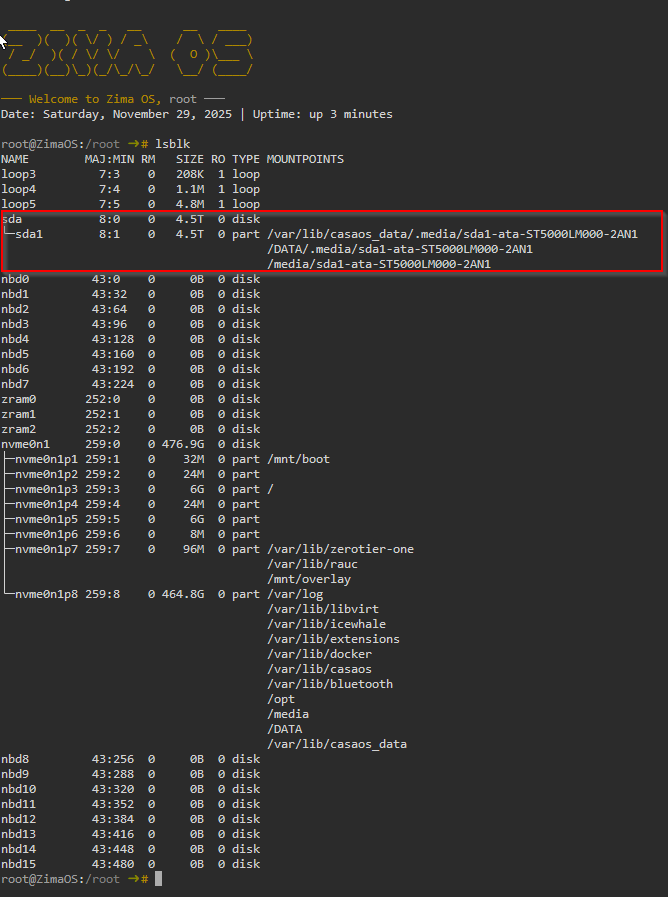
The exact path shown in a 2025 installation should not be copied to another server. Device names such as sda, sdb, and sdc can change depending on boot order and attached hardware.
Map a Folder, Not the Raw Block Device
Docker applications should normally receive a directory such as a downloads or media folder, not the raw device /dev/sda1. ZimaOS mounts the filesystem; the container receives a host folder from that mounted filesystem.
The current explanation of how host storage becomes a container volume helps avoid confusing the disk device, mount point, and container path.
A Correct Mount Can Still Produce a Permission Error
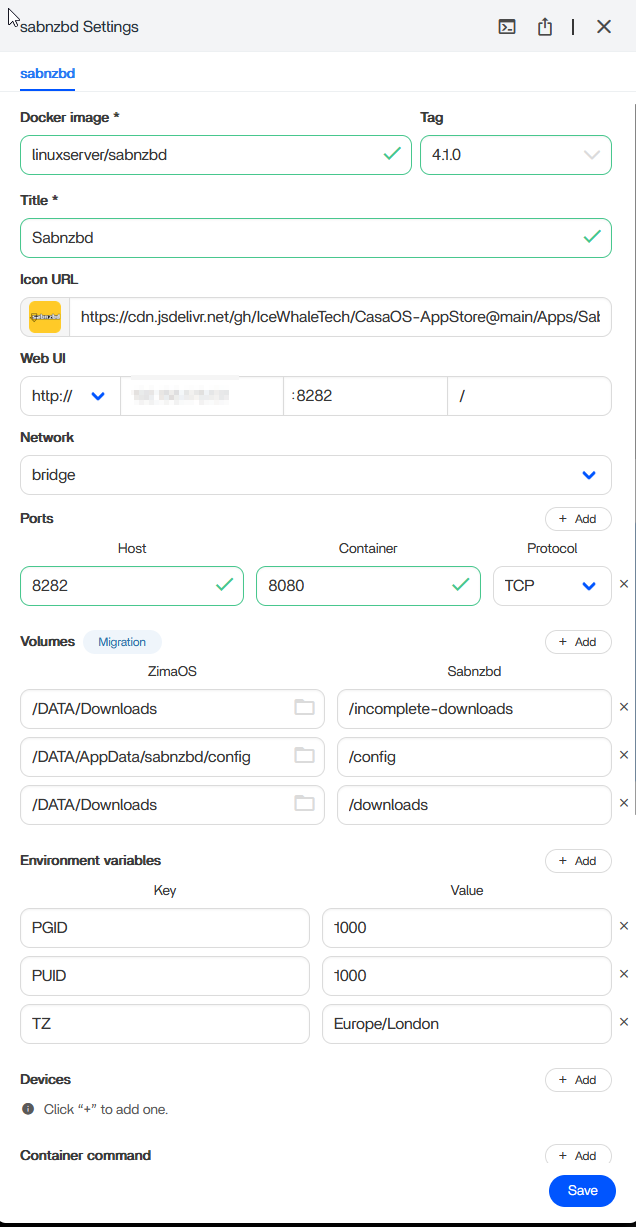
The source user reached /DATA/HDD1 and mapped it into SABnzbd, but the application could not use the selected download directory. That means storage visibility was no longer the only problem.
Docker processes run as a user or group inside the container. If the host folder is owned by a different user and has restrictive permissions, the container can see the path while still being unable to create files.
Do Not Copy PUID 999 Blindly
One community reply told the user to change PUID from 1000 to 999. That may have matched the responder's ZimaOS account model, but it is not a universal constant.
Before changing PUID or PGID, identify the ownership of the actual host folder and the user the application is expected to run as. A numeric value that works on one installation can point to a different account on another.
Recursive chmod and chown Are Powerful and Destructive
A later community reply suggested recursive chmod 775 and chown over the download path. Those commands can be useful Linux administration tools, but they alter every file and directory under the target. They were not posted by IceWhale staff in this thread.
Before changing ownership recursively:
- confirm the exact target path;
- confirm the filesystem supports normal Linux ownership;
- understand which users or services already rely on the folder;
- back up important metadata or permissions if the folder is shared by several applications.
Filesystem Type Can Change the Permission Model
An ext4 disk stores Linux UID, GID, and mode bits directly. exFAT and some NTFS configurations can present ownership through mount-level options instead. If PUID changes have no effect, check the filesystem before repeatedly changing application settings.
A Cleaner Layout for Media Apps
A practical design is:
- internal SSD: ZimaOS system and small application runtime;
- large external HDD: media, downloads, backups, and other bulk data;
- persistent AppData: placed on a storage location with enough capacity and backup coverage;
- each app: explicit volume mappings to only the folders it needs.
This keeps a media download from filling the system drive and makes it easier to back up application configuration separately from large media files.
External HDD on ZimaOS FAQ
Should I manually mount an external HDD under /var?
No for normal current ZimaOS use. Use the Storage interface and managed storage paths.
Should SABnzbd map /dev/sda1 directly?
No. Map a normal host directory from the mounted filesystem to the container's expected download path.
Why does the app see the folder but fail to write?
Host filesystem permissions, ownership, or the container's PUID/PGID may not allow writes.
Is PUID 999 a standard ZimaOS value?
No. It was a community-specific suggestion and should be verified on the actual system.


