
If you move Media, Documents, AppData, or other ZimaOS folders to a larger NVMe or HDD and Jellyfin still appears to look only at ZimaOS-HD, the migration method matters. The October 2025 IceWhale Community thread solved this by distinguishing two different ZimaOS operations that users could easily confuse.
The Settings migration function moves managed ZimaOS data and creates compatibility soft links under /DATA. The Files app's right-click Migrate function moves ordinary folders and files and produces a migration report, but it does not create those soft links. The original poster had moved Media through the Files migration tool and had left User Database on ZimaOS-HD; once User Database was migrated through Settings, Jellyfin could find the media folders and the author confirmed the problem was solved.
The Original ZimaBoard 2 Storage Layout
The community setup used a ZimaBoard 2 1664 with the system on ZimaOS-HD and an additional 2 TB NVMe installed through a PCIe expansion board. The user wanted the small system drive to hold the OS while application data and user content lived on the larger NVMe.
The current product path is the ZimaBoard 2 single-board server.
ZimaOS Had Two Different Migration Functions
Zima-Giorgio clarified the key distinction:
- Settings “Migrating location”: moves ZimaOS-managed data and creates soft links for compatibility.
- Files app “Migrate”: moves selected files/folders and provides a migration task report, but does not create soft links.
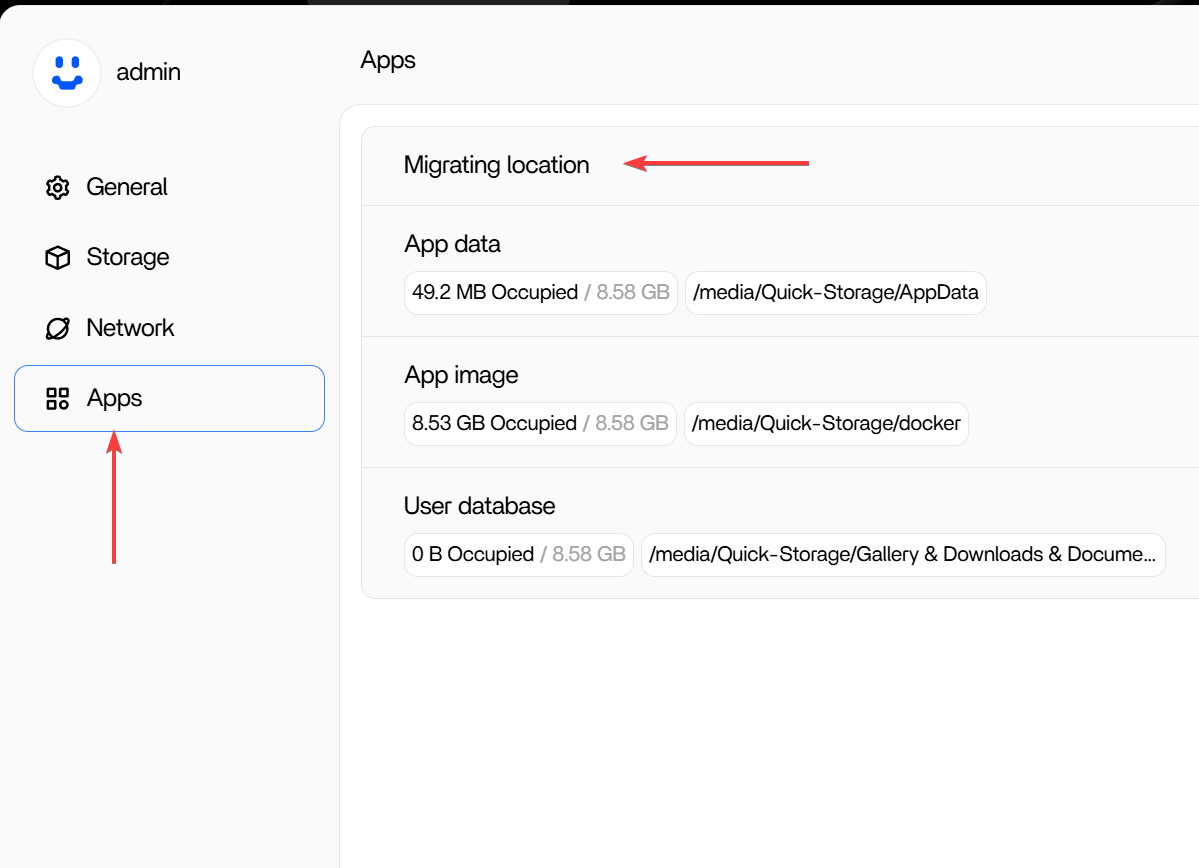
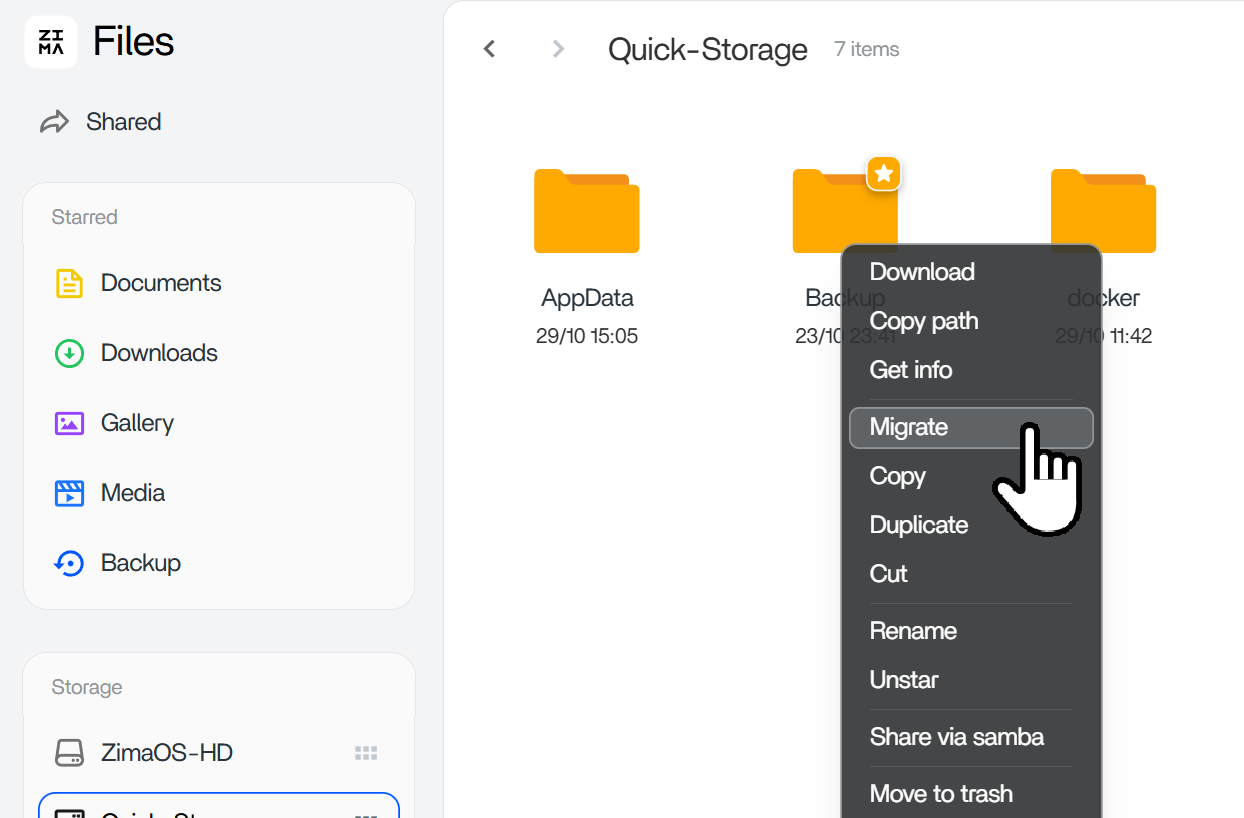
Current ZimaOS Uses a Dedicated Data Migration Page
The current ZimaOS Data Migration guide places this workflow under:
Settings → Data MigrationCurrent migration targets include Docker Images, Docker Application Data, and User Databases such as Gallery, Downloads, Documents, Media, and Backup.
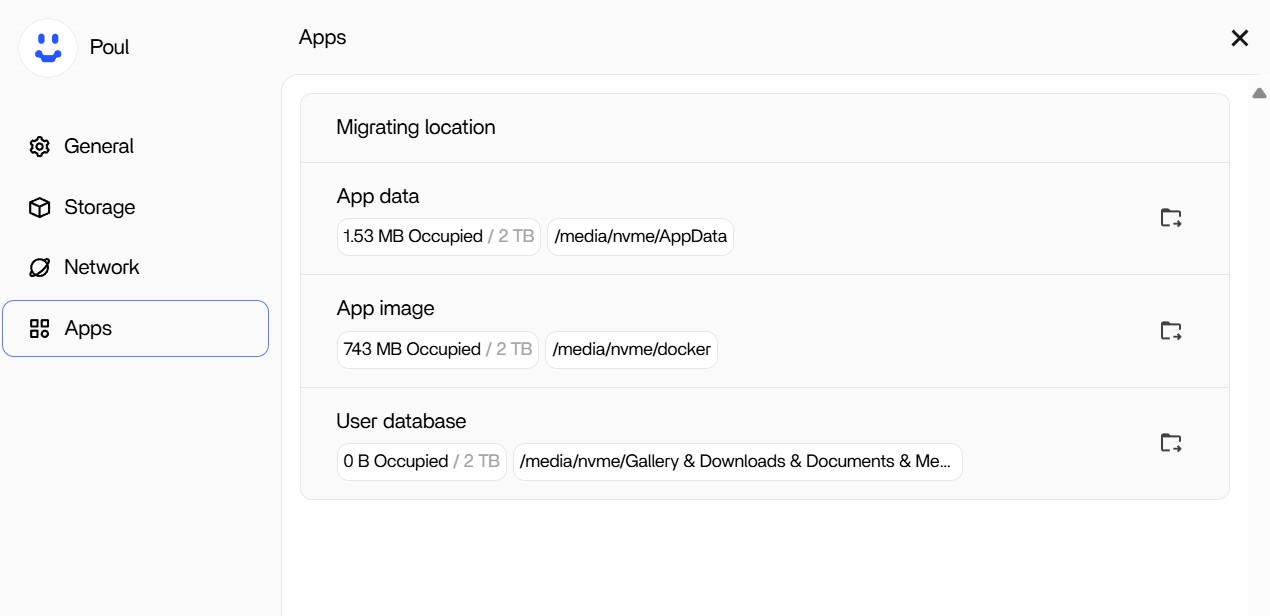
The current workflow is Modify Location → choose the new storage space → Start Migration. Use this current UI instead of looking for the exact 2025 Settings > Apps screenshots.
Why /DATA Still Appears to Point to ZimaOS-HD
After a managed migration, ZimaOS keeps compatibility references under /DATA. These are symbolic links, commonly called soft links. An application can continue referring to a familiar path under /DATA even though the real data lives on another drive.
Zima-Giorgio gave this command to inspect them:
ls /DATA -al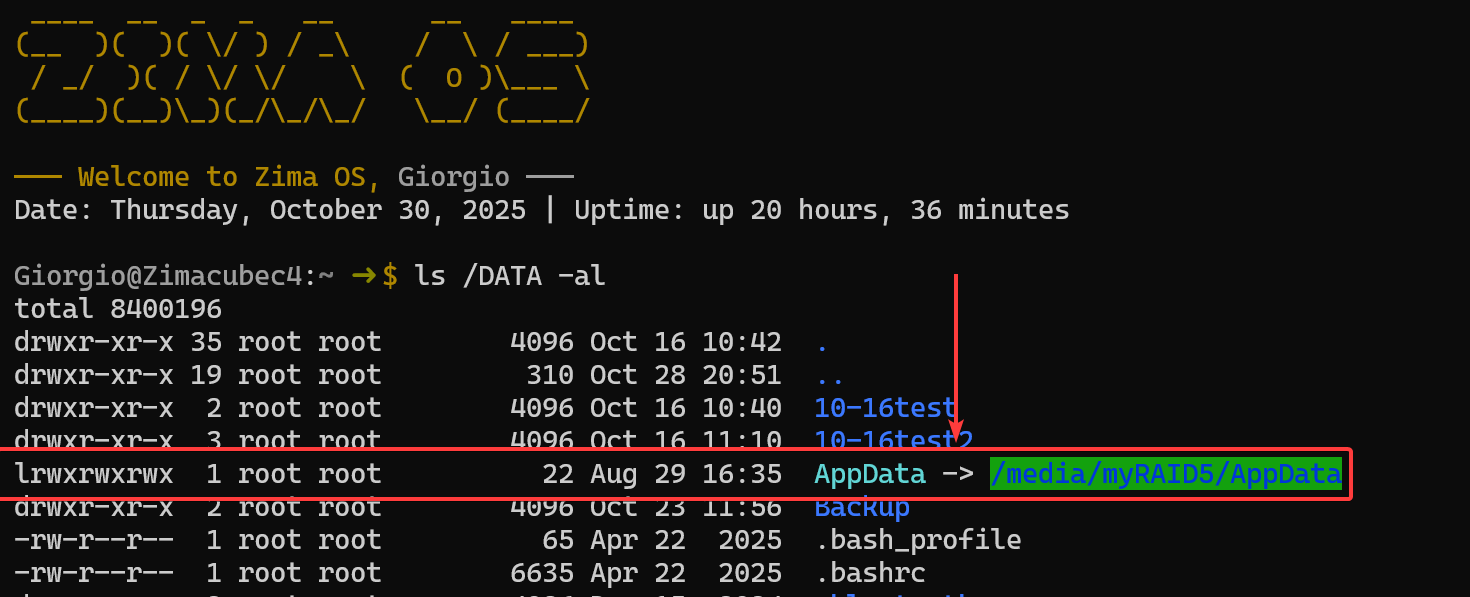
A migrated AppData path can therefore look conceptually like:
/DATA/AppData → /media/nvme/AppDataWhy the Files App Made the Migration Look Inconsistent
The original author noticed that a folder with the same name still appeared on ZimaOS-HD after migration and that files created on NVMe did not appear in the old folder. Some folders had been moved with the Files app rather than through the managed migration path that creates soft links.
The graphical Files app also did not expose every operating-system path directly, so the author could see more of the real filesystem from the terminal than from the dashboard browser.
The Community-Confirmed Fix
The original poster later explained exactly what had gone wrong:
- App Data and App Image had been migrated through Settings.
- User Database had been left on ZimaOS-HD.
- Media had been moved using the Files migration tool, so no compatibility soft link was created.
After migrating User Database to the NVMe through Settings, Jellyfin could find the media folders. The author explicitly reported that it worked.
Current Safe Workflow for Moving App and User Data
- Add an eligible internal HDD, SSD, or NVMe and make sure ZimaOS recognizes it.
- Open Settings > Data Migration.
- Choose the managed category you want to move.
- Click Modify Location.
- Select the destination storage space.
- Start the migration and let it finish before making other storage changes.
- Verify the migration details.
- If an app still behaves as if data is on the old drive, inspect
/DATAsoft links and the app's Docker volume mappings.
Verify the Real Destination in the Terminal
ls -al /DATA
readlink -f /DATA/AppData
readlink -f /DATA/Media
These are inspection commands; they do not move or delete the data.
Remember the Docker Container Path Layer
Even when the ZimaOS host path is correct, Jellyfin runs inside Docker. A host path such as /DATA/Media may be mounted into the container as /Media. Jellyfin can only browse paths that are mounted into its container.
Historical Settings Layout
The Storage Widget Was a Separate Issue
The source post also reported stale used-space data in the dashboard storage widget until reboot. Zima-Giorgio acknowledged that as a known issue at the time. Do not confuse that display problem with the Jellyfin path problem.
ZimaOS Migration and App Path Checklist
- Identify whether you are moving managed ZimaOS data or ordinary files.
- Use current Settings > Data Migration for Docker Images, Docker Application Data, or User Databases.
- Do not expect the Files app's folder Migrate command to create
/DATAcompatibility links. - After migration, inspect
ls -al /DATA. - Use
readlink -fto confirm the real destination. - Check the application's Docker host-to-container volume mapping.
- Remember that Jellyfin's browser sees container paths, not arbitrary host paths.
- Do not manually delete old folders until you have confirmed the migration and application behavior.
ZimaOS Data Migration FAQ
Why does Jellyfin still reference /DATA after migration?
That can be intentional. Managed ZimaOS migration creates soft links so applications can keep using compatible /DATA paths while the real files live on another drive.
Is the Files app Migrate command the same as Data Migration?
No. Files migration moves folders/files; managed Data Migration creates the compatibility path structure used by ZimaOS-managed data.
How do I see the soft links?
Use ls -al /DATA. The target shown after the arrow is the real storage location.
What actually fixed the original Jellyfin problem?
The author migrated User Database to NVMe through the Settings-managed migration path. Jellyfin then found the media folders and the author confirmed the setup worked.
Where is this setting in current ZimaOS?
Current documentation places the workflow under Settings > Data Migration.


