
What Does a Blinking Cursor During ZimaOS Installation Mean?
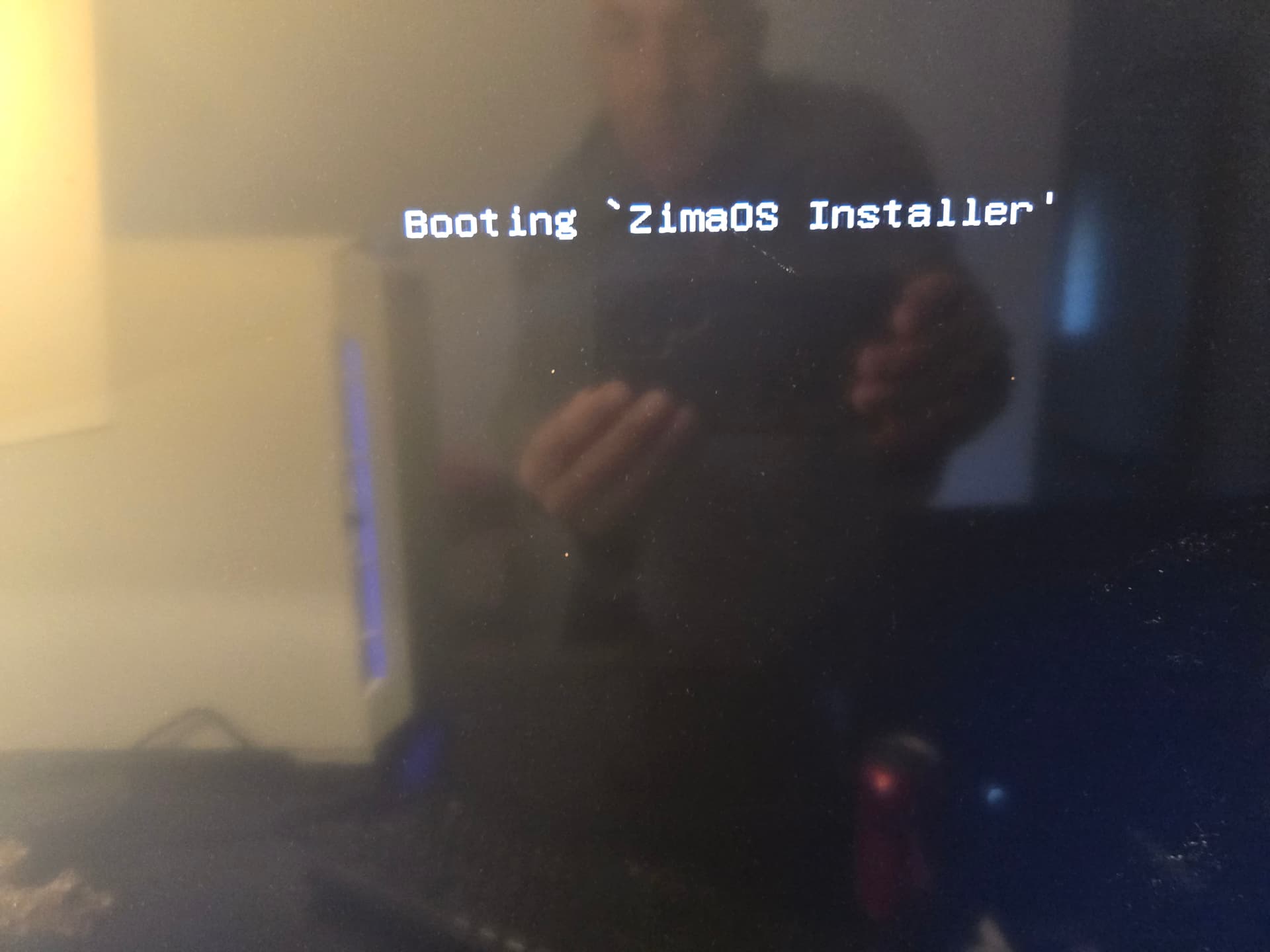
A black screen with a blinking cursor can appear at more than one stage of a ZimaOS installation. In this community case from June and July 2025, the system first stopped immediately after the message “Booting ‘ZimaOS Installer’”. A later test with a slim beta ISO reached the graphical installer, but the installed system still failed to start correctly.
Case status: The community thread did not establish a confirmed fix. The results apply to the specific ASUS Z890 desktop configuration and ZimaOS 1.4.x images that were tested; they should not be treated as a general compatibility verdict for current ZimaOS releases or all Z890 systems.
Hardware and Symptoms Reported in the Community Test
The original test used recently released desktop hardware rather than a Zima device. This distinction matters because successful installation on one x86 system does not confirm support for every motherboard, firmware implementation, graphics device, or storage controller.
| Component | Tested configuration |
|---|---|
| Motherboard | ASUS TUF GAMING Z890-PLUS WIFI |
| BIOS | Version 0407, dated August 30, 2024 |
| Processor | Intel Core Ultra 7 265K |
| Discrete GPU | NVIDIA RTX 2000 Ada Generation with 16 GB ECC GDDR6 |
| Storage | Samsung NVMe SSDs, including a 990 PRO in the initial configuration and a 980 in later testing |
| Memory | DDR5 |
| Boot configuration | UEFI enabled, Secure Boot disabled, and the internal drive visible in NVMe AHCI mode |
Two Separate Failure Stages
- Installer boot failure: Most tested images stopped after the ZimaOS installer boot message and never displayed the installation interface.
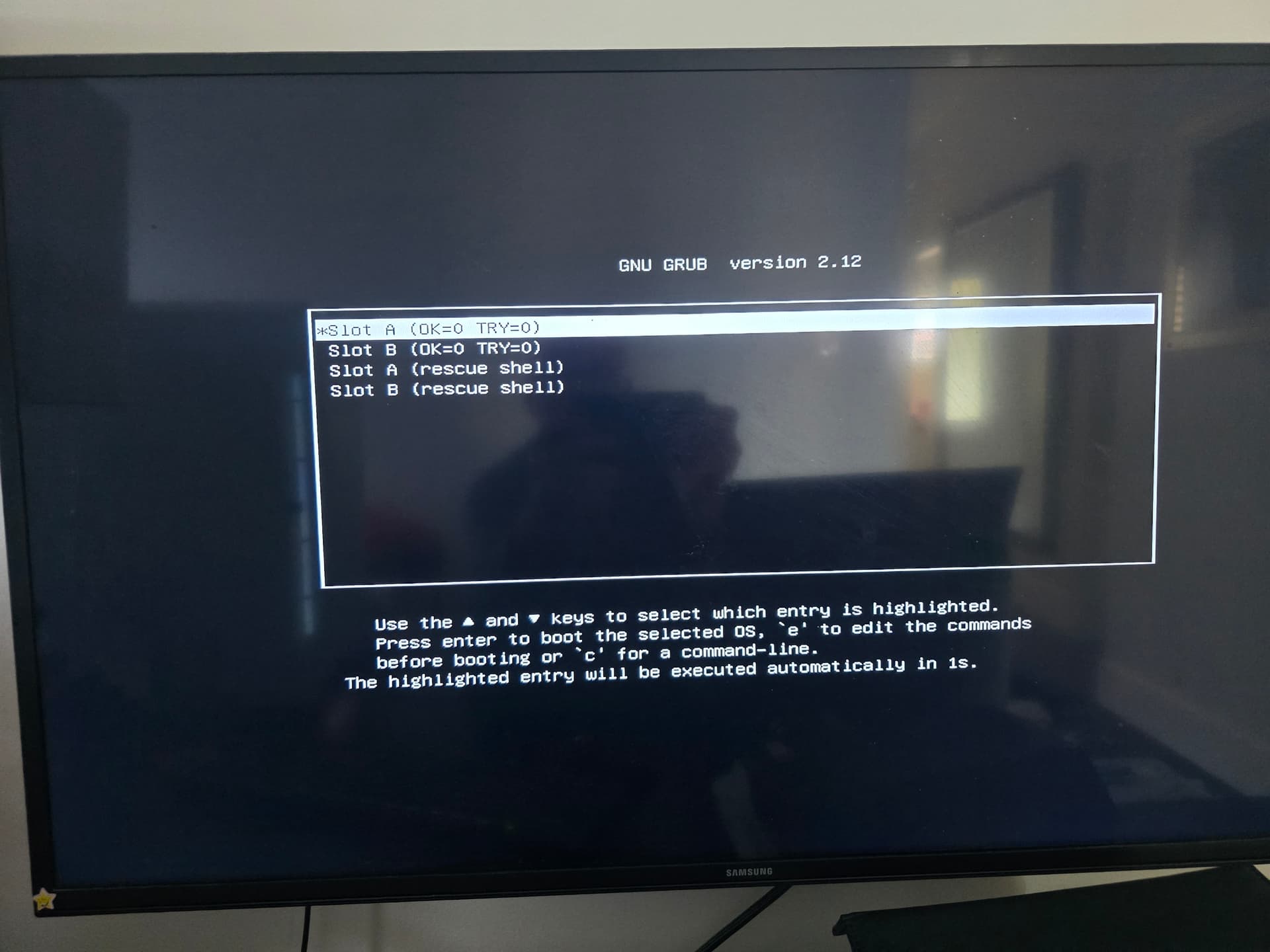
- Installed-system boot failure: The 1.4.2 beta slim ISO completed installation, but the next boot displayed Slot A, Slot B, and Rescue Shell as “slot 0.” Selecting an option led to a blank screen or shell prompt.
What the User Had Already Ruled Out
The thread is valuable because the user documented a broad set of failed tests. The following checks did not resolve the problem on this particular system:
- Reflashing the installer with Balena Etcher, Rufus, and
dd. - Using the latest Balena Etcher on Windows after fully cleaning the USB drive.
- Creating a fresh MBR partition table and formatting the installer drive as FAT32 before flashing.
- Trying a second USB drive as the installation medium.
- Disabling Secure Boot, Fast Boot, and UEFI Variable Protection.
- Using UEFI-only mode, then separately testing CSM.
- Disconnecting other Windows drives and removing competing EFI entries.
- Switching from DisplayPort to HDMI.
- Trying the boot parameters
nomodeset,acpi=off,noapic, andirqpollas user-reported experiments, not team-recommended fixes. - Attempting installation to an external USB SSD.
The same computer booted an Ubuntu 24.04.2 live environment successfully, and the ZimaOS installer booted on older Z690 hardware. These comparisons narrowed the problem, but they did not prove whether the root cause was motherboard firmware, installer behavior, graphics initialization, storage detection, or another hardware interaction.
What the ZimaOS Team Clarified
One early theory in the thread was that the installer used an outdated kernel. A ZimaOS team member clarified that the ZimaOS build at that time used Linux kernel 6.12 and was expected to support most integrated GPUs. The team therefore treated the installer image and its boot path as separate possibilities rather than confirming the user’s kernel theory.
The team supplied ZimaOS 1.4.2 beta installer variants for testing and recommended the latest Balena Etcher. It also suggested trying another installer USB drive, testing an external USB drive as the installation target, and confirming the internal drive mode.
Historical-version notice: These 1.4.x beta images were troubleshooting artifacts shared in 2025. Do not assume that they are appropriate for a new installation. Start with the current ZimaOS download page, then review the latest ZimaOS release notes on GitHub before selecting an image.
A Practical Troubleshooting Sequence
1. Confirm Where the Boot Process Stops
Record the exact last message on screen. A freeze before the installer interface and a failure after installation are different problems. Photograph the screen or make a short video so the boot stage, selected USB entry, and any warning can be compared.
2. Recreate the Installer on a Clean USB Drive
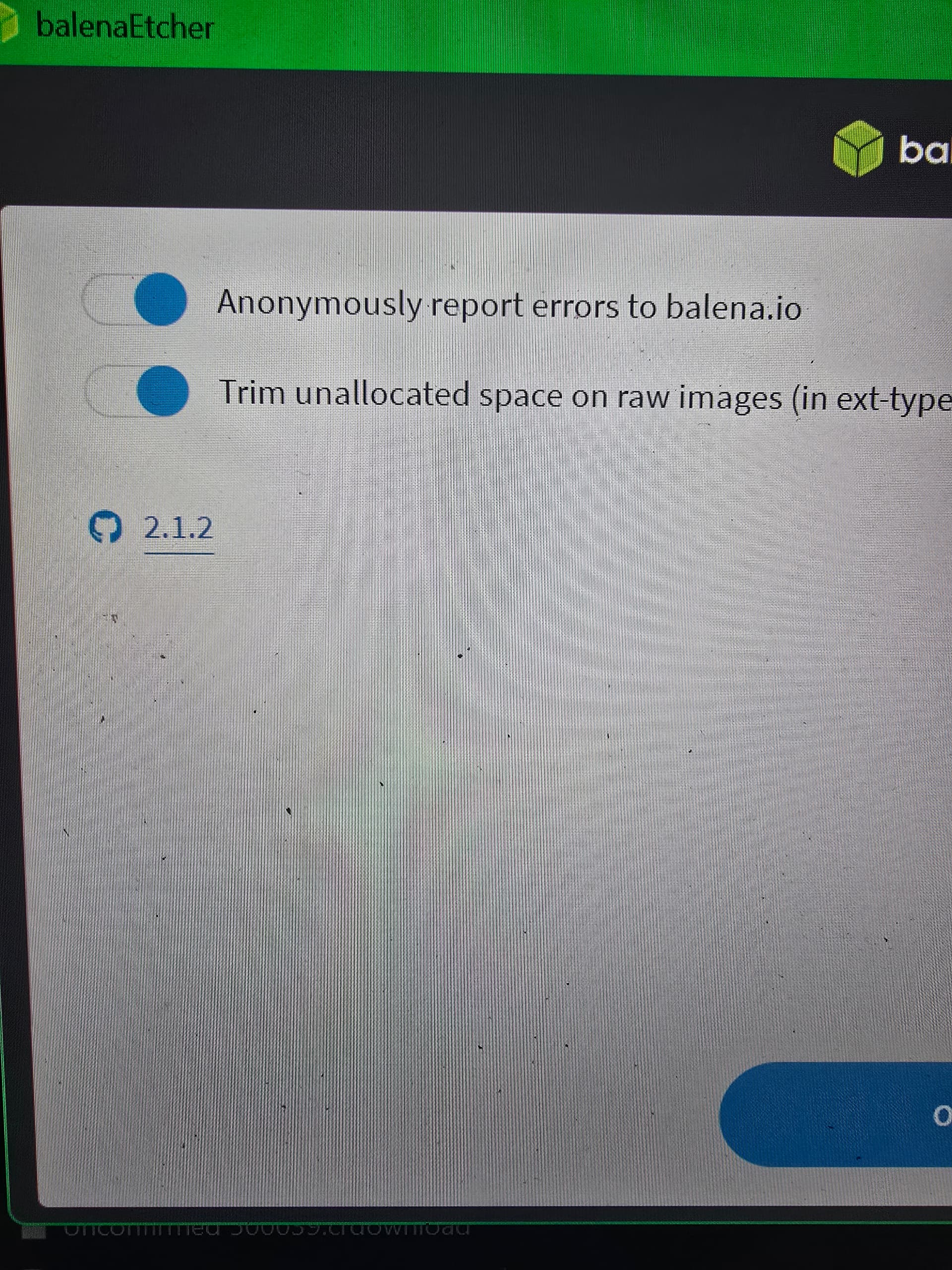
Use the current image from the official download page and a current image-writing utility. If the utility reports a missing partition table or says that the image may not be bootable, record the warning instead of assuming that a successful write guarantees a bootable device. Trying a different USB drive can help separate media-specific behavior from a platform-level failure.
3. Check Firmware and Storage Visibility
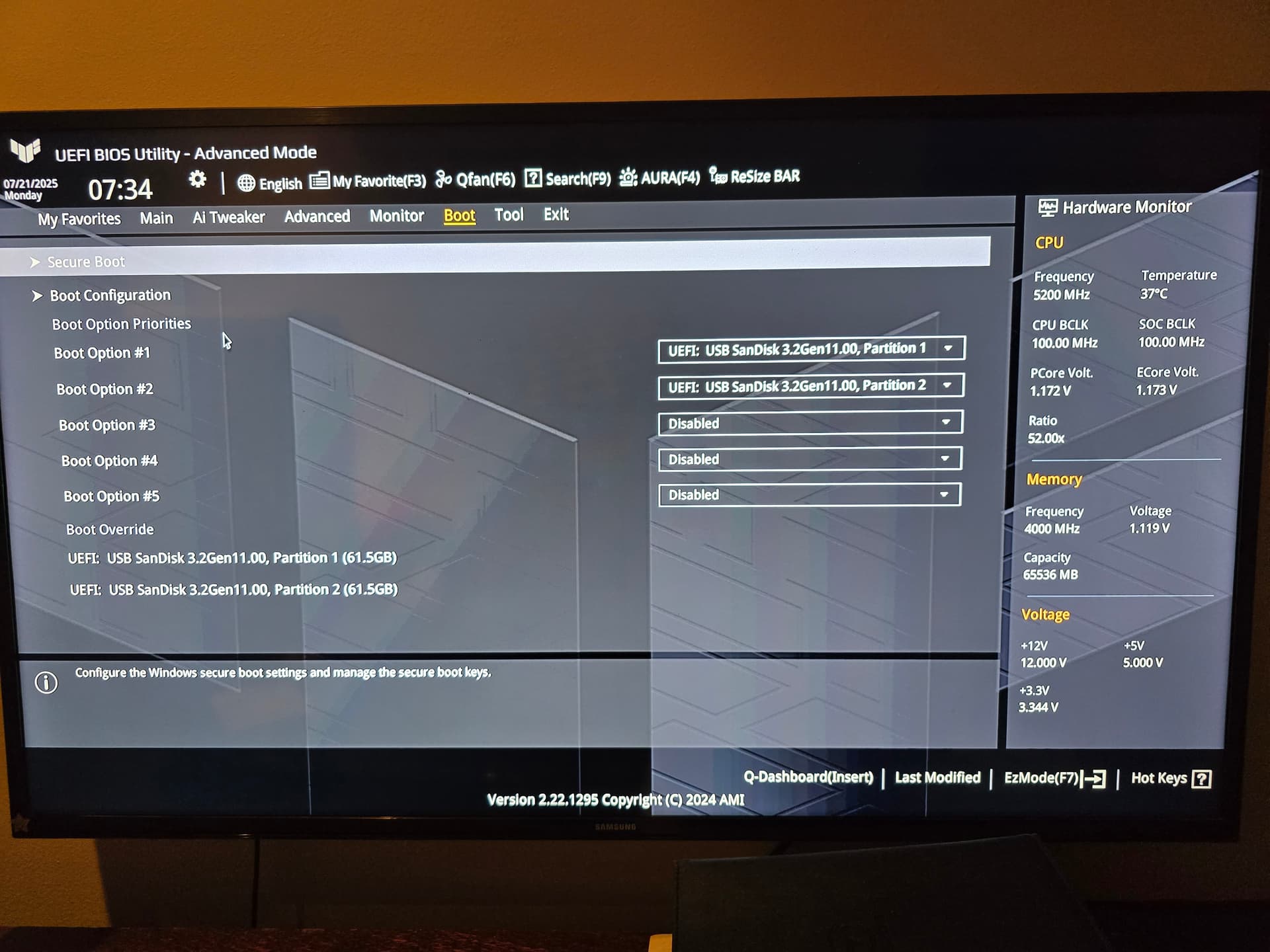
Verify that the intended installer USB and target disk are visible in firmware. Record whether the machine is using UEFI or CSM, whether Secure Boot is enabled, and which storage mode is active. Change one setting at a time so that any improvement can be traced to a specific adjustment.
4. Test the Installer and Target Drive Separately
If possible, test the installer USB on another compatible computer and test a second installer USB on the affected computer. The ZimaOS image booted on the user’s older Z690 system, while the Z890 system continued to stop. The team also suggested installing to an external USB drive that was separate from the installation media, although the external target was not detected in this case.
5. Preserve Evidence Before Advanced Changes
Before changing disk layouts, reinstalling, or testing historical images, back up important data and capture the BIOS version, motherboard model, CPU, graphics hardware, image filename, flashing application version, and exact boot result. This information is more useful to support teams than a blinking-cursor description alone.
What Happened After the Slim ISO Installed ZimaOS?
The slim zimaos_zimacube-1.4.2-beta1_installer_slim.iso was the only tested image that opened the graphical installer. It completed an installation to a Samsung 980 NVMe SSD, but the installed operating system did not start normally. The next boot showed the A/B system slots and Rescue Shell as “slot 0,” after which the machine returned to a blank screen or shell.
A community member suggested checking the NVMe logical block size. The original poster considered this unlikely in the specific case because the same Samsung 980 had already run ZimaOS successfully on a ZimaBoard system. No official reply confirmed the NVMe block format as the cause, so the suggestion should remain a diagnostic possibility rather than a solution.
Conclusion: Was the Blinking Cursor Fixed?
No confirmed fix was reported in the thread. Cleaning and replacing the USB installer, changing firmware settings, testing multiple 1.4.x images, switching display outputs, and trying different installation targets did not produce a bootable ZimaOS system on the tested ASUS TUF GAMING Z890-PLUS WIFI configuration.
The most defensible conclusion is that this was an unresolved interaction between the 2025 installer or installed boot process and this particular desktop configuration. Users testing current releases should begin with the current download and installation guidance, avoid relying on old beta images, and document reproducible results before requesting support. The broader ZimaOS installation troubleshooting guide provides additional checks for Zima hardware and third-party systems.
Frequently Asked Questions
Why does ZimaOS stop at “Booting ZimaOS Installer”?
The message identifies the stage where this system stopped, but it does not identify one universal cause. Installer media, firmware boot behavior, graphics initialization, storage detection, or a hardware-specific interaction can produce similar symptoms. In this case, extensive USB and firmware checks did not isolate a confirmed cause.
Did the ZimaOS 1.4.2 beta installer fix the ASUS Z890 problem?
No. The slim beta ISO reached and completed the graphical installation, but the installed system still failed to boot. The beta IMG and other tested images stopped earlier at the installer boot message.
Does a successful Ubuntu live boot prove that ZimaOS is compatible?
No. It demonstrates that the computer can boot another Linux live environment and that major hardware is functional there. It does not prove that the ZimaOS installer, boot configuration, included drivers, and storage workflow will behave identically.
Should new users download the slim 1.4.2 beta ISO?
Not as a default installation choice. It was a historical troubleshooting build shared during the 2025 discussion. Use the current official ZimaOS download and release information unless the ZimaOS team specifically asks you to test an older image.
Was the NVMe SSD confirmed as the cause?
No. NVMe logical block size was raised as a community troubleshooting idea, but the same Samsung 980 had previously worked with ZimaOS on another system. The thread did not establish the SSD or its block format as the root cause.


