
If you are seeing the old ZimaOS 1.6.2 beta Files errors—AppData inaccessible, wrong paths, blocked Favorites operations, or slow copy/paste—do not apply beta-era workarounds on a current system. Beta2 fixed the main AppData and copy-performance regression, and later stable releases added further file-service, YAML, memory, and Files fixes.
The source thread is valuable because it shows the security trade-off that caused the regression: IceWhale tightened file-link access to address path traversal, and the first beta accidentally blocked legitimate paths. Current users should update, reproduce the exact operation, and only then diagnose permissions or storage.
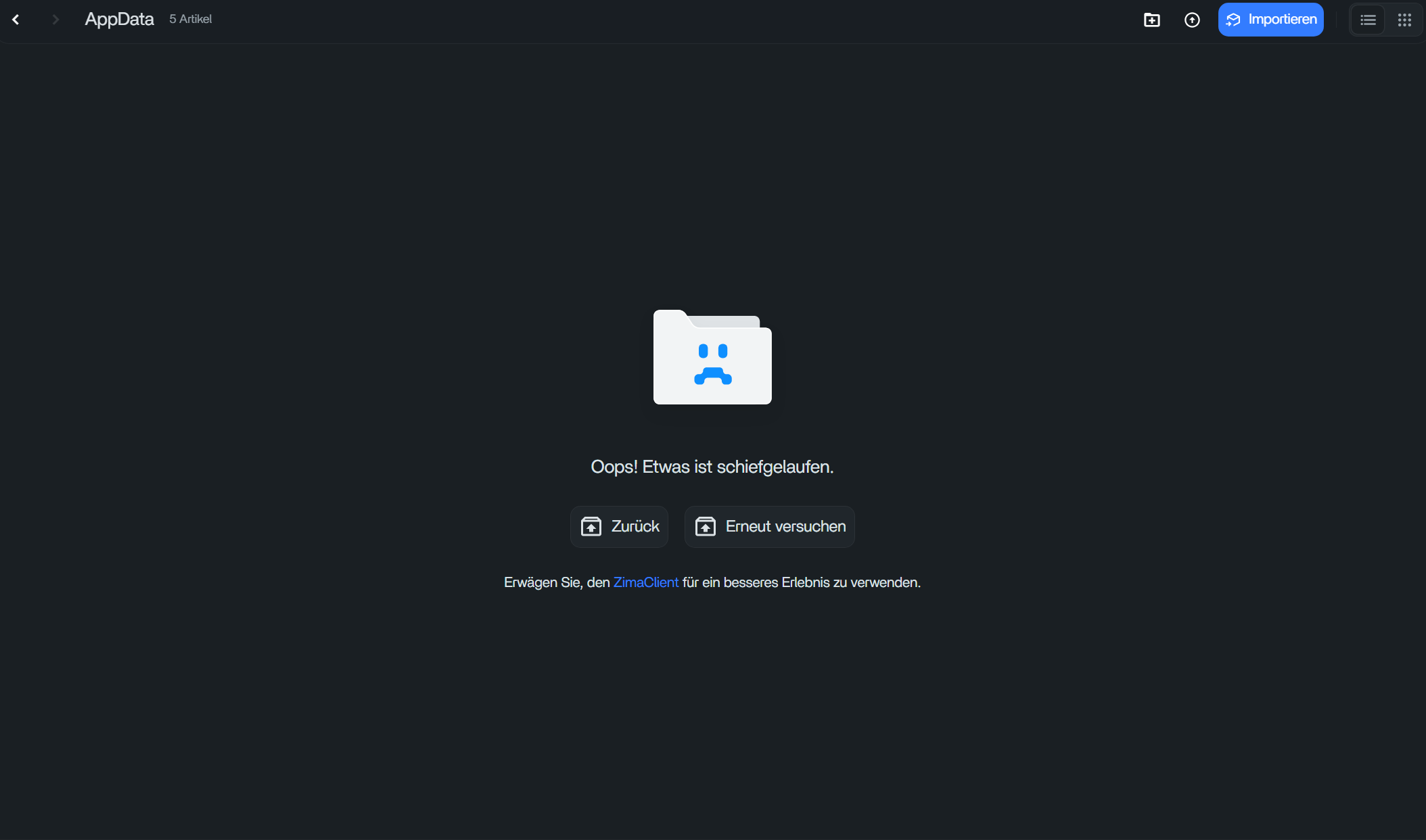
What Broke in 1.6.2 Beta1
IceWhale confirmed that AppData access was known to be broken after the security hardening. Users also reported slow cross-drive copy/paste and inaccessible folders.
Beta2 Fixed the Main AppData and Copy Regression
IceWhale shipped Beta2 specifically for the inaccessible AppData problem. A user then retested cross-drive copies and confirmed the slowdown they had noticed in Beta1 was gone.
Do Not Disable Security Checks to Restore Old Paths
The security changes were introduced to fix path traversal. Avoid scripts or configuration edits that broadly weaken path validation just to regain access to a protected system folder.
Use Current ZimaOS Before Troubleshooting Further
The official ZimaOS 1.7.1 release notes includes another high-risk file-service fix, abnormal file-operation memory fixes, and a fix for empty folders remaining after cuts.
AppData Should Be Managed, Not Browsed Like Ordinary Media
Application configuration paths are more sensitive than normal user folders. Use the app's mapped volumes and current AppData/migration controls instead of treating every internal path under /media as a general-purpose folder.
If Favorites Still Trigger a Security Policy Error
Remove and re-add the normal user folder favorite, hard-refresh Files, and capture the exact path plus current ZimaOS version. Do not assume the old 1.6.2 beta bug is the same issue if you are on a later release.
Dark Mode Contrast Is Cosmetic, Not Data Corruption
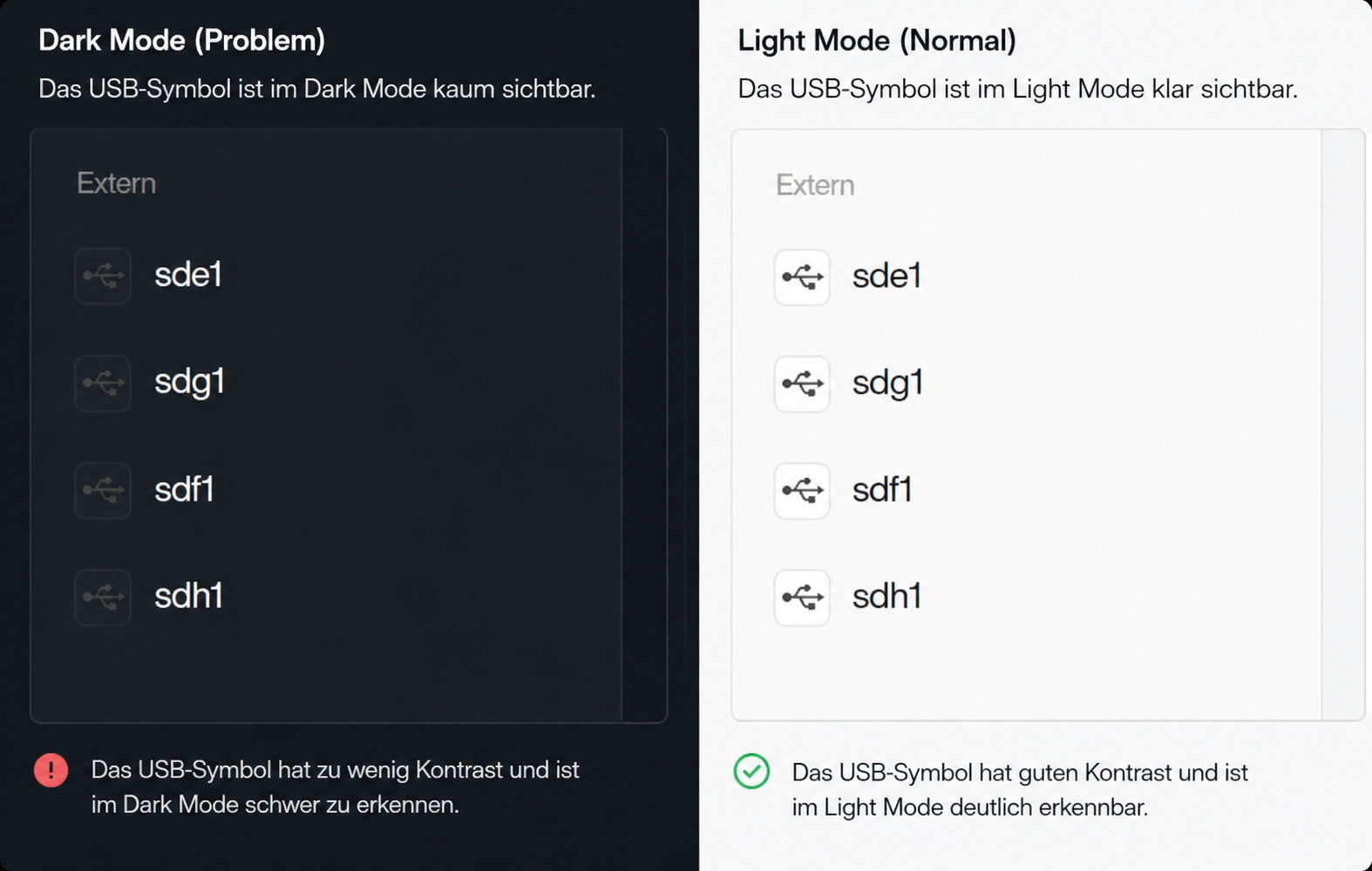
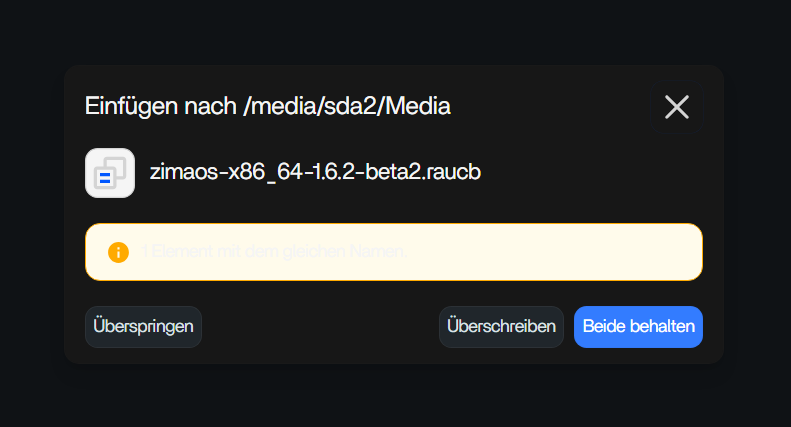
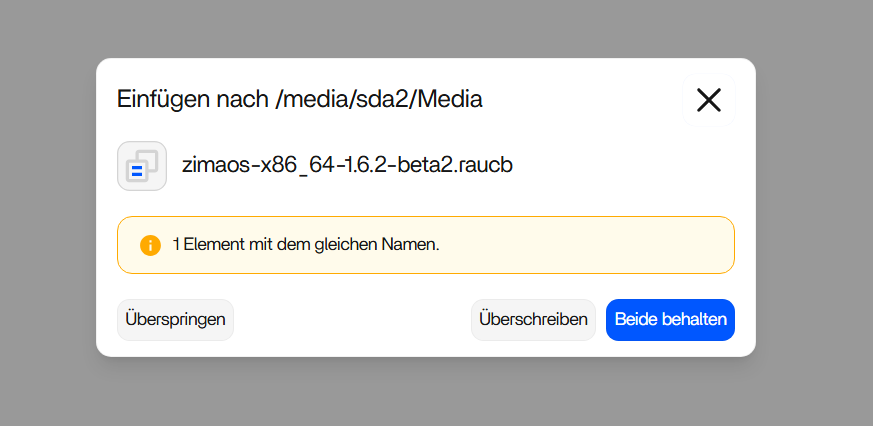
The source screenshots also documented unreadable USB icons and conflict text in Dark Mode. Switch to Light Mode if needed while troubleshooting, but do not mistake those display bugs for storage failure.
Verify Copy Operations Independently
For large moves, compare destination file counts and sizes before deleting the source. A Files UI regression and actual data loss are different outcomes.
The data migration guide provides the safer managed-data path.
Separate UI Errors from Real Filesystem Errors
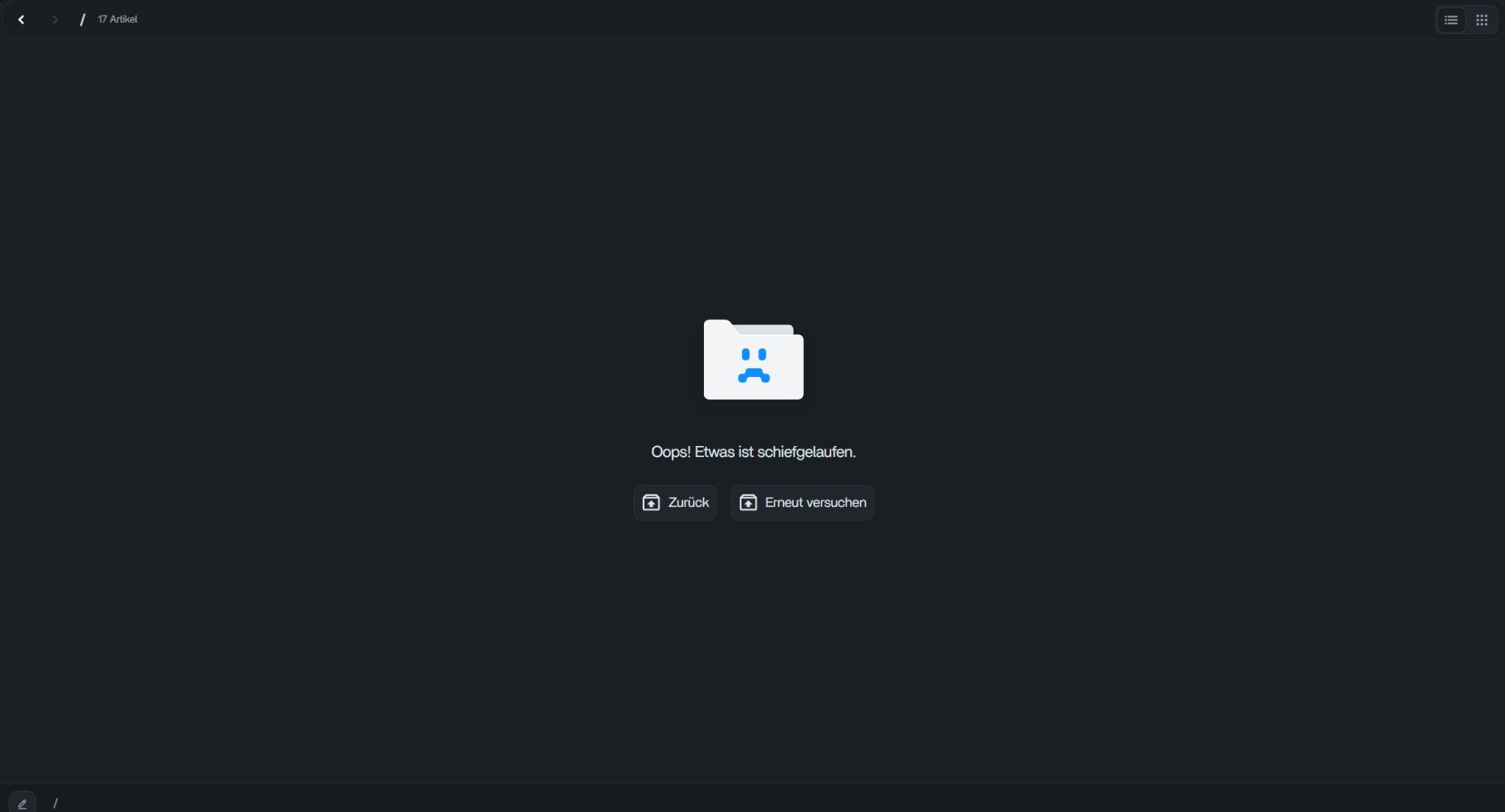
An “Oops” page or blocked Favorites action can be a frontend/security-policy failure while the underlying storage remains healthy. Confirm the folder with SMB or a read-only terminal check before assuming files disappeared.
Capture the Exact Path That Fails
Security regressions are often path-specific. Record whether the failure involves AppData, the root /media directory, a normal user folder, a favorite, or an external USB mount. That context determines whether the behavior is expected protection or a bug.
FAQ
Was AppData inaccessible in 1.6.2 Beta1?
Yes. IceWhale explicitly acknowledged it and released Beta2 to fix it.
Did Beta2 fix copy performance?
One reporting user retested and confirmed their observed Beta1 slowdown was gone.
Should I remove security policy checks?
No. Those checks were added to address a path-traversal security issue.
What should I do on a current release?
Update first, reproduce the exact folder/action, capture screenshots/logs, and avoid applying old beta-specific modifications.


