
The source never identifies the unknown PCI device, so the safest conclusion is not “install this one driver.” Windows Device Manager reported Code 28—no compatible driver installed—and the original poster later said a third-party utility found a driver that fixed the issue. Because the hardware ID and final driver name were never posted, that result cannot be turned into a reproducible Zima-specific driver package.
A later reply introduced a second possibility: if the Windows 11 installation was running inside ZVM, the unknown PCI device could be a VirtIO virtual device such as the VirtIO Balloon. Physical Windows on Zima hardware and Windows inside ZVM need different diagnosis paths.
Code 28 Means Windows Has No Driver for That Device
In Device Manager, Code 28 indicates that Windows sees the PCI function but has no matching installed driver. That is very different from the device being absent from PCI enumeration entirely.


Read the PCI Hardware ID Before Installing Anything
Open Device Manager → the unknown PCI Device → Properties → Details → Hardware Ids. A value such as:
PCI\VEN_XXXX&DEV_YYYY...identifies the vendor and device family much more reliably than the generic “PCI Device” label.
Use that ID to locate the driver from the device/chipset vendor, motherboard/system vendor, or the virtual-device project that created it.
The Source Used Driver-Updater Utilities, but That Is Not the Preferred Current Method
One reply suggested Driver Booster; the OP later said CCleaner found and updated the missing driver. The thread does not reveal what package was installed.
Generic driver-updater utilities can install incorrect, outdated, or unnecessarily broad packages. Prefer Windows Update's optional drivers, the hardware vendor, Intel/AMD/Realtek/Broadcom/etc. official driver sources, or the exact VM-device project.
If Windows Runs Inside ZVM, Check VirtIO First
KVM/QEMU guests commonly expose VirtIO network, storage, balloon, and other paravirtual devices. A later source participant said their unknown “PCI Device” was the VirtIO Balloon driver.
IceWhale community guidance for ZVM instructs users to download the virtio-win ISO, mount it as a VM CD-ROM, then install the appropriate Windows drivers from that disc.
If Windows Runs Directly on Zima Hardware, VirtIO Is Not the Answer
A bare-metal Windows installation needs drivers for the real chipset, NIC, storage controller, GPU, PCIe bridge, or accessory. Installing VM VirtIO drivers will not solve an unrelated physical PCI device.
PCI Slot Lights Do Not Identify the Missing Driver
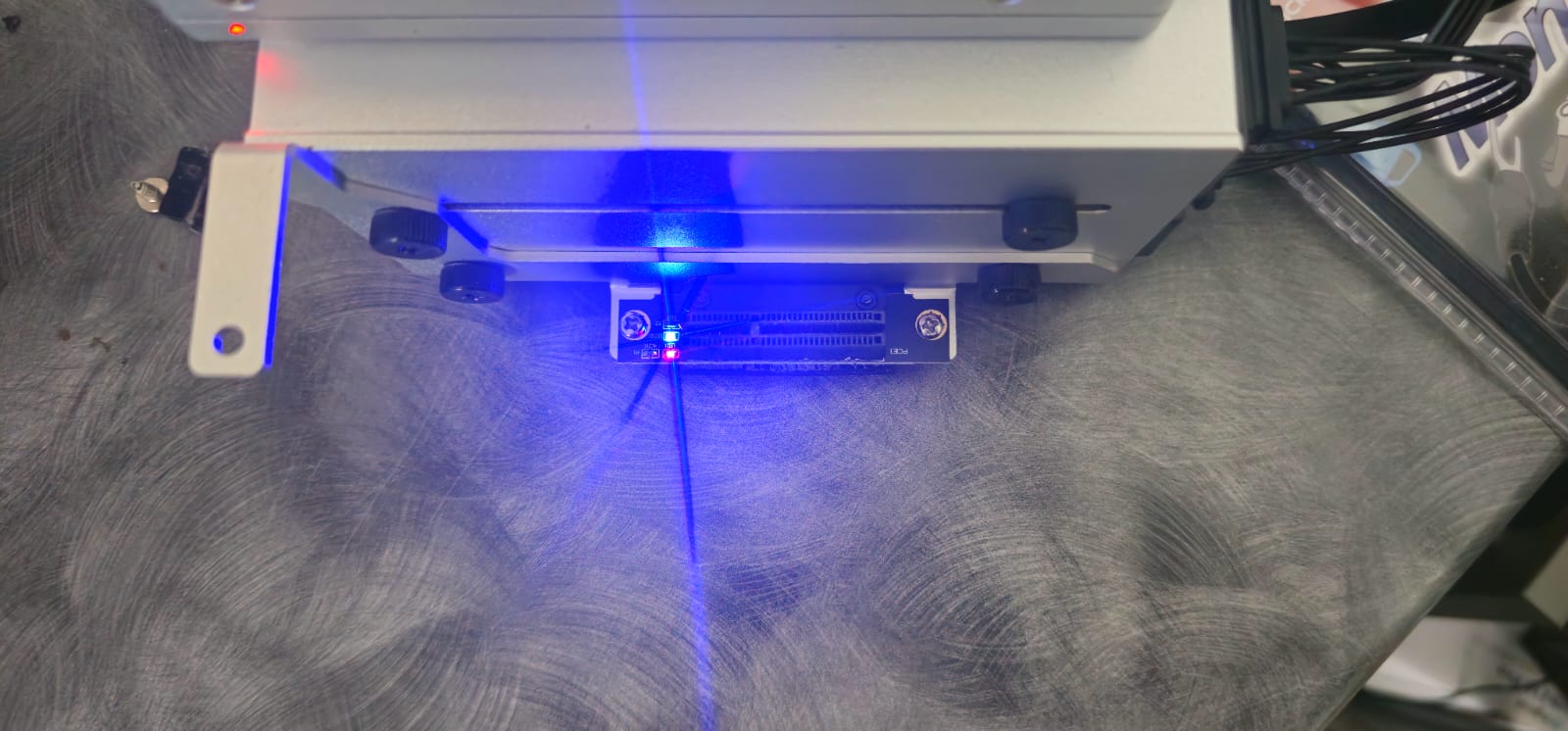
The source mentions red and blue lights on the PCI connection. Link/power LEDs can show that hardware is powered or connected, but they cannot identify which Windows driver is missing.
Verify the Device Name After the Driver Installs
After installation/reboot, Device Manager should replace the generic PCI Device entry with the actual device class/name and remove Code 28. Record that final name and driver version so the fix can be reproduced later.
Windows PCI Driver FAQ
Did the source identify the exact PCI device?
No. The original poster only said a third-party utility eventually found a working driver.
Should every ZVM unknown PCI device use VirtIO drivers?
Not automatically, but VirtIO is a high-priority check for Windows guests running under ZVM/KVM.
Should bare-metal Windows use the ZVM VirtIO ISO?
No, unless the device is actually a virtual VirtIO device. Physical hardware should use its real vendor driver.


