
Pink, green, or badly shifted colors during Jellyfin HDR playback usually mean the server is transcoding HDR or Dolby Vision content but the tone-mapping path is not working correctly. In the February 2025 IceWhale Community thread, this happened on a ZimaCube with an Intel N100 and 16 GB of RAM when Jellyfin hardware acceleration was enabled.
An IceWhale team member reproduced correct tone mapping, identified the source as Dolby Vision, and said the Jellyfin version then available in the ZimaOS App Store appeared to have color-conversion problems. The community fix was to use a different Jellyfin container image together with Intel Quick Sync Video settings. The original poster later confirmed that this solved the issue. That makes the thread useful, but the exact container image and screenshots are historical: current Jellyfin releases and hardware-acceleration guidance should be checked before replacing a working modern App Store installation.
Why Jellyfin HDR Can Turn Pink or Green
The original report involved HDR content that displayed with a pinkish or green image only when hardware acceleration and tone mapping were involved. After checking the source format, the IceWhale reply concluded that the file was Dolby Vision content rather than ordinary SDR video.
HDR-to-SDR playback is not one single operation. Jellyfin may need to:
- decode a 10-bit HEVC or Dolby Vision source;
- convert HDR or Dolby Vision color information to an SDR output;
- scale or subtitle the video;
- encode the result into a format the playback device accepts.
If the GPU decode step works but the tone-mapping runtime, driver, or container image does not, the stream can still play while the colors are visibly wrong.
The 2025 ZimaCube N100 Case
The community test system was a ZimaCube with an Intel N100 processor and 16 GB of RAM. That hardware detail matters because Intel's integrated GPU supports hardware video decoding, but performance and software support depend on the codec, tone-mapping method, kernel, driver, and Jellyfin FFmpeg build.
The first natural current product route for the legacy ZimaCube family is the current ZimaCube 2 personal cloud NAS. Do not assume that its current hardware configuration is identical to the N100 system used in this 2025 community test.
The Intel QSV Settings Shared in the Community
The working community configuration selected Intel QuickSync (QSV) as the Jellyfin hardware-acceleration method. The screenshot also showed hardware decoding enabled for common codecs and Intel low-power H.264 encoding enabled.
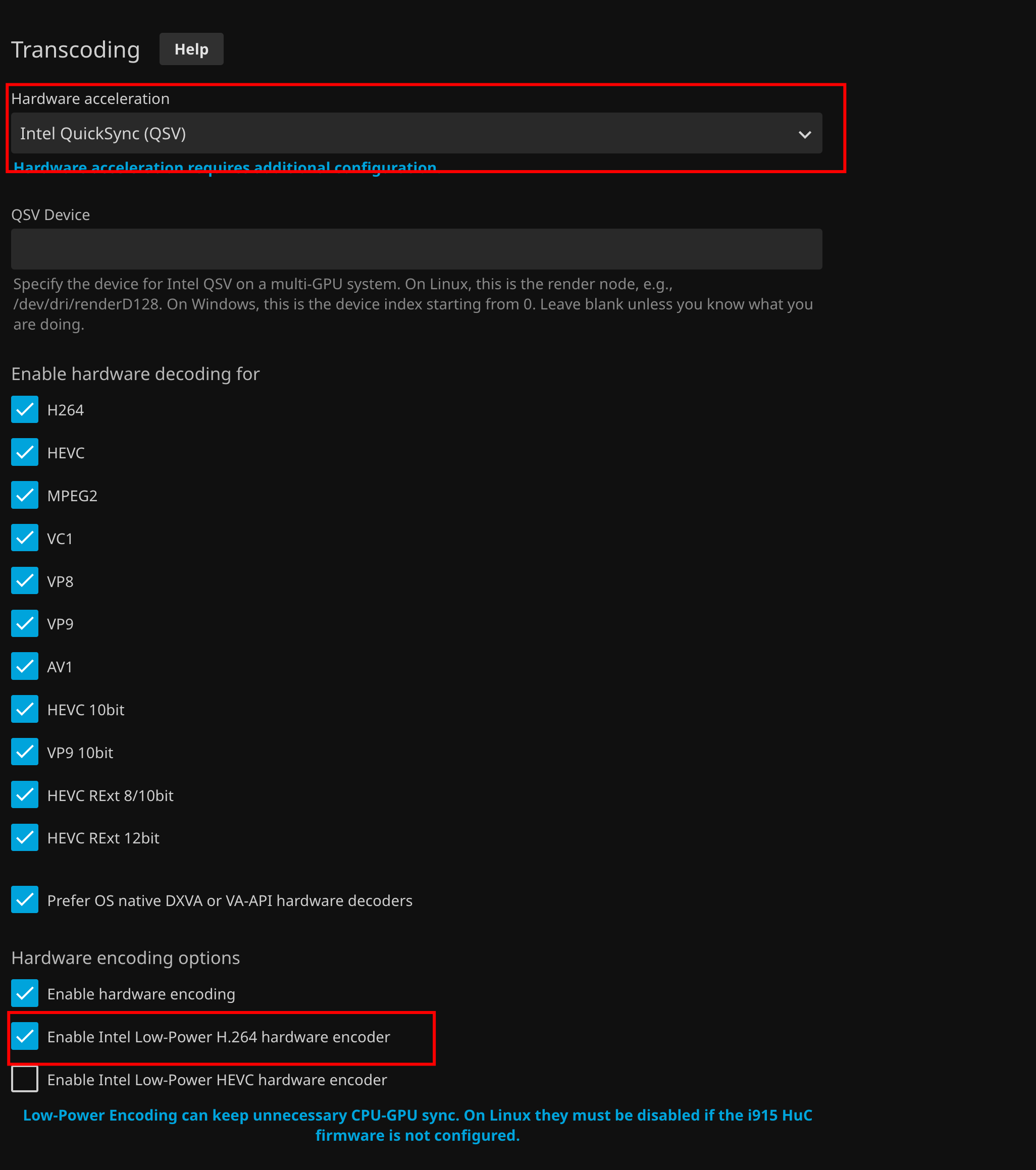
Do not copy every codec checkbox blindly. Jellyfin's current Intel GPU hardware acceleration guide recommends enabling only codecs the installed GPU can actually decode. Current Jellyfin also notes that Intel QSV and VA-API work on headless Linux systems without a monitor attached.
Enable the Correct Tone-Mapping Method
The second community screenshot showed Jellyfin's tone-mapping control enabled while VPP tone mapping remained disabled in that particular configuration.
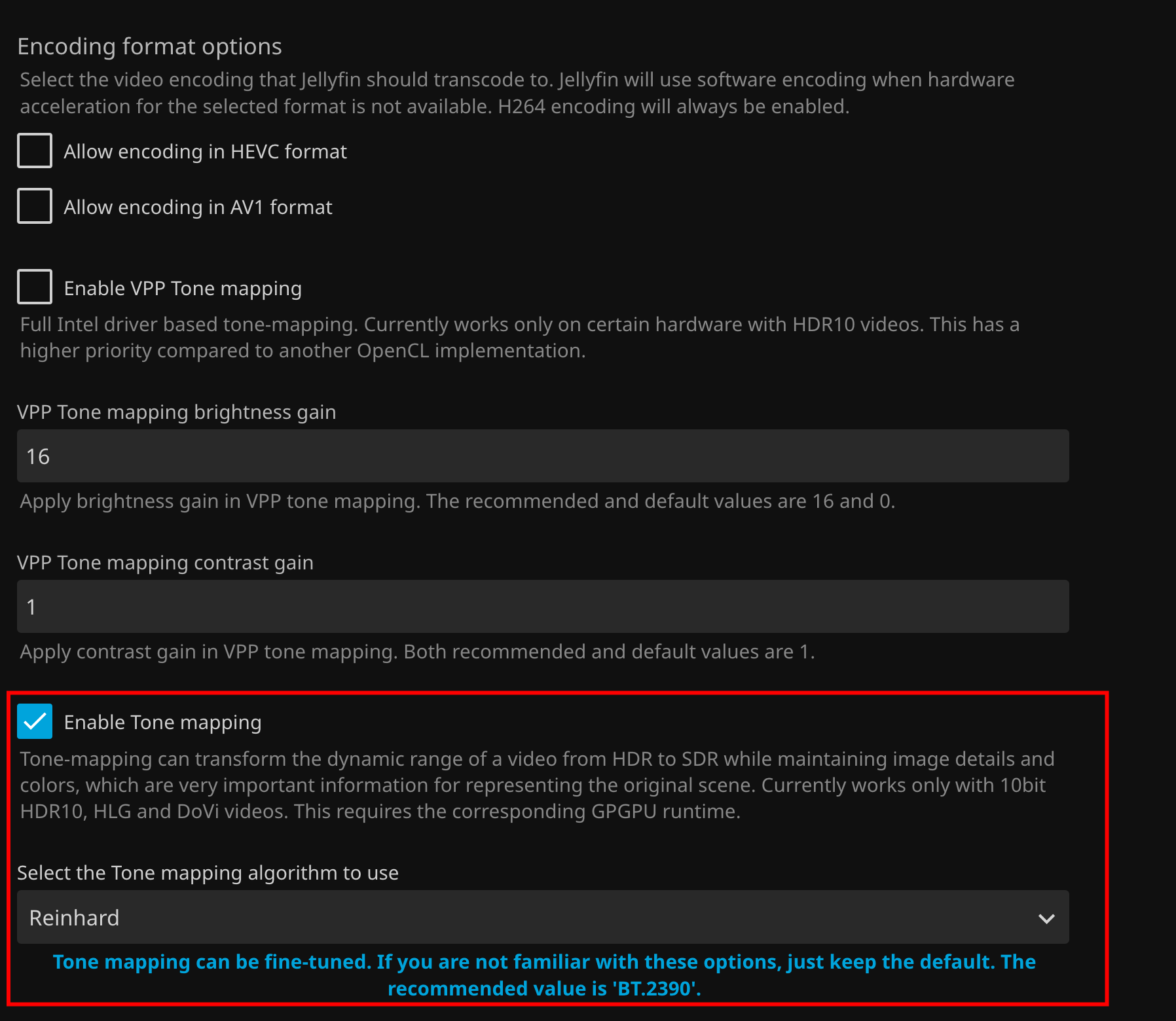
Current Jellyfin documentation describes two major Intel tone-mapping paths on supported systems:
- OpenCL tone mapping: supports Dolby Vision Profile 5 and offers detailed tuning, but the OpenCL runtime may need to be installed manually on Linux.
- QSV VPP tone mapping: can use less power and fixed-function hardware, but supports fewer GPU models and has fewer tuning controls.
Jellyfin also states that hardware-accelerated HDR and Dolby Vision to SDR tone mapping requires a GPU capable of 10-bit HEVC decoding. If both available tone-mapping methods are enabled, Jellyfin may prefer VPP for supported HDR10 workflows, so the exact combination should match your source format and GPU.
Dolby Vision May Need the Native Decoder Option
Current Jellyfin Intel documentation adds a detail that was easy to miss in the 2025 screenshots: Dolby Vision support requires the Prefer OS native DXVA or VA-API hardware decoders option to be enabled for the relevant Intel workflow.
If normal HDR10 tone mapping works but Dolby Vision still produces wrong colors, confirm:
- the file really contains a supported Dolby Vision profile;
- the GPU supports 10-bit HEVC decoding;
- the current Jellyfin FFmpeg build is being used;
- the Intel media driver and OpenCL runtime are available inside the container;
- the native decoder preference required by current Jellyfin guidance is enabled.
The ZimaOS App Store Image Issue Was a 2025-Specific Finding
On February 28, 2025, the IceWhale team member said that the Jellyfin version then available in the ZimaOS App Store appeared to have a color tone-conversion issue and recommended the nyanmisaka/jellyfin Docker image together with a supplied custom-install YAML file.
The attached historical configuration was:
Jellyfin.yaml shared in the original community reply.
That recommendation solved the original user's issue, but it should not be generalized into “the current ZimaOS Jellyfin App Store package is broken.” Container images, Jellyfin FFmpeg, Intel drivers, and ZimaOS app definitions have changed since February 2025. On a current installation, verify the problem with the current package and logs before replacing the container.
How to Verify That Hardware Acceleration Is Actually Working
Do not judge only from the Hardware Acceleration dropdown. Start a transcode and inspect Jellyfin's playback information or FFmpeg transcode log. You want to confirm that hardware decoding, the tone-mapping filter, and hardware encoding are all being used as expected.
Current Jellyfin documentation recommends its bundled jellyfin-ffmpeg, which includes the patches and GPU integrations expected by Jellyfin. A partial hardware pipeline can leave one expensive stage on the CPU and produce poor performance even when QSV is selected in the dashboard.
What the Successful Playback Looked Like
The IceWhale reply shared a Dolby Vision playback result after switching the image and applying the QSV settings. The playback information showed active transcoding rather than direct play.

The IceWhale tester also cautioned that the N100's integrated graphics were not very powerful and reported smooth Dolby Vision conversion only around 4K 30 fps and below in that setup. Treat this as one historical test result, not a guaranteed performance specification for every file, bitrate, subtitle type, or current Jellyfin release.
Check Current Intel Driver and Kernel Issues Before Blaming Jellyfin
Jellyfin's current known-issues documentation records several Intel Linux edge cases. Driver or kernel bugs can affect tone mapping and low-power encoding, and some platforms need newer firmware or kernels. If colors are wrong on a current installation even with a current Jellyfin image, review the Jellyfin hardware acceleration known-issues page.
Do not upgrade kernels, firmware, or GPU drivers casually on a working NAS. Back up important data and confirm that the issue you are addressing actually matches the documented platform and version range.
Jellyfin HDR Tone-Mapping Troubleshooting Checklist
- Confirm whether the problem occurs only during transcoding, not direct play.
- Check whether the source is HDR10, HLG, or Dolby Vision.
- Confirm the Intel GPU can decode the source codec and bit depth.
- Use the current Jellyfin FFmpeg build and current container package.
- Select Intel QSV or the acceleration method appropriate for the host.
- Verify the required Intel media and OpenCL runtime are accessible inside the container.
- Enable the current Jellyfin tone-mapping option appropriate for the source.
- For Dolby Vision, review Jellyfin's current native-decoder requirement.
- Start one test transcode and inspect its FFmpeg log.
- Only if the current ZimaOS package reproduces the historical image problem, consider a custom container after backing up the Jellyfin configuration.
Jellyfin HDR Tone Mapping on ZimaOS FAQ
Why is Jellyfin HDR video pink or green?
In the community case, the affected file was Dolby Vision and the problem occurred in the hardware tone-conversion path. Similar symptoms can also result from a driver, FFmpeg, OpenCL, or container-image problem, so confirm the current transcode log before assuming the 2025 cause is identical.
Should I use Intel QSV or VA-API?
Both are supported by current Jellyfin on Linux Intel hardware. The community fix used QSV. The best choice depends on the GPU generation, driver stack, Jellyfin release, and whether you need a particular tone-mapping path.
Should I enable VPP tone mapping or OpenCL tone mapping?
Current Jellyfin supports both on selected Intel hardware. OpenCL has broader Dolby Vision support and more tuning options; VPP can be more power efficient but has narrower hardware and format constraints.
Do I still need the nyanmisaka/jellyfin image?
Not automatically. It was the working recommendation for this specific February 2025 ZimaOS App Store case. Test the current ZimaOS Jellyfin package first because the app image and Jellyfin hardware-acceleration stack may have changed.
Can the Intel N100 tone-map 4K Dolby Vision?
The IceWhale community tester reported smooth conversion around 4K 30 fps and below in their configuration. Actual performance depends on bitrate, codec profile, subtitles, output format, memory bandwidth, thermal limits, and current software, so treat that result as a reference rather than a guarantee.


