
How to Tune Jellyfin for Multiple Users on a Small Home Server


Tune a small Jellyfin server for multiple users by reducing avoidable conversion work before adding resource limits or replacing hardware.
Multiple users do not translate directly into a CPU requirement because Direct Play, hardware transcode, software transcode, subtitles, and remote bandwidth consume different resources. Start with the client paths that create work, then schedule background tasks and measure the real peak. Optimize the first resource that saturates instead of lowering quality everywhere.
Maximize Direct Play Before Tuning the Host
Every compatible client that Direct Plays removes video conversion from the shared compute budget. One problematic subtitle or browser can cost more CPU than several compatible television sessions.
Client testing and subtitle burn-in checks make it easy to prove whether a specific track is forcing full video work.
Test representative clients and fix avoidable compatibility problems first. The hardware-accelerated streaming path should cover conversions that genuinely remain.
Verify Hardware Transcoding on the Exact Device
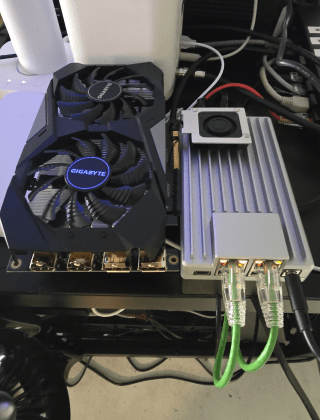
Enabling an acceleration checkbox is not enough; the container or service must have device access and the media path must actually use the hardware engine. Partial acceleration can still leave heavy work on CPU.
Hardware acceleration changes the resource path rather than merely lowering one number; a Jellyfin transcode benchmark shows materially different CPU and GPU behavior across software, hardware, subtitle, and tone-mapping cases.
Run the hardest expected conversion and confirm device activity plus real-time transcode speed. If acceleration is absent, repair it before setting per-user quality limits.
Move Heavy Background Tasks Out of Viewing Hours
Scans, chapter extraction, trickplay, intro detection, and metadata work can collide with playback on compact CPUs and slow disks. A small server benefits more from schedule separation than a large machine with abundant margin.
Library work can be moved away from the viewing window because Jellyfin exposes scheduled media scans separately from active playback.
Place the largest jobs outside the household peak, then reproduce the busiest stream mix with those jobs paused. Re-enable only the tasks whose overlap still passes.

Test Network and Storage With the Full User Mix
A small server can have idle CPU and still buffer because several streams share Wi-Fi, a 100 Mbps client link, or one slow media disk. Resource tuning has to include the delivery path.
Aggregate delivery demand is easier to size with a per-stream bandwidth model that accounts for LAN, Wi-Fi, NAS, and remote-upload capacity.
Run the expected simultaneous sessions while watching server NIC throughput, storage latency, and playback mode. Keep the lowest-cost configuration that passes with margin.

Recommended products

Support & Tips
More to Read

NAS Share Shows Old Files After Storage Replacement: Checks and Fixes
Compare local storage with the active share and a clean client. Repair only the layer proven stale, then verify the result survives reconnect and...

Mini PC Cooling Maintenance Guide for Fans, Vents, and Thermal Baselines
Use repeatable idle and load readings. Clean external airflow first, confirm fan behavior, and open the chassis only when evidence survives a controlled retest.
Home Server Firmware Update Checklist for BIOS, Boot Order, and Devices
Capture versions, UEFI entries, storage and passthrough state first. Update one layer at a time and keep console plus rollback access until validation passes.


