
How to Test Home Assistant Write Access Without Changing Production Data


Test write access in a disposable sibling directory on the same mounted filesystem, never by editing a live Home Assistant file.
A container can read configuration and still fail when Recorder, backups, cameras, or integrations need to create or replace data. Begin by recording the container identity and exact mount, then run a create–rename–sync–delete probe in an empty directory reserved for testing. Stop if the resolved path enters production data or if ownership changes would affect existing files.
Confirm the Runtime Path Before Testing
Identify the exact path Home Assistant sees and the host path or volume behind it. A shell on the host, an add-on shell, and a shell inside the Home Assistant container may expose different filesystems. A successful host-side write does not prove that the application namespace can write the mounted destination.
This namespace difference appears in a resolved discussion where changing host permissions did not affect the container's separate temporary path. The practical lesson from checking permissions inside the container is to test from the same runtime and path used by Home Assistant.
PASS means the container path resolves to the intended mount and the test shell uses the relevant runtime context. FAIL means the path is absent, mapped elsewhere, or visible only on the host. Correct the mount definition before testing permissions; otherwise every later result describes the wrong filesystem.
Create an Isolated Probe Directory
Create one empty directory beside, not inside, the production tree when the storage layout allows it. Give it an unmistakable temporary name and verify it contains nothing. The probe must share the same mount, filesystem, and parent access controls as the target while holding no configuration, database, backup, or media files.
Container users often discover that ownership and the configured runtime user must agree across the complete directory tree. A Docker-focused Home Assistant discussion recommends matching the container user with directory ownership, which supports using a separate permission probe before touching existing content.
PASS means the empty directory exists on the intended storage and production remains unchanged. FAIL means no safe sibling can be created or the parent itself is controlled by another service. In that case, stop and use a maintenance copy or staging mount rather than improvising inside the live data directory.
Run Create, Rename, Sync, and Delete as One Test
From the Home Assistant runtime, create a uniquely named zero-value probe file, write a short nonsecret marker, rename it, request a filesystem sync, read the marker back, and delete it. Each operation tests a different capability: creation, content write, directory update, persistence, readback, and cleanup.
A simple writable flag can be misleading because ACLs, read-only mounts, quotas, and directory permissions affect operations differently. Home Assistant path failures reported as no access to path show why the application path policy and filesystem permission must both be considered.
PASS requires every operation to succeed and the probe directory to return to empty. If creation passes but rename or deletion fails, inspect parent directory permissions and ACLs. If sync or readback fails, stop migration work and investigate the mount or storage path rather than granting broader permissions.

Compare the Probe Identity With Production Ownership
Record the probe file's numeric owner, group, mode, and ACL, then compare those attributes with the production directory without changing either. The comparison reveals whether new files would be created under an identity incompatible with existing content. Names alone are insufficient when two hosts map the same numeric IDs differently.
The safest correction is narrow: align the documented runtime identity and only the paths that service must manage. The ZimaSpace guide to preventing permission drift provides the broader ownership baseline for moved or containerized data.
If the probe identity matches and all operations pass, write access is proven for new objects on that path, not for every existing file. If attributes differ, do not recursively rewrite the live tree during production. Schedule a stopped-service correction with a rollback record and a known-good ownership snapshot.
Validate the Real Feature With a Disposable Target
Finish with the least risky application-level action that can target disposable data, such as a test export or temporary media subfolder. Do not point Recorder, backups, or configuration writes at production merely to confirm the result. Reproduce the original path and runtime while keeping the payload replaceable.
A pass means the feature creates the expected disposable output, Home Assistant logs no permission error, and cleanup succeeds after one container restart. A fail after the filesystem probe passed points to an application allowlist, path setting, security profile, or feature-specific rule rather than basic write permission.
Stop when the isolated probe and disposable feature test both pass across a restart. Escalate when the mount becomes read-only again, numeric ownership changes after deployment, or the filesystem reports I/O errors. Those results require storage or orchestration repair, not wider access to production data.

Recommended products

Support & Tips
More to Read
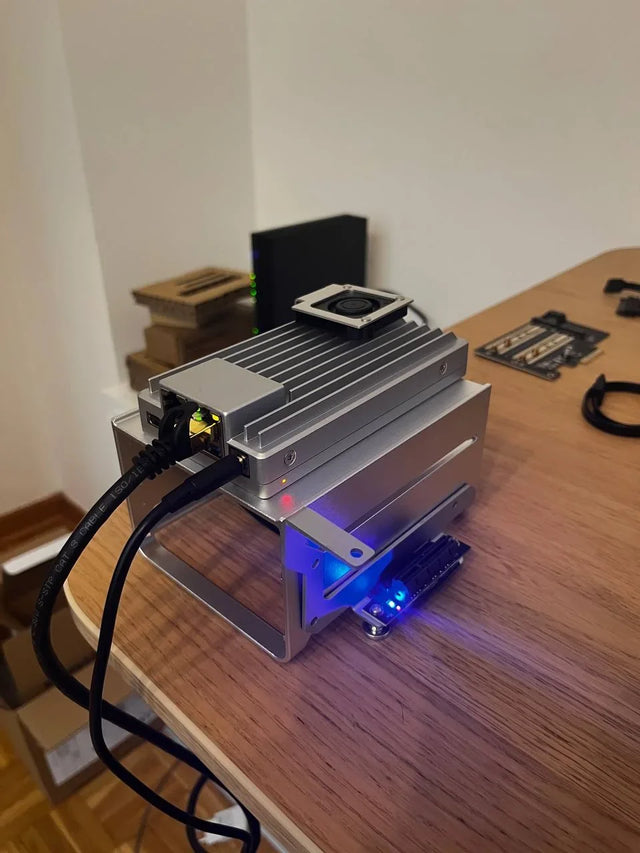
Home Assistant Works on Wi-Fi but Fails on Ethernet or VPN
Test each network path separately, verify interface and routing state, distinguish direct IP from discovery, then repair only the failed layer.
How to Decommission Home Assistant Without Leaving Unprotected Data
Prove the replacement or archive, revoke every trust path, sanitize each data-bearing device, and retain only documented protected recovery copies.
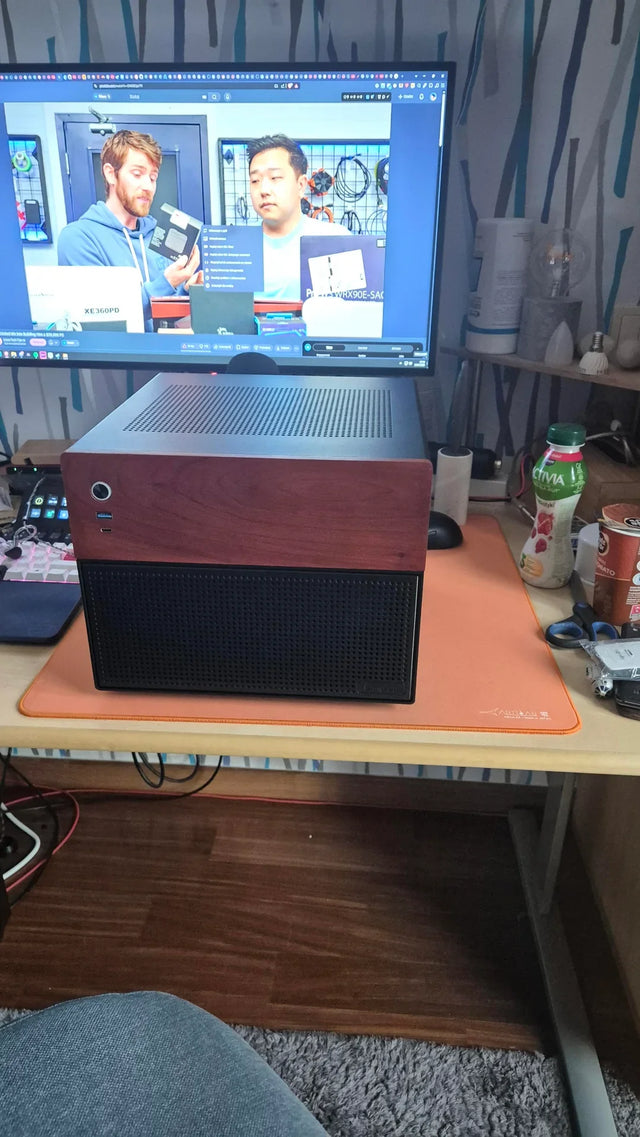
Should You Use Automatic Updates for Home Assistant on a Home Server?
Choose manual, notification-only, or staged automatic updates from household impact, compatibility risk, observation time, and recovery readiness.


