
Can You Run Local AI on a Home NAS Without a Dedicated GPU?


A home NAS can run some local AI workloads without a dedicated GPU, but the useful question is not simply whether the model starts. The real question is whether the workload fits your CPU, available RAM, model size, storage duties, and patience for response time.
For many home users, a GPU-less NAS is a reasonable place to experiment with small models, embeddings, local search, and private RAG-style workflows. It becomes less practical when the task expects real-time chat with larger models, heavy image generation, long-context reasoning, or background AI jobs running at the same time as backups, media indexing, or file transfers.
Quick Take: No Dedicated GPU Does Not Mean No Limits
Yes, you can run local AI on a home NAS without a dedicated GPU, especially if you use small or quantized models and treat the NAS as a low-power local AI box rather than a high-speed workstation. A CPU-only setup can be useful for experiments, lightweight chat, local document search, embeddings, and background indexing.
The limit is usability. A model that technically loads may still respond too slowly, consume too much memory, or make the NAS sluggish while it is also serving files, running containers, handling backups, or streaming media.
The misconception to avoid is simple: no dedicated GPU does not mean no hardware limits. Without GPU acceleration, your NAS leans heavily on CPU threads, system memory, storage speed, and workload scheduling.
What Local AI Can Realistically Do on a Home NAS
A home NAS without a dedicated GPU is usually better at light or background AI work than high-speed interactive generation. The best starting workloads are small enough to fit comfortably in memory and tolerant of slower response times. That includes local search, embeddings, small chat models, document indexing, simple summarization, and private knowledge-base experiments.
Ollama is one practical example because its documentation includes a CPU-only Docker path as well as separate GPU-related options. That does not mean CPU inference will feel fast on every NAS. It only means CPU-only local model hosting is a valid starting path when the model and expectations are small enough.
This distinction matters because “local AI” covers very different workloads. Asking a 1B to 3B model short questions is not the same as running a 70B model, generating images, transcribing a large archive, or building a semantic index across years of photos and videos.
The Real Bottlenecks: CPU, RAM, Model Size, and Background NAS Tasks
CPU Inference
CPU inference is the most basic path for a NAS with no dedicated GPU. It can work, but it usually feels slower than cloud AI or a desktop GPU. The CPU has to handle token generation while the NAS may also be managing file shares, Docker apps, media scans, and system services.
A modern CPU with better instruction support can make small models more tolerable, but it still does not change the basic tradeoff. The more active users, containers, file operations, and AI requests you stack together, the more likely the NAS becomes the bottleneck.
System Memory
Without VRAM, local AI depends heavily on system RAM. The model, runtime, web UI, embeddings, file services, Docker containers, and operating system all compete for the same memory pool. If the model pushes the system into heavy swapping, the experience can collapse quickly.
This is why free memory matters more than total installed memory on paper. A NAS with 16 GB of RAM may still be tight if several Docker containers, media tools, sync jobs, and file services are already active. Before loading a model, check how much RAM remains during normal NAS use, not just after a reboot.
Model Size and Quantization
Model size is often the deciding factor. Smaller models load faster, use less memory, and are more realistic for CPU-only experiments. Larger models may technically start but become frustrating if each reply takes too long.
This is where integer quantization matters. llama.cpp describes quantization levels that reduce memory use and can improve inference speed, which is why many CPU-friendly local AI setups rely on quantized GGUF models. The practical lesson is not “use the biggest model you can load,” but “use the smallest model that is good enough for the task.”
Which AI Workloads Fit a GPU-Less NAS Best
Lightweight Chat and Small Models
Small chat models are the easiest way to test whether your NAS can handle local AI at all. They are useful for short prompts, simple drafting, command explanations, basic coding help, or local experimentation. The goal is not to match a high-end cloud model; the goal is to confirm whether the NAS can deliver a response speed you can tolerate.
Start with a smaller model before increasing size. If the first test already makes the NAS slow, a larger model will not fix the problem. If the small model feels acceptable, then you can test slightly larger or better quantized models while watching CPU load, memory pressure, and response time.
Embeddings, Indexing, and Private RAG
Embeddings and private RAG can be a better fit for a NAS because the workload is often background-friendly. The NAS already stores documents, notes, photos, media, and archives, so local indexing makes sense when privacy and file locality matter. The task still needs resources, but it does not always require live token generation at chat speed.
The main risk is scheduling. If indexing starts while backups, media scans, or file transfers are active, the NAS may feel slow even if the AI job is technically working. For this type of workload, it is often better to run indexing during quiet hours and test how much it affects normal file access.
AI Search for Local Files and Media
AI search is one of the more natural NAS use cases because it connects local storage with local understanding. Instead of treating the NAS as a general AI workstation, the AI layer helps classify, search, or retrieve files that already live on the device.
This is also where expectations need to be clear. AI search may involve model downloads, feature extraction, background processing, and periodic resource spikes. It is usually not the same thing as asking a chatbot to answer instantly from a large model.
What You Should Avoid on CPU-Only NAS Hardware
A CPU-only NAS is usually a poor fit for heavy image generation, large-model live chat, long-context reasoning, and multiple simultaneous AI users. These workloads can consume too much memory, saturate CPU threads, and interfere with the basic job of the NAS.
You should also avoid running experimental AI jobs during critical storage work. If the NAS is rebuilding storage, syncing cloud backups, indexing media, streaming video, or handling important file transfers, adding heavy inference on top can make troubleshooting harder. A safe local AI setup should be optional and stoppable, not something that puts core storage duties at risk.
Avoid these first-test patterns:
- Starting with a large model just because it is popular.
- Running multiple AI containers before testing one stable path.
- Exposing a web UI to the network before checking authentication and access scope.
- Letting AI indexing run at the same time as backups or media scans.
- Assuming a successful install means the setup is usable for daily work.
A Practical Decision Table Before You Install Anything
Before installing a local AI stack, decide what the NAS is supposed to do. The wrong workload can make a good NAS feel weak, while the right workload can make a modest device useful for private AI experiments.
| Setup or Workload | Use When | Avoid When | What Usually Happens |
|---|---|---|---|
| Small local chat model on NAS CPU | You want to experiment with short prompts and light private use | You expect cloud-like speed or large-model quality | Works, but response speed depends heavily on CPU and model size |
| Embeddings or private RAG indexing | Your files already live on the NAS and background processing is acceptable | You need instant indexing across a large library during busy hours | Useful for search, but should be scheduled and monitored |
| Open WebUI on NAS, model elsewhere | You want the NAS to host the interface while a stronger machine runs inference | You want everything self-contained on one low-power box | Often better for usability because compute is separated from storage duties |
| iGPU or external GPU acceleration | Your NAS platform supports the hardware path and drivers | You do not want driver, passthrough, or compatibility work | Can improve responsiveness but adds setup complexity |
| Image generation or large-model live chat on CPU | You only want a proof of concept and can wait | You need frequent, fast, or reliable daily use | Usually frustrating on CPU-only NAS hardware |
Use the table as a filter, not a promise. If the workload belongs in the left columns but still makes the NAS sluggish, downsize the model or move compute elsewhere. If the workload belongs in the avoid column, it is better to test on a desktop, mini PC, eGPU, or remote GPU before blaming the NAS.
Setup Patterns That Usually Work Better
Run Everything on the NAS
Running the model runtime and web interface on the NAS is the simplest mental model. It keeps the stack self-contained and works well for light testing. This is reasonable when the model is small, the number of users is low, and the NAS has enough memory headroom.
The downside is resource contention. If the AI runtime, UI, file services, backups, and media tools all share one box, the NAS has no separate compute buffer. When performance feels poor, the first fix is usually not a more complex UI; it is a smaller model, lower concurrency, or a different compute path.
Host the Web UI on the NAS and Run Models Elsewhere
A two-box pattern is often more practical. The NAS hosts the web UI and stores data, while a desktop, mini PC, or GPU-capable machine runs the model runtime. Open WebUI supports a setup that can connect to Ollama on another server, which fits this pattern well.
This can give you a cleaner local AI workflow without forcing the NAS CPU to do all inference work. The NAS remains useful as the always-on interface and storage layer, while the heavier model generation happens on hardware better suited for it.
Use iGPU or External GPU Acceleration When Available
Some NAS platforms include an integrated GPU or support external acceleration. This can improve local AI usability, but it should not be treated as automatic. Driver support, container access, backend compatibility, memory sharing, and model requirements all matter.
If iGPU acceleration is available, test it as a separate compute path rather than assuming it will behave like a dedicated GPU. Watch the same signals: response speed, CPU load, memory pressure, model load time, and whether normal NAS work remains stable.
How to Test Performance Without Disrupting Your NAS
A good test should prove more than “the container started.” You need to know whether the NAS remains usable while the model is loaded and answering. Use one small model, one UI path, and one repeatable prompt before adding more tools.
Start with this test order:
- Check normal NAS behavior before AI starts: file browsing, Docker dashboard, media library, and backup status.
- Start the AI runtime and load one small or quantized model.
- Ask the same short prompt three times and record whether replies feel usable.
- Watch CPU load, RAM use, swap behavior, and container logs.
- Open files or browse a shared folder while the model is generating.
- Stop the AI container and confirm the NAS returns to normal quickly.
- Repeat with a slightly larger model only if the first test passes.
For more formal testing, llama.cpp includes a tokens per second benchmark path through llama-bench. You do not need to turn every home NAS test into a lab report, but you should measure enough to avoid guessing. If the system feels slow, the useful question is whether the bottleneck is model size, CPU threads, memory pressure, storage load, or another NAS task running at the same time.
A final check should answer five questions:
- Is response speed acceptable for the task?
- Does RAM stay stable without heavy swapping?
- Can files, backups, and media services still run normally?
- Can the AI workload be stopped or scheduled?
- Is the web UI limited to trusted users and networks?
If any answer is no, the setup needs to be smaller, more isolated, or offloaded.
Mistakes That Make Local AI Feel Worse Than It Should
Mistake 1: Starting With a Model That Is Too Large
Mistake: The user starts with a popular 7B, 13B, or larger model because it sounds more capable.
Why It Happens: Model recommendations are often written for gaming PCs, GPU workstations, or cloud servers, not always for low-power NAS CPUs. A model that looks reasonable in a benchmark may feel very different on a box that is also serving files.
Why It Is Risky: The NAS may spend too much time loading, swapping, or generating slowly. That can make the first local AI experience feel broken even when the software is installed correctly.
Safer Alternative: Start with a smaller quantized model and test real response speed before moving up.
Validation: If the small model responds smoothly and the NAS remains responsive, test the next size. If the NAS slows immediately, the model is already too large for that setup.
Mistake 2: Treating RAM Requirements as Optional
Mistake: The user checks CPU model but ignores how much free memory remains during normal NAS use.
Why It Happens: Many AI setup guides talk about model size but do not account for Docker apps, file services, media tools, and the operating system sharing the same RAM.
Why It Is Risky: Memory pressure can cause slowdowns, failed model loads, container instability, or heavy swapping. On a storage server, that can affect more than the AI app.
Safer Alternative: Check available RAM before and during inference, and leave headroom for normal NAS services.
Validation: Run the model while browsing files and watching memory use. If the system starts swapping heavily or other services lag, reduce model size or move compute elsewhere.
Mistake 3: Running Heavy AI Jobs During Backup or Media Tasks
Mistake: AI indexing, chat inference, media scanning, and backup jobs all run at the same time.
Why It Happens: NAS users often treat background tasks as invisible until performance drops. AI workloads make that assumption more fragile because they can spike CPU, RAM, disk, or network usage.
Why It Is Risky: The NAS may become slow during the exact tasks it is supposed to handle reliably. If troubleshooting starts during a backup, it becomes harder to tell whether the AI model, container, storage pool, or backup job caused the problem.
Safer Alternative: Schedule heavy AI tasks during quiet hours and avoid running experiments during storage-critical work.
Validation: Run the same AI task during a quiet period and again while normal services are active. If the second run disrupts backups, media, or file access, the workload needs limits or scheduling.
Mistake 4: Confusing “It Runs” With “It Is Usable”
Mistake: The user treats a successful container start or first model reply as proof that the NAS is ready for daily local AI.
Why It Happens: Installation guides often stop at the first successful response. Real use is different because prompts get longer, files get indexed, multiple users connect, and background jobs overlap.
Why It Is Risky: A setup that works for one short test may fail during a real document search, family photo index, or long chat session.
Safer Alternative: Test a realistic session before keeping the workload enabled.
Validation: Use the same NAS tasks you normally run, then test AI response speed, file browsing, system load, and the stop path. If the NAS stays stable, the workload is a better fit.
How This Applies to a Real NAS AI Search Workflow
Local AI on a NAS is often most useful when it improves the files already stored there. AI search is a good example because it can turn media and documents into a searchable library, but it also shows why local AI needs resource planning. Feature extraction, model downloads, media scanning, and search indexing are background workloads, not just a chat window.
The same rule applies in a ZimaOS environment. The ZimaOS AI search module is designed to support search by using local AI to extract features from images, audio, and video, and the documentation also lists hardware paths, memory requirements, model storage, download dependencies, resource usage, and troubleshooting notes. That makes it a useful real-world example of the article’s main point: local AI search can run on a NAS, but it still needs a clear hardware path and resource budget.
On a storage-focused home NAS such as ZimaCube 2 AI NAS, this kind of workflow makes sense when the user wants private search over local files rather than cloud-based indexing. The device gives the data a local home, but the same checks still apply: model size, memory headroom, compute path, indexing schedule, and the ability to pause or limit AI work when normal NAS services matter more.
FAQ
Can a home NAS run local AI without a dedicated GPU?
Yes, a home NAS can run some local AI workloads without a dedicated GPU. The best fit is usually small or quantized models, embeddings, private RAG, local search, or light experimentation. It becomes less practical when the user expects fast large-model chat, image generation, or multiple active users.
How much RAM do I need for local AI on a NAS?
It depends on the model, runtime, operating system, and other NAS services. The safer way to judge is to check free memory during normal NAS use, then test one small model and watch whether memory stays stable. If the system swaps heavily or file services slow down, the workload is too large for the available headroom.
Is CPU-only AI good enough for chatting?
CPU-only AI can be good enough for short prompts and small models, but it may feel slow for daily interactive chat. If replies take too long, use a smaller model, a more aggressive quantization, an iGPU path if supported, or a two-box setup where another machine runs the model.
Should I run Ollama directly on the NAS or on another machine?
Run Ollama directly on the NAS if you want a simple, self-contained test and the model is small. Run the model on another local machine if you want better speed while keeping the NAS as the web UI, storage, or private data layer. This is often the better pattern when the NAS must stay reliable for file and backup duties.
What is the best first local AI workload to test on a NAS?
Start with a small model or a lightweight search workflow. Avoid beginning with image generation, large live-chat models, or full-library indexing during busy hours. The first test should prove that the NAS can run the workload without harming file access, backups, media services, or other containers.
A GPU-less NAS can be a useful local AI starting point, but it should be treated as a workload-fit question rather than a yes/no capability claim. Match the task to the hardware, test response speed under real NAS conditions, and keep storage reliability ahead of AI experimentation.

Recommended products

Support & Tips
More to Read
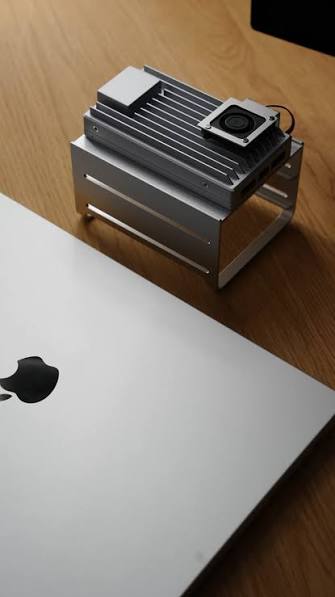
Live TV Recording Storage Guide for Capacity, Retention, and Cleanup
Measure real recordings, reserve headroom, combine age and capacity limits, and prove the oldest eligible program is removed before storage fills.
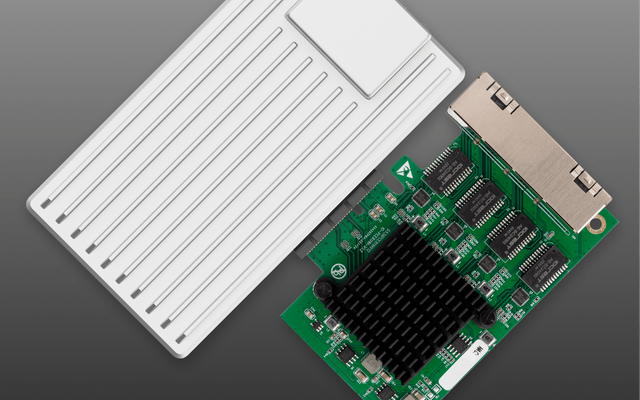
Home Media Metadata Recovery Workflow After a Database Restore
Protect the restored state, verify media identity and paths, then repair missing artwork or matches in a pilot library before broad metadata changes.
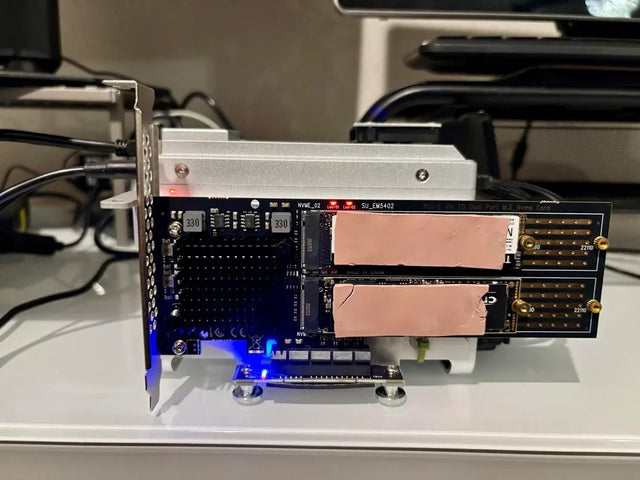
Jellyfin Client Compatibility Checklist for Audio, Video, and Subtitles
Test representative files one variable at a time and record Direct Play, remux, audio conversion, video transcode, or failure for every client.


