
Can Home Assistant Share a GPU or Accelerator With Another Container?


Yes, Home Assistant-related workloads can sometimes share a GPU with another container, but the answer depends on the accelerator path and virtualization boundary.
Home Assistant Core itself normally does not need a GPU; the accelerator is usually for Frigate, local vision or AI, media processing, or another companion service. On Linux, multiple containers can often be given access to the same render device and let the driver schedule work. A VM receiving an entire PCIe device through passthrough is a different model and may make that device unavailable to the host and other guests. Identify the actual consumer before changing permissions.
First Identify Which Home Assistant Workload Actually Needs the Accelerator
Do not pass a GPU into the Home Assistant Core container simply because the host has one. Name the process that will use it: Frigate video decode, OpenVINO object detection, a local language or vision service, speech processing, or some other container that Home Assistant calls. The device mapping should belong to that workload's container and security boundary.
Frigate deployments demonstrate the device-path model clearly: hardware acceleration depends on a specific render device being visible all the way through the container stack. A current Frigate iGPU passthrough guide shows why device visibility, group permissions, and virtualization layers must be verified rather than inferred from the host having a GPU.
If Home Assistant only orchestrates the accelerated service over an API or MQTT, Core does not need direct device access at all. Keeping the GPU mapping in the consuming container reduces privileges and makes failures easier to isolate.
Shared Linux Render Devices and Whole-GPU VM Passthrough Are Different Models
With Linux containers, mapping a render node such as /dev/dri/renderD128 into more than one container can allow both applications to submit work through the host driver. They are sharing a scheduler and memory resources, not each receiving an independent physical GPU. Whether a specific workload supports that safely still depends on driver and application behavior.
An LXC GPU passthrough guide makes the container boundary explicit: the host keeps the real GPU driver while a container receives selected device nodes such as /dev/dri/renderD128. That shared render-device model allows multiple containers to access the same accelerator path, but they still compete for GPU engines, memory bandwidth, and vendor-specific limits.
Whole-device PCIe passthrough to a virtual machine is different. A current Proxmox VFIO walkthrough describes that handoff as exclusive GPU ownership by one VM, which removes the normal host-driver sharing path for that card. SR-IOV, mediated-device, vGPU, or similar features can create another sharing model on supported hardware, but they are separate capabilities and should not be assumed from ordinary passthrough.
Verify Visibility and Permissions in Both Containers Before Testing Performance
Start each accelerator consumer separately and inspect the device node, user/group permissions, driver libraries, and application hardware report from inside the container. A privileged container is not a good substitute for understanding which render device and groups are required. Give the narrowest device access that makes the intended workload function.
The same LXC device-mapping workflow verifies the render node from inside the container and recommends testing it as the real service account rather than trusting host visibility alone. Use that method to confirm container-level accelerator access before comparing performance; a device listed on the host is not proof that the application can open it.
Pass the visibility stage only when both containers independently prove hardware use. If one silently falls back to CPU, fix mapping or driver configuration before running a concurrency test. Otherwise a CPU fallback can make it look as if GPU sharing is working while the host is actually absorbing one workload in software.

Run One-at-a-Time and Together Tests to Find the Sharing Boundary
Measure each workload alone first: frame processing time, encode/decode speed, accelerator utilization, memory use, temperature, power, and application latency. Then run both at their normal peak together. The shared setup is acceptable only when the critical Home Assistant-related workload keeps its deadline and neither application begins erroring or falling back.
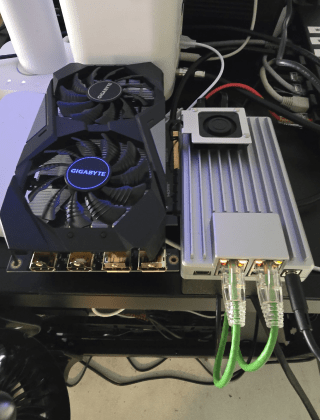
ZimaSpace's existing test for sharing one GPU across containers provides the same operational rule: device visibility is only the first gate; concurrent stability and resource contention decide whether sharing is actually useful.
Keep one shared accelerator when both consumers remain within latency and memory limits under the real overlap. Separate them when one job causes dropped frames, inference delay, driver resets, out-of-memory errors, thermal throttling, or unpredictable fallback. If the GPU is passed through whole to a VM, redesign the virtualization layer or add another accelerator rather than trying to map the already-owned physical device into a second container.

Recommended products

Support & Tips
More to Read

How to Tell Whether a Home Assistant Error Comes From the Client or Server
One-client failures point toward client state; cross-client failures point toward the server or a shared proxy, network, or integration path.

How to Configure Home Assistant Cache and Temporary Storage
Keep Home Assistant persistent state on durable storage; use tmpfs only for paths proven disposable and size it inside the host and container memory...
How to Prevent Home Assistant Backups From Capturing Inconsistent Database State
Use Home Assistant-aware backups for live systems; if making raw file copies, quiesce the database and verify the restore before trusting the archive.


