
How to Build a Home Media Server for Movies, TV, and Family Videos


Quick Answer
You can build a home media server by choosing always-on hardware, organizing your movies, TV shows, and family videos into clear folders, installing media server software such as Jellyfin, Plex, or Emby, adding your media libraries, and testing playback on TVs, phones, tablets, and browsers.
The main thing to understand is that a home media server is not just “a hard drive with videos.” A working setup needs six connected paths:
-
where the media files live;
-
where the app stores configuration and metadata;
-
how client devices reach the server;
-
whether playback uses direct play or transcoding;
-
who can access each library;
-
how important videos and app data are backed up.
For most beginners, start simple: use a mini PC, used desktop, or NAS-style server, connect it by Ethernet if possible, store media on a dedicated drive, install one media server app, add one movie folder and one family video folder, then test playback before adding remote access or automation.
What Problem Are You Really Solving With a Home Media Server?
A home media server solves three problems at once: scattered files, inconsistent playback, and poor long-term organization. Instead of keeping movies, TV shows, and family videos across laptops, USB drives, old phones, and external disks, you centralize them on one always-on system.
The goal is not only to stream videos. A good home media server should help you organize files, protect important family videos, control who can watch what, and avoid rebuilding your library every time the app updates or the server restarts.
The main question is not “Which media app is best?” It is “Can my files move from storage to screen reliably, with the right metadata, permissions, playback quality, and backup plan?”
What a Home Media Server Needs to Do
A home media server has to connect storage, software, network access, playback capability, user permissions, and backup. If one layer is wrong, the server may install successfully but still fail to show files, play 4K content smoothly, or survive an app update.
Use The Media Server Access Path to understand the full setup.
| Framework Module | Key Question | What It Helps You Decide | Validation Signal |
| Media Path | Where are movies, TV shows, and family videos stored? | Folder structure, naming rules, storage drive layout, and whether files are visible to the server | Media folders are readable and correctly organized |
| App Path | Where does the media server app store config, metadata, cache, and library data? | Whether Docker volumes, app data, metadata, and media folders are mapped correctly | Media library survives reboot, update, or container restart |
| Access Path | How do TVs, phones, browsers, and remote clients reach the server? | Local IP, port, client app, reverse proxy, VPN, or remote access method | Clients can connect locally and, if needed, remotely |
| Playback Path | Can the device direct play, or does the server need to transcode? | Hardware requirements, CPU / GPU needs, subtitle behavior, and 4K playback limits | Video plays smoothly with correct audio, subtitles, and quality |
| Permission Boundary | Who can access which libraries and settings? | User accounts, library permissions, family profiles, admin access, and sharing limits | Users see only the intended media libraries |
| Recovery Path | What happens if the app, disk, or server fails? | Backup priorities for family videos, metadata, config files, and irreplaceable media | Important media and app config can be restored |
Store Movies, TV Shows, and Family Videos in One Place
The server needs a stable media storage location. This might be an internal drive, external drive, NAS share, or mounted storage pool.
For movies and TV shows, the goal is consistent organization so the media app can scan folders and match metadata. For family videos, the goal is usually preservation and easy browsing, not matching online movie databases.
Do not store irreplaceable family videos only inside an app cache or temporary import folder. Keep them in a clear media folder that you can back up independently.
Organize Media So Apps Can Index It Correctly
Media apps depend heavily on library type, folder paths, and file names. Jellyfin describes libraries as virtual collections that can contain files from different server locations, and it recommends dedicated library types because mixed libraries can produce unreliable metadata results. Its Jellyfin media library setup also explains that movies, shows, and music are the most commonly supported content types across client apps.
This means your folder strategy matters before you add files. Movies, TV shows, and family videos should usually be separated into different libraries so each one can be scanned appropriately.
Family videos often work better as a home videos or other videos library, because they do not match public metadata databases the way commercial movies and TV episodes do.
Stream to TVs, Phones, Tablets, and Browsers
A media server should make the same library available across devices. Common clients include smart TVs, streaming boxes, phones, tablets, laptops, and web browsers.
Local streaming is the first target. Confirm playback works inside your home network before adding remote access, reverse proxy settings, VPN access, or external sharing.
A setup that works in a browser may still behave differently on a TV app or phone app. Test the devices your family actually uses.
Handle Direct Play, Transcoding, and Remote Access
Direct play means the client device can play the original file without the server converting it. Transcoding means the server converts the video, audio, or subtitles into a format the client can handle.
Transcoding is useful, but it can be hardware-intensive. Remote access adds another layer because the upload speed, authentication method, domain, VPN, or reverse proxy can affect playback.
The safest build order is local direct play first, then local transcoding tests, then remote access only after the media server is stable.
Choosing the Right Home Media Server Hardware
Hardware choice depends on your library size, playback devices, number of users, and whether you need transcoding. A simple setup for local direct play can run on modest hardware, while multiple remote 4K transcodes may require stronger CPU / GPU support.
Mini PC or Used Desktop for a Simple Starter Setup
A mini PC or used desktop is often the easiest starting point. It can run a standard operating system, Docker if needed, and one media server app without requiring a full rack or complex storage build.
This option is good for users who want to start with one or two drives, stream mostly at home, and avoid buying a dedicated NAS immediately.
The main limitation is storage expansion. If your movie library or family video archive grows quickly, make sure the hardware can connect enough reliable storage.
NAS or Multi-Drive Server for Large Libraries
A NAS or multi-drive server is better for large libraries, family archives, and storage-heavy setups. More drive bays make it easier to separate media, app data, backups, and future expansion.
A NAS-style setup can also help with file sharing, backup routines, and multi-user access. However, RAID or redundant storage should not be confused with backup; important family videos still need another copy.
For large libraries, think about both storage capacity and management. A neat media folder structure will save more time than simply adding more disks.
CPU, GPU, and Hardware Transcoding Requirements
Hardware matters most when files cannot direct play. 4K videos, unsupported codecs, high-bitrate files, subtitles that require burn-in, or remote clients with limited bandwidth can all trigger transcoding.
Jellyfin explains that hardware acceleration can offload on-the-fly video transcoding to a suitable integrated or discrete GPU, and that supported acceleration methods include Intel Quick Sync Video, NVIDIA NVDEC / NVENC, AMD AMF, VAAPI on Linux, Apple Video Toolbox on macOS, and other platform-specific methods. Its Jellyfin hardware acceleration and transcoding notes also warn that some transcoding stages may not be GPU accelerated because of software, hardware, or driver limits.
This is why you should avoid assuming that any mini PC, NAS, or old desktop will smoothly transcode all videos. Test your own files, subtitles, and client devices.
Storage Drives for Media Files vs SSDs for Apps and Metadata
Media files usually need capacity. App data and metadata usually benefit from responsiveness.
A practical setup often separates:
-
bulk media files on large HDDs or a storage pool;
-
app configuration on reliable persistent storage;
-
cache and metadata on faster storage if available;
-
important family videos in a folder included in backups.
Do not place the only copy of family videos on an untested drive. Also avoid storing media inside a Docker container layer, because that can disappear when the container is recreated.
Choosing Media Server Software
The main choices are Jellyfin, Plex, Emby, and similar media server apps. They share the same basic idea: a server manages your library, and client apps stream it.
The best choice depends on your preference for open-source control, client polish, remote access simplicity, and subscription features.
Jellyfin for Open-Source and Self-Hosted Control
Jellyfin is a strong choice when you want an open-source, self-hosted media server with local control. It can organize libraries, support multiple users, stream to clients, and handle transcoding when configured correctly.
It is a good fit for users who prefer to manage their own server and avoid tying core media access to an external account system.
The trade-off is that remote access, hardware acceleration, and Docker deployment may require more manual setup than a fully managed service.
Plex for Easier Client Apps and Remote Sharing
Plex is often chosen for its polished client apps and easier remote sharing experience. It can be a good fit for family members who want a simpler TV or mobile app experience.
The trade-off is that some advanced features may depend on Plex’s account ecosystem or paid features. Users who want maximum self-hosted control may prefer Jellyfin.
For a Support & Tips setup, it is more useful to compare the workflow than to treat one app as universally better.
Emby and Other Alternatives
Emby sits between fully open self-hosted control and more polished commercial media features. Other options may also work depending on your device support and library needs.
When comparing media apps, check:
-
supported client devices;
-
library scanning behavior;
-
subtitle handling;
-
hardware transcoding support;
-
user accounts and parental controls;
-
Docker or native installation support;
-
backup and migration options.
Choose the app that fits your household, not the one with the longest feature list.
When Docker Makes Media Apps Easier to Manage
Docker can make media server deployment easier when you want repeatable setup, separated app data, and simpler updates. It is especially useful if you plan to run multiple self-hosted apps on the same server.
Jellyfin’s official Jellyfin container installation guide says the official container image is
jellyfin/jellyfin, explains persistent storage for /config, /cache, and /media, and notes that bind mounts pass host folders into the container. It also points out that Docker on Windows or macOS is not the supported path for Jellyfin, and some features such as hardware accelerated transcoding and scanning on macOS in Docker are known to be broken.Docker is powerful, but it introduces path, port, permission, and network-mode decisions. Use it when you are comfortable mapping folders clearly and backing up the right app data.
How to Prepare Your Media Library
Media preparation is often the difference between a clean media server and a frustrating one. The app can only organize what it can see and understand.
Folder Structure for Movies and TV Shows
Keep movies and TV shows in separate folders. A common pattern is:
/Media
  /Movies
    /Movie Name (Year)
      Movie Name (Year).mkv
  /TV Shows
    /Show Name
      /Season 01
        Show Name - S01E01.mkv
This structure helps media apps match titles, seasons, episodes, artwork, and metadata more reliably.
Avoid mixing unrelated content types in one folder unless the app specifically supports that workflow and you accept weaker metadata behavior.
Naming Rules for Better Metadata Matching
Movie and TV metadata matching depends on names, years, season numbers, and episode numbers. Inconsistent file names can lead to wrong posters, missing episodes, duplicate entries, or mismatched metadata.
Use predictable names before scanning the library. Fixing names after a large scan can work, but it often requires refreshing metadata, rescanning folders, or cleaning up duplicates.
For TV shows, season and episode numbers are especially important. For movies, title and year usually help avoid confusion between remakes and similar titles.
Organizing Family Videos That Do Not Match Online Databases
Family videos are different from movies and TV shows. They usually do not have entries in public metadata databases, so the media app cannot automatically fetch accurate posters, cast, or episode information.
Use a simple structure based on date, event, or family category:
/Media
  /Family Videos
    /2024
      2024-07-04_Summer_Trip.mp4
    /2025
      2025-01-18_Birthday.mp4
For family videos, clarity matters more than cinematic metadata. Use file names that humans can understand years later.
Where to Store Media, Metadata, and App Config Files
Separate media files from app configuration. Media files are your videos. App configuration includes users, libraries, settings, metadata, cache, and database files.
In Docker setups, this distinction becomes critical. A media folder might be mounted as
/media, while configuration and cache might use /config and /cache.If the media library disappears after a container update, the issue is often not the media app itself. It is usually an App Path problem: the config, cache, or media bind mount was not persistent or was mapped incorrectly.
How to Build a Home Media Server Step by Step
Build the server in layers. Do not start with automation, remote access, or complex multi-user settings before local playback works.
A practical setup order is:
-
choose hardware and storage;
-
install the host operating system;
-
install the media server app;
-
add media folders;
-
connect client apps;
-
test direct play, transcoding, and subtitles;
-
set users and permissions;
-
add remote access only after local streaming works;
-
back up family videos and app configuration.
Step 1: Choose Your Hardware and Storage Plan
Start with your use case. A small library and one TV can run on modest hardware. A large 4K library, multiple users, and remote streaming may require stronger hardware and better storage planning.
Decide where the operating system, app data, media files, and backups will live. This prevents accidental storage inside temporary folders or container layers.
If family videos are important, plan backup before importing everything.
Step 2: Install the Host Operating System
Install an operating system that you can maintain. Common choices include Linux, Windows, or a NAS-oriented system depending on your hardware and comfort level.
For Docker-based setups, Linux is often the cleanest foundation. For users who prefer native desktop management, Windows or macOS can work with native app installs, but Docker support and hardware acceleration may vary.
After installation, update the system, set a stable network address if needed, and confirm the server can stay powered on reliably.
Step 3: Install the Media Server App
Install your chosen media server app natively or through Docker. Native installation can be easier for beginners on some systems, while Docker can be cleaner for app isolation and repeatable updates.
After installation, open the web interface and complete the initial setup. Create an admin account, then avoid using that account for daily playback if the app supports separate user profiles.
At this stage, do not add your entire library yet. Add a small test folder first.
Step 4: Add Media Folders and Scan the Library
Add one movie folder, one TV folder, and one family video folder if those are part of your setup. Choose the correct library type for each folder.
Wait for the scan to complete, then check whether files appear as expected. If metadata is wrong, fix names and folder structure before importing thousands of files.
For family videos, choose a library type and naming method that prioritizes your own file organization over online database matching.
Step 5: Connect Client Apps on TVs, Phones, and Browsers
Test the devices you actually use. A browser test is useful, but your smart TV, streaming box, phone, or tablet may handle codecs and subtitles differently.
Connect one local client first. Confirm the server appears, the library loads, and playback starts without authentication or permission surprises.
Then test another device. A server that works on more than one client is more likely to be ready for daily use.
Step 6: Test Direct Play, Transcoding, and Subtitles
Use a few representative files: one standard movie, one 4K video if you have one, one file with subtitles, and one family video.
Check whether each file direct plays or transcodes. If playback buffers, inspect whether the server is transcoding video, audio, or subtitles.
Subtitles can trigger unexpected transcoding, especially when they need to be burned into the video. Do not judge server performance from only one file.
Common Problems With Home Media Servers
Most home media server issues come from the same six paths: media folder, app data, client access, playback capability, permissions, or recovery.
When something breaks, avoid reinstalling immediately. First identify which path failed.
4K Videos Buffer or Fail to Play Smoothly
4K buffering is often a Playback Path issue. The client may not support the file format, the server may be transcoding, subtitles may require burn-in, or the network may not sustain the bitrate.
Start by checking whether the file direct plays. If it transcodes, look at CPU / GPU usage and whether hardware acceleration is active.
A wired local connection can help, but it will not solve unsupported codecs or weak transcoding hardware.
Metadata, Posters, or Episodes Are Matched Incorrectly
Wrong metadata is usually a Media Path issue. Folder structure, names, years, season numbers, and library type all affect matching.
Fix naming before repeatedly refreshing metadata. If movies and TV shows are mixed together, separate them into dedicated libraries.
For family videos, avoid expecting movie-style metadata. Use date-based or event-based names that are meaningful without online matching.
Family Videos Do Not Organize Like Movies or TV Shows
Family videos usually lack public metadata. The server cannot know who appears in a birthday video or where an old camcorder file was recorded unless you organize that information yourself.
Use folders by year, person, event, or source device. Keep names readable and consistent.
Because family videos are often irreplaceable, treat them differently from replaceable media files. They should be included in your backup plan.
Docker Paths, Permissions, or Volumes Are Misconfigured
Docker problems usually appear as missing media, empty libraries, lost settings after updates, or permission denied errors. These are App Path and Permission Boundary issues.
Check whether the container can see the host folder. Then check whether the mapped path inside the container matches what the media server library uses.
Also confirm that config and cache paths are persistent. If only media is mounted but config is not, the library may not survive container recreation.
Remote Access Works Locally but Fails Outside the Home
Remote access failure is an Access Path issue. Local playback proves the app works, but it does not prove that external clients can reach the server securely.
Check whether you are using a VPN, reverse proxy, secure tunnel, or direct port exposure. Also check authentication, firewall rules, router settings, and whether the server address changes outside the home.
Do not expose your server broadly just to make remote playback work. Secure access should come before convenience.
How to Check Whether Your Media Server Is Working
A working media server should pass more than one test. It should stream locally, keep files visible after reboot, handle subtitles and audio correctly, respect user permissions, and protect important media.
Use this validation checklist:
| Check | What to Confirm | If It Fails, Check |
| Local playback | Movies and family videos play on at least one local client | Access Path, client app, server status |
| Library scan | Movies, shows, and family videos appear in the expected libraries | Media Path, folder structure, naming |
| Persistence | Libraries and users remain after reboot or update | App Path, Docker volumes, config storage |
| Playback quality | Direct play or transcoding behaves as expected | Playback Path, hardware acceleration, subtitles |
| User access | Each user sees only intended libraries | Permission Boundary, user roles |
| Backup | Family videos and app configuration can be restored | Recovery Path, backup schedule |
Local Streaming Works on More Than One Device
Test at least two client types, such as a browser and a TV app. This helps catch device-specific playback problems.
A file that works in one browser may fail on a smart TV because of codec, subtitle, or app support differences.
If only one device fails, the server may be fine and the issue may be client compatibility.
Media Files Stay Available After Reboot or App Update
Restart the server or container, then reopen the media app. Your libraries, users, and media folders should still be there.
If they disappear, check persistent storage. In Docker, confirm that config, cache, and media mounts are mapped correctly.
This test is important before you spend hours organizing metadata or adding users.
Subtitles, Audio Tracks, and Transcoding Behave Correctly
Test subtitles and alternate audio tracks early. They can change whether a video direct plays or requires transcoding.
If subtitles cause buffering, the server may be burning them into the video. That can require more processing power than direct play.
Also test the files your family actually watches, not just the easiest sample file.
User Accounts and Library Permissions Are Set Properly
Create separate user accounts if multiple people will use the server. This helps separate watch history, settings, and library access.
Do not give admin access to every daily user. Keep management permissions separate from playback permissions.
If children or guests use the server, confirm they only see the libraries intended for them.
Backups Exist for Family Videos and Important Media
Not all media has the same value. A movie file might be replaceable, but family videos usually are not.
Back up family videos, personal recordings, and app configuration. Metadata and artwork can often be rebuilt, but personal footage cannot.
If you spend time organizing a large library, consider backing up the app configuration as well, so you do not have to rebuild users, libraries, and settings from scratch.
How to Apply This in a Real Self-Hosted Media Server Setup
Once you understand the general access path, a real setup should map those decisions to a specific system and media app. The key is to verify where media lives, where app data persists, how clients connect, and what happens when playback requires transcoding.
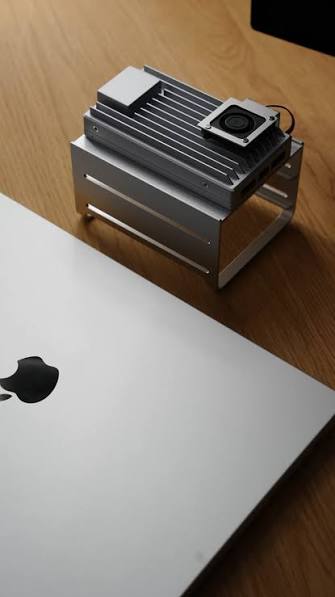
For example, the ZimaOS Jellyfin media server setup shows a workflow where Jellyfin is used to centralize a video library, add media folders, configure the web interface, manage users, access videos through browsers and mobile apps, and consider remote streaming. For a lightweight self-hosted media server where Docker apps, local services, and storage expansion are part of the setup path, ZimaBoard 2 single-board server fits the kind of small, always-on server scenario where users may start with Jellyfin and add more self-hosted services later.
The practical rule is the same for any platform: confirm the media path, app path, access path, playback path, permission boundary, and recovery path before treating the server as finished.
FAQ
Can I build a home media server with a mini PC?
Yes, a mini PC can be a good starter media server, especially for local streaming and smaller libraries. The main things to check are storage expansion, network reliability, and whether the CPU or GPU can handle the playback and transcoding you expect. For large libraries or many drives, a NAS or multi-drive server may be easier to grow.
Do I really need hardware transcoding for 4K movies?
Not always. If your client device can direct play the file, the server may not need to transcode. Hardware transcoding becomes more important when the client cannot play the original format, subtitles require burn-in, bandwidth is limited, or multiple users stream at once.
Is Jellyfin enough, or should I use Plex?
Jellyfin can be enough if you want open-source, self-hosted control and are comfortable managing setup details. Plex may be easier for polished client apps and remote sharing, depending on your household. The better choice depends on client support, remote access needs, user experience, and whether you want more control or more convenience.
Should I run my media server in Docker?
Docker is useful if you want repeatable deployment, easier updates, and clearer separation between app data and media folders. It also introduces extra setup details such as volumes, ports, permissions, and network mode. For beginners, Docker is helpful only if you understand where configuration, cache, and media paths are mapped.
What should I check first if remote streaming does not work?
First confirm local streaming works inside your home network. Then check the server address, port, authentication, firewall, router, VPN, reverse proxy, or secure tunnel settings. Avoid exposing the server broadly to the public internet just to fix remote playback; secure access should be part of the setup, not an afterthought.

Recommended products

Support & Tips
More to Read
Live TV Recording Storage Guide for Capacity, Retention, and Cleanup
Measure real recordings, reserve headroom, combine age and capacity limits, and prove the oldest eligible program is removed before storage fills.
Home Media Metadata Recovery Workflow After a Database Restore
Protect the restored state, verify media identity and paths, then repair missing artwork or matches in a pilot library before broad metadata changes.
Jellyfin Client Compatibility Checklist for Audio, Video, and Subtitles
Test representative files one variable at a time and record Direct Play, remux, audio conversion, video transcode, or failure for every client.


