
How to Access a Private Cloud Remotely Without Opening Router Ports


Quick Answer
You can access a private cloud remotely without opening router ports by using a mesh VPN, an application tunnel, or a controlled gateway such as a VPS reverse proxy. These methods avoid traditional inbound port forwarding by using trusted devices, outbound tunnel connections, or a separate public entry point.
The safer choice depends on what you need to reach, who needs access, and how much of your private environment should be reachable. For personal NAS or home server access, a mesh VPN is often the simplest starting point. For a browser-based private cloud with a clean domain name, an application tunnel may fit better. For advanced users who want more routing and proxy control, a VPS gateway can work, but it adds more security and maintenance responsibility.
Misconception Breaker: Remote Access Without Router Ports Still Needs Access Control
Remote access without router ports ≠ no security configuration needed.
Not opening ports reduces one kind of exposure, but it does not remove the need for identity checks, access rules, device trust, logging, and revocation. If a tunnel, shared link, device ID, or account is mismanaged, private services can still become reachable by the wrong people.
The Short Answer: Use a Mesh VPN, Tunnel, or Controlled Gateway
There are three common ways to reach a private cloud without router port forwarding:
| Method | Best For | Main Trade-Off |
|---|---|---|
| Mesh VPN | Personal access from your own trusted devices | Every client device usually needs an app and authentication |
| Application tunnel | Browser-based access to a web app or private cloud portal | Needs strong access policy in front of the public URL |
| VPS or reverse proxy gateway | Advanced routing, custom domains, and public entry control | More setup, maintenance, and security responsibility |
A good setup should answer one question before anything else: who can reach what, and how can access be removed if something leaks?
When This Approach Is Safer Than Port Forwarding
Avoiding router port forwarding is usually safer when you do not want your home IP address, NAS login page, admin panel, or private cloud app directly exposed to the public internet. It is also useful when your ISP uses CGNAT, your router is locked down, or you do not want to maintain firewall rules manually.
However, “no router port” does not mean “no public path.” A tunnel with a public hostname, a shared access link, or a poorly protected web app still needs authentication and careful scope control.
What This Problem Usually Means
You Need Remote Access Without Public Router Exposure
Most home users ask this question because they want to reach files, photos, dashboards, or private cloud apps from outside the house without opening ports like 80, 443, 22, 445, or 5000 on the router.
That is the right instinct. Direct public exposure can invite automated scans, login attempts, and accidental overexposure of services that were designed for LAN use.
You May Be Behind NAT, CGNAT, or a Locked-Down Router
Some users cannot open router ports even if they want to. They may be behind CGNAT, double NAT, apartment Wi-Fi, a mobile router, or an ISP-managed gateway.
In those cases, remote access usually works better when the private cloud initiates the connection outward or joins a private overlay network. Cloudflare explains that Cloudflare Tunnel outbound connections can connect private resources to Cloudflare without requiring a publicly routable IP address on the origin.
You Need to Decide Between Private Access and Shareable Web Access
The biggest decision is not the tool. It is the access model.
If only you need access from your own laptop and phone, a mesh VPN is usually cleaner. If family members need browser access to a web app, a tunnel with authentication may be easier. If you need custom proxy behavior, routing rules, or full control over the public endpoint, a VPS gateway may be worth the extra work.
The Core Requirement You Must Confirm First
What Service Are You Trying to Reach?
Start by naming the exact service. “My private cloud” could mean a file share, a photo app, a Nextcloud dashboard, a media server, a Docker app, a remote desktop, or an admin panel.
Do not expose more than the task requires. A photo app may only need one HTTPS web route. A file admin workflow may be safer behind a mesh VPN. A full LAN subnet route should be treated as a broader access decision, not a default.
Who Needs Access: Only You, Family Members, or External Users?
The safest remote access setup for one technical user may be annoying for family members. The easiest public URL may be too broad for an admin interface.
Before choosing a method, decide:
-
Only you need access from trusted devices.
-
Family members need simple browser access.
-
External users need limited access to one app.
-
You need admin access to multiple internal services.
-
You need emergency access if the main method fails.
This choice controls whether you should prioritize device trust, per-user identity, public URL authentication, or gateway-level access rules.
What Identity, Authentication, and Device Trust Do You Have?
A remote access method is only as safe as its identity boundary. If a web app has weak passwords, a tunnel does not magically make it safe. If every family member shares one account, you cannot revoke one person cleanly.
For browser-based access, use an access layer where possible. Cloudflare’s Access policy model lets administrators define who can reach an application through actions and policy rules, which is the kind of boundary a public URL should have before users reach the app login page.
A practical way to decide whether the setup is safe enough is to separate the problem into a few checks:
| Check | Question to Ask | Why It Matters | What to Verify |
|---|---|---|---|
| Service check | What exact service needs remote access? | Prevents exposing private services unnecessarily | Only the required app, port, or route is reachable |
| Identity check | Who is allowed to connect? | Avoids shared-account and weak-login risk | Named users, trusted devices, or approved accounts |
| Exposure check | What becomes reachable from outside? | Limits attack surface | No admin dashboard, SSH, or file share exposed by accident |
| Revocation check | What happens if access leaks? | Keeps control after mistakes | Devices, tokens, IDs, links, or users can be removed |
| Verification check | Can you prove it works outside the LAN? | Avoids false success from local tests | Mobile data or non-LAN test confirms access scope |
Where the Setup Usually Breaks
Failure Chain: Device → Local Service → Network Path → Identity → Remote Client → Real-World Test
A remote access failure usually happens somewhere in this chain:
private cloud device → local service → outbound access method → identity/authentication → remote client → non-LAN test
If any link is weak, the result can be confusing. The service may work at home but not remotely. The tunnel may connect, but the login page may be exposed too broadly. The remote app may load, but users may have more access than intended.
Local Service Works on LAN but Not Remotely
First confirm the private cloud works inside your home network. If the service does not load on LAN, a VPN or tunnel will not fix it.
Check the local IP, app port, firewall on the device, service status, and whether the app is bound to the right network interface. Remote access should come after local access is stable.
The Tunnel Works but Authentication Is Too Weak
A tunnel can make a local web app reachable without router port forwarding, but the public hostname still becomes an entry point. If the only barrier is a weak app password, the setup is not strong enough.
Use an access layer, per-user accounts, MFA where available, or device-based trust. The goal is to block unauthorized users before they even reach sensitive private cloud services.
The Remote URL Works but Exposes More Than Intended
A common mistake is mapping a broad internal service to a public URL, then discovering that admin pages, setup screens, APIs, or dashboards are reachable too.
This is an exposure check problem. The safer setup exposes one necessary route or app, not the whole NAS management surface.
Choose the Right Fix or Setup Path
Mesh VPN for Private Device-to-Device Access
A mesh VPN is often the best first option when only trusted personal devices need access. It creates a private network between approved devices, so your laptop or phone can reach the NAS as if it were on a controlled private network.
Tailscale describes itself as a secure networking platform that uses WireGuard-based encrypted connections and can work across NAT and firewalls without traditional port forwarding through Tailscale private mesh networking.
Use this path when you want private access to files, dashboards, admin tools, SSH, or multiple home services from your own devices.
Application Tunnel for Browser-Based Web App Access
An application tunnel is better when you want a clean web address for one private cloud app. This can be useful for Nextcloud-style web access, a photo library, a dashboard, or a family-facing service.
The key is to avoid publishing the app naked. Put an authentication layer in front of the app, restrict users, and avoid routing admin panels unless they are truly needed.
VPS or Reverse Proxy Gateway for Advanced Control
A VPS gateway can act as a public entry point while your home server connects outward to it through a secure tunnel or VPN. A reverse proxy on the VPS can then route requests to the correct internal service.
This gives more control, but also more responsibility. You must maintain the VPS, patch the proxy, configure TLS, control logs, harden authentication, and decide which services are allowed through the gateway.
Decision Matrix: Which Remote Access Method Fits Your Case?
| Method | Use When | Avoid When | What to Verify |
|---|---|---|---|
| Mesh VPN | Only trusted devices need private access to NAS, files, dashboards, or admin tools | Non-technical family users need browser-only access without installing an app | Device list, user identity, reachable internal services |
| Application tunnel | You need a web app reachable by domain name without router ports | You cannot add strong access control before the app | Public hostname, access policy, app login, logs |
| VPS reverse proxy gateway | You need advanced routing, custom proxy rules, or more control over the public endpoint | You do not want to maintain a server, TLS, firewall, and proxy security | TLS, proxy rules, firewall, upstream tunnel, auth layer |
| Remote desktop relay or bastion | You need occasional admin access to manage internal services | You need regular file access or broad family access | Session login, MFA, limited admin scope, audit logs |
Step-by-Step Check or Workflow
Step 1: Confirm the Local Service Works Inside Your LAN
Before configuring remote access, test the private cloud from another device on your home network. Open the web app, file portal, dashboard, or service URL locally.
If it fails locally, fix the app first. Remote access should not be used to hide broken local routing, wrong ports, stopped containers, or incorrect app bindings.
Step 2: Choose the Minimum Exposure Method
Choose the method that exposes the least while still solving the real problem.
For one user, that often means mesh VPN. For one web app, that often means a tunnel with authentication. For multiple public routes or advanced control, a VPS gateway may be appropriate.
The minimum exposure method should answer:
-
What exact service is reachable?
-
Which users or devices are trusted?
-
What prevents unauthorized access?
-
How can access be revoked?
-
How will the setup be tested from outside the LAN?
Step 3: Add Authentication Before Sharing Access
Do not share a tunnel URL, invite link, or remote access path before the authentication layer is ready. For public browser access, use per-user access policies or identity provider rules where possible.
For private networks, approve only devices you trust. Remove old phones, laptops, test clients, and temporary devices that no longer need access.
Step 4: Test From a Non-LAN Network
A real test must happen outside your home LAN. Use mobile data, a different Wi-Fi network, or a remote device that is not connected to your local router.
Check both success and limits. The private cloud should be reachable by authorized users, but unrelated services should remain unreachable.
Common Mistakes to Avoid
Mistake 1: Treating “No Port Forwarding” as “No Exposure”
Mistake: The user assumes that avoiding router port forwarding means the private cloud is automatically safe.
Why It Happens: Tunnels and mesh VPNs feel safer because they do not require opening the router firewall.
Why It Is Risky: A public tunnel hostname, shared device identity, weak login, or broad route can still expose sensitive services.
Safer Alternative: Define the access boundary first: service, user, authentication, exposure, and revocation.
Validation: Test from mobile data and confirm that only the intended service is reachable.
Mistake 2: Publishing a Web App Without an Authentication Layer
Mistake: The user creates a tunnel to a web app and relies only on the app’s default login.
Why It Happens: The app loads correctly, so the setup feels complete.
Why It Is Risky: Login pages can be scanned, guessed, brute-forced, or misconfigured.
Safer Alternative: Add a front-door access policy, MFA, per-user accounts, or identity-based restrictions.
Validation: Open the public URL from an unauthenticated browser session and confirm that access is blocked before the app appears.
Mistake 3: Using One Shared Login for Everyone
Mistake: Family members or external users all use the same private cloud account.
Why It Happens: Shared credentials are easier to set up than separate identities.
Why It Is Risky: You cannot revoke one person, track usage clearly, or limit access by role.
Safer Alternative: Use separate accounts, device approvals, or per-user tunnel access rules.
Validation: Remove one test user or device and confirm that only that user loses access.
Mistake 4: Forgetting to Revoke Old Devices, Tokens, or Shared IDs
Mistake: Old laptops, phones, invite links, access tokens, or device identifiers remain active.
Why It Happens: Remote access often starts as a quick test, and cleanup is forgotten after it works.
Why It Is Risky: A lost device or leaked identifier may keep working longer than expected.
Safer Alternative: Review device lists, reset leaked IDs, rotate tokens, and remove unused users.
Validation: Try connecting from the removed device or expired link and confirm that access fails.
How to Verify It Worked
Real-World Test: Connect From Mobile Data or Another Network
Use a phone on mobile data or a laptop on a different network. Do not test only from home Wi-Fi, because local DNS, cached sessions, or LAN routing can hide remote access problems.
For mesh VPN setups, verify whether the remote device is connected and whether the private cloud responds through the expected path. Tailscale explains that users can check direct, relay, or peer-relay connection types with tools such as tailscale status and tailscale ping in Tailscale connection type checks.
Check What Is Reachable and What Is Still Private
A successful remote access test has two parts. First, the intended service should work. Second, services you did not intend to expose should remain unreachable.
Test the private cloud app, then test a few things that should not be reachable, such as an admin dashboard, SSH service, internal file share, or unrelated local app. If too much is reachable, reduce the scope.
Review Logs, Device Lists, and Access Rules
After the remote test, review the access logs, device list, tunnel status, and user rules. Look for unknown devices, unexpected locations, bypass rules, shared accounts, or broad routes.
Tailscale notes that most users do not need to open firewall ports and that NAT traversal or relay behavior can affect connection paths, which is useful when troubleshooting direct versus relayed access through Tailscale firewall and NAT traversal guidance.
Final Check: How to Know the Setup Is Actually Safe Enough
Before relying on the setup, confirm all of the following:
-
The private cloud works locally before remote access is added.
-
The remote method does not require router port forwarding.
-
Only the intended service or private network scope is reachable.
-
Every remote user has a known identity.
-
Authentication happens before sensitive apps are visible.
-
Old devices, links, tokens, or IDs can be revoked.
-
The setup works from a non-LAN network.
-
Logs or device lists show expected access only.
If any item fails, do not treat the setup as finished.
How This Works in a Real Home Server / NAS / Private Cloud Workflow
General Principle: Keep the Entry Point Controlled and Revocable
The general principle is simple: remote access should have a controlled entry point and a clear revocation path. Whether you use a mesh VPN, tunnel, gateway, or device identity system, you should know who can connect, what they can reach, and how to invalidate access if something leaks.
This is the same safety logic from the earlier checks: service scope, identity, exposure, revocation, and verification still matter after the tool is configured.
Brand Workflow: Device Identity and Secure Connection Information
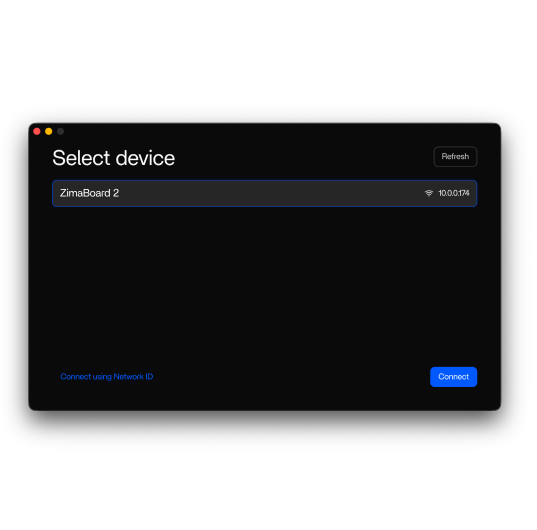
In a ZimaOS workflow, device identity is part of the remote access boundary. ZimaSpace’s ZimaOS NetworkID connection workflow explains that a NetworkID can uniquely identify and connect to a Zima device, and it also warns that if the NetworkID is leaked, shared folders may be exposed.
That warning matters because remote access is not only about network ports. It is also about connection identifiers, shared access paths, and whether leaked access can be invalidated.
Product Scenario If Natural: Private Cloud Access on a Home NAS
For a private cloud or storage-heavy home NAS setup, a device such as ZimaCube 2 AI NAS can fit into a broader remote access workflow where the user keeps files local, accesses services remotely through a controlled path, and avoids unnecessary public router exposure.
The product does not replace access control. It simply gives the private cloud data a home; the remote access method still needs trusted identity, limited scope, and verification from outside the LAN.
Same Safety Checks Still Apply After Setup
After using any brand workflow, still repeat the same checks:
-
Which users can connect?
-
Which service or folder is reachable?
-
Is authentication required before access?
-
Can the identifier, token, or device be revoked?
-
Does the setup work from a non-LAN network?
-
Are private admin surfaces still hidden?
If a NetworkID, invite, token, domain route, or device approval leaks, treat it as an access boundary incident. Revoke or reset the exposed item, confirm existing shares are invalidated, and test again from outside the LAN.
FAQ
Can I access my private cloud remotely without port forwarding?
Yes. You can use a mesh VPN, application tunnel, or controlled gateway to avoid opening router ports directly. The best option depends on whether you need private device access, browser-based access, or advanced gateway control.
Is a mesh VPN safer than opening router ports?
For personal access from trusted devices, a mesh VPN is often safer because your service is not directly published on the public internet. It still requires account security, device approval, and cleanup of old clients.
When should I use Cloudflare Tunnel instead of Tailscale?
Use a tunnel when you want browser-based access through a domain name, especially for one web app or family-facing service. Use Tailscale-style mesh VPN access when trusted devices can install a client and you want private access to more than one internal service.
Do I need a domain name for remote private cloud access?
You usually need a domain for public web tunnel setups. You usually do not need one for mesh VPN access because devices connect through private network addresses or device names.
Does no open router port mean my private cloud is invisible?
Not always. A public tunnel URL, shared link, approved device, or leaked ID can still create a reachable path. No port forwarding reduces one exposure method, but it does not remove the need for authentication and revocation.
How do I know whether my ISP uses CGNAT?
One sign is that your router’s WAN IP does not match the public IP shown by external IP-checking sites. Another sign is that inbound port forwarding never works even when router rules look correct. If you avoid port forwarding entirely with a mesh VPN or outbound tunnel, CGNAT becomes less of a blocker.
What should I do if a device ID, invite link, or access token leaks?
Treat it as a security incident. Revoke the device, reset the identifier, rotate the token, remove the shared link, or disable the affected route. Then test from a non-LAN network to confirm the old access no longer works.

Recommended products

Support & Tips
More to Read
NAS Share Shows Old Files After Storage Replacement: Checks and Fixes
Compare local storage with the active share and a clean client. Repair only the layer proven stale, then verify the result survives reconnect and...
Mini PC Cooling Maintenance Guide for Fans, Vents, and Thermal Baselines
Use repeatable idle and load readings. Clean external airflow first, confirm fan behavior, and open the chassis only when evidence survives a controlled retest.
Home Server Firmware Update Checklist for BIOS, Boot Order, and Devices
Capture versions, UEFI entries, storage and passthrough state first. Update one layer at a time and keep console plus rollback access until validation passes.


