
Why Is Your Media Server Slow? How to Find the Storage, Network, or CPU Bottleneck


A slow media server is not automatically a CPU problem. Start by checking whether the session is using Direct Play, Direct Stream, or Transcoding because each mode activates a different part of the playback path.
The practical path runs from the source file to storage, server processing, network delivery, and client decoding. A bottleneck appears when one active stage has less available headroom than the current session requires.
What a Media Server Bottleneck Actually Means
A media server bottleneck is the stage that cannot keep up with the current playback demand. That stage may be storage, network, CPU, GPU, the client device, or a combination of background tasks.
The same server can behave differently with two files. A compatible file may play directly with very little server processing, while another file may trigger video conversion, audio conversion, subtitle rendering, or resolution scaling.
That is why upgrading one component before identifying the active playback path often produces little improvement. The visible symptom may be buffering, but the underlying cause could be an incompatible client, a remote upload limit, a busy storage pool, or a software transcode.
Start With the Playback Mode
Before checking CPU or replacing a hard drive, inspect the current session in the media-server dashboard. The most important distinction is whether the server is passing the original file through or converting it for the client.
The basic Direct Play, Direct Stream, and Transcoding definitions describe three different levels of server involvement.
- Direct Play: the client supports the file and the server sends it with almost no processing.
- Direct Stream: the video and audio can remain unchanged, but the container is repackaged.
- Transcoding: the server converts incompatible video, audio, subtitles, or resolution settings.
The Direct Play versus hardware transcoding trade-off becomes more important when the same file behaves differently across clients.
When Storage Is the Bottleneck
Storage becomes a stronger suspect when playback slows during multiple streams, library scanning, thumbnail generation, backups, or other tasks that compete for disk access.
The media file and the transcode directory are separate parts of the path. A fast source drive does not guarantee fast transcoding if temporary segments are being written to a slow or heavily contended location.
Watch disk activity, latency, and queue behavior while reproducing the problem. A sequential throughput test can be useful, but it does not show how the storage pool behaves when several users, containers, and background jobs access it at the same time.
Background services can add disk contention, so the NAS app performance impact is worth checking before changing hardware.
When the Network Is the Bottleneck
Network problems depend on the complete route between the server and the client. A fast network port on the server does not help if the client is connected over weak Wi-Fi, a limited interface, or a congested path.
For local playback, compare a wired client with the same client over Wi-Fi. For remote playback, measure the server’s real upload speed because the server must send the stream outward before the remote client can receive it.
Average video bitrate is not always enough for planning. Variable-bitrate video can produce short peaks that are several times higher than the average, and different clients may need different buffer headroom. The documented real-world upload and bitrate limits explain why average bitrate alone can be misleading.
If a faster network link still feels slow, the 10GbE NAS bottleneck path helps separate the network link from the storage, client, and protocol layers behind it.
When CPU or Hardware Transcoding Is the Bottleneck
Software transcoding can consume substantial CPU capacity, especially when the server must change resolution, decode one format, encode another, or process several streams at once.
Hardware acceleration can move some work to an integrated or discrete GPU, but it does not guarantee that every stage is accelerated. Decoding, scaling, HDR tone mapping, subtitle burn-in, and encoding may use different paths.
Review the server dashboard and logs to confirm that hardware acceleration is actually active. The documented hardware acceleration stages show why partial acceleration can still leave the CPU heavily loaded.
Check for driver problems, container permissions, unsupported formats, HDR conversion, and subtitle rendering before assuming the processor itself is too weak. A newer CPU may help, but only after the active software path has been verified.
The Client Can Create a Server Bottleneck
A client device can turn a Direct Play session into a Transcoding session. The trigger may be an unsupported video codec, audio format, container, subtitle type, resolution, or bitrate.
This is why the same file may play smoothly on one television, streaming box, browser, or phone but buffer on another. In that situation, the server may appear to be the problem because it is performing work that the client cannot handle locally.
Test the same file on a second client and compare the playback mode. If only one device fails, inspect its network connection, application settings, supported formats, audio path, and subtitle behavior before upgrading the server.
A Practical Isolation Sequence
The most reliable diagnosis changes one variable at a time. Keep the file, server, and playback position consistent while testing the client, connection, subtitles, and transcoding mode.
- Record the file resolution, codec, audio format, subtitle format, and approximate bitrate.
- Check whether the session is Direct Play, Direct Stream, or Transcoding.
- Replay the same file with subtitles disabled.
- Test a second client device or application.
- Compare wired playback with Wi-Fi playback.
- Monitor CPU, GPU, disk activity, latency, and network throughput during the failure.
- Repeat the test with one additional stream or background task to expose shared-resource limits.
| Playback symptom | First test | Likely bottleneck | Confirming signal |
|---|---|---|---|
| Only one client or file buffers | Switch client or disable subtitles | Client compatibility or forced transcoding | The playback mode changes or the second client is smooth |
| Local wired playback works but Wi-Fi fails | Compare the two network paths | Wireless throughput, interference, or latency | Wired playback remains stable under the same file and server load |
| Direct Play is smooth but Transcoding buffers | Check CPU, GPU, and transcode storage | Software transcoding, encoder capacity, or temporary I/O | Hardware acceleration or a simpler stream restores real-time playback |
| Several users fail at once | Compare single-stream and multi-stream behavior | Shared network, storage, or compute headroom | The issue appears only after concurrency increases |
Only after these tests identify the limiting stage should you compare media-server hardware requirements.
Frequently Asked Questions
When should I suspect the network before the CPU?
Suspect the network when Direct Play buffers, wired playback is smoother than Wi-Fi, remote playback fails while local playback works, or lowering the stream bitrate immediately improves playback.
What if Direct Play still buffers?
Check the client connection, storage read path, disk latency, file bitrate peaks, and background tasks. Direct Play removes most server conversion work, but it does not remove network or storage demand.
Can subtitles cause a full transcode?
Yes. An incompatible subtitle format may need to be burned into the video, which can activate a full video-transcoding path even when the original audio and video are compatible.
Does an SSD always fix transcoding?
No. An SSD can help when temporary transcode segments or metadata access are limited by disk I/O, but it will not solve unsupported codecs, insufficient CPU or GPU capacity, or an undersized network path.
How can I tell whether one client is the problem?
Play the same file from another client on the same network. If the second device uses Direct Play and remains smooth, inspect the original client’s codec support, app settings, audio path, subtitles, and network connection.
Final Takeaway
Start with the playback mode, trace the active path, and measure one layer at a time. Storage, network, CPU, GPU, and the client can all become the bottleneck, but only the stage whose available headroom falls below the current session demand should determine the next upgrade.

Recommended products


Product Comparisons
More to Read
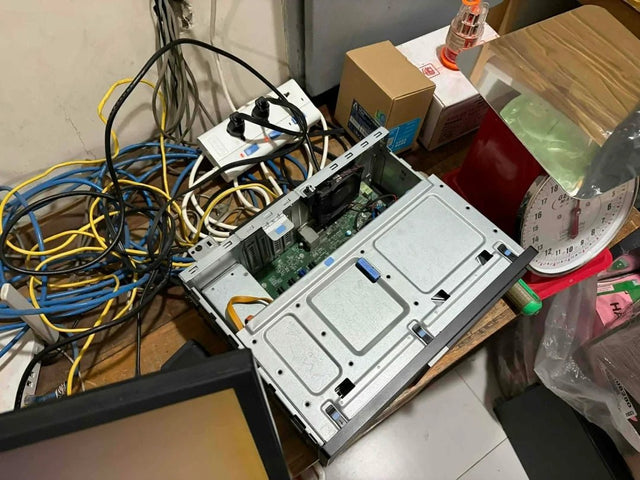
WireGuard Server vs Mesh VPN for Devices Behind CGNAT
Use mesh VPN for low-friction roaming devices; use a WireGuard relay when you want to own routing, keys, and the public endpoint.
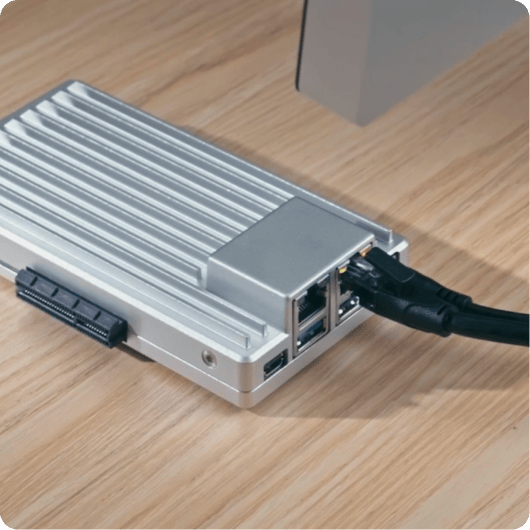
10GbE NAS on Gigabit Clients: Upgrade the Server or Endpoints First?
Upgrade the endpoint path for one slow workstation; upgrade the NAS uplink first when several gigabit clients saturate it together.
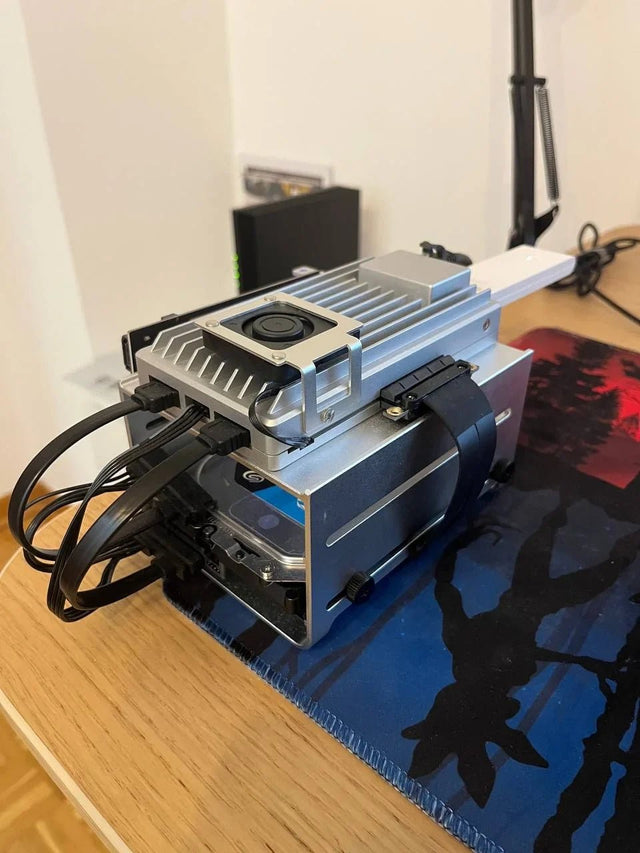
1GbE vs 2.5GbE for a Home Server: Which Workloads Cross the Line?
Keep 1GbE for light services and single streams; move to 2.5GbE when recurring transfers or combined clients sustain more than about 100 MB/s.


